Indicates if Replication Methods can be defined by you for tables in the integration.
Configurable Replication Methods are not supported for this integration. Stitch will use pre-defined replication methods for tables you set to replicate.
Unsupported
DATA SELECTION
Table selection
The ability to select individual tables for replication in the Stitch interface. If table selection is unavailable, all tables and all the columns they contain will be set to replicate by default.
This feature is supported for this version of the integration.
Supported
Column selection
The ability to select individual columns for replication in the Stitch interface. If column selection is unavailable, all columns will be set to replicate by default.
This feature is supported for this version of the integration.
Supported
Select all
Indicates if the integration supports selecting all available tables and columns.
Reports detailing the Loading phase of the replication process for a given integration. Includes the number of rows loaded for each table and error info, should an error occur.
This feature is supported for this version of the integration.
Supported
Connecting Chargify
Chargify setup requirements
To set up Chargify in Stitch, you need:
Owner or Admin access in Chargify. A user with either level of access is required to create an API key for Stitch.
Step 1: Create a Chargify API key
Information noteNote: Completing this step requires Owner or Admin access in Chargify.
Sign into your Chargify account as a user with either Owner or Admin access.
On the Stitch Dashboard page, click the Add Integration button.
Click the Chargify icon.
Enter a name for the integration. This is the name that will display on the Stitch Dashboard for the integration; it’ll also be used to create the schema in your destination.
For example, the name “Stitch Chargify” would create a schema called stitch_chargify in the destination. Note: Schema names cannot be changed after you save the integration.
In the API Key field, paste the API key you created in Step 1.
In the Subdomain field, enter your Chargify subdomain. For example: If the full URL of your Chargify site were https://stitch.my-chargify-site.com, this value would be stitch.
Step 3: Define the historical replication start date
The Sync Historical Data setting defines the starting date for your Chargify integration.
This means that data equal to or newer than this date will be replicated to your data warehouse.
Change this setting if you want to replicate data beyond Chargify’s default setting of 1 year. For a detailed look at historical replication jobs, check out the Syncing Historical SaaS Data guide.
Step 4: Create a replication schedule
Information note
Replication schedules affect the time Extraction begins, not the time to data loaded. Refer to the Replication Scheduling documentation for more information.
In the Replication Frequency section, you’ll create the integration’s replication schedule. An integration’s replication schedule determines how often Stitch runs a replication job, and the time that job begins.
Chargify integrations support the following replication scheduling methods:
Note: If a replication job is currently in progress, new selections won’t be used until the next job starts.
For Chargify integrations, you can select:
Individual tables and columns
All tables and columns
Click the tabs to view instructions for each selection method.
In the integration’s Tables to Replicate tab, locate a table you want to replicate.
To track a table, click the checkbox next to the table’s name. A blue checkmark means the table is set to replicate.
To track a column, click the checkbox next to the column’s name. A blue checkmark means the column is set to replicate.
Repeat this process for all the tables and columns you want to replicate.
When finished, click the Finalize Your Selections button at the bottom of the screen to save your selections.
Information noteImportant:
Using the Select All feature will overwrite any previous selections. However, selections aren’t final until Finalize Your Selections is clicked. Clicking Cancel will restore your previous selections.
Refer to the Select All guide for more info about this feature.
Click into the integration from the Stitch Dashboard page.
Click the Tables to Replicate tab.
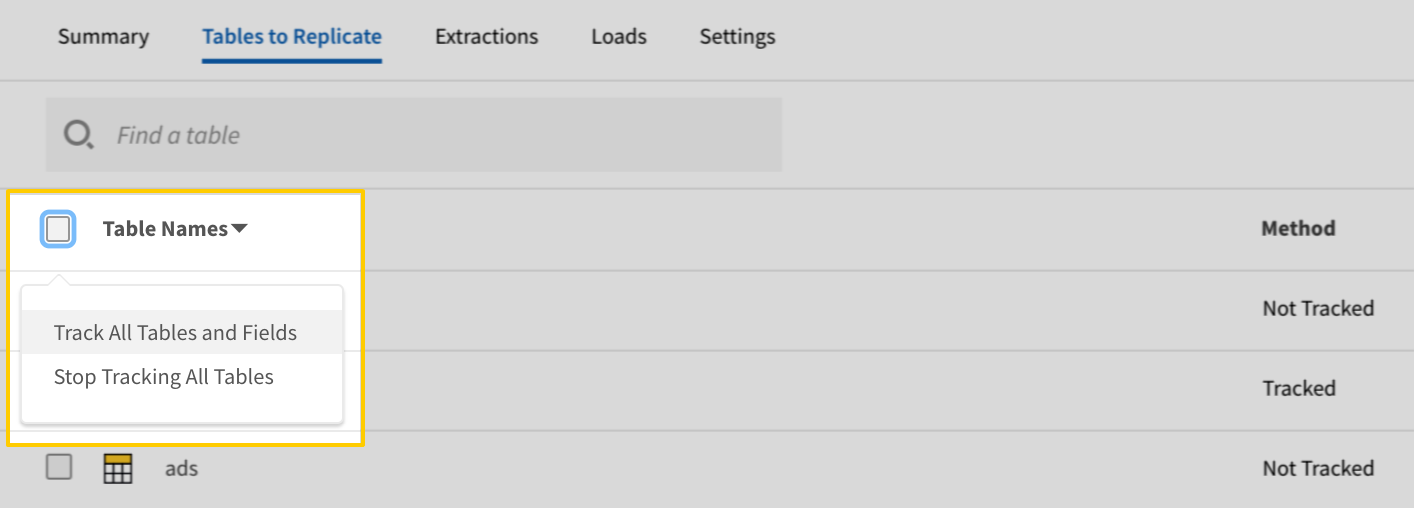
In the list of tables, click the box next to the Table Names column.
In the menu that displays, click Track all Tables and Fields:
The Track all Tables and Fields menu in the Tables to Replicate tab
Click the Finalize Your Selections button at the bottom of the page to save your data selections.
Initial and historical replication jobs
After you finish setting up Chargify, its Sync Status may show as Pending on either the Stitch Dashboard or in the Integration Details page.
For a new integration, a Pending status indicates that Stitch is in the process of scheduling the initial replication job for the integration. This may take some time to complete.
Information note
Initial replication jobs with Anchor Scheduling
If using Anchor Scheduling, an initial replication job may not kick off immediately. This depends on the selected Replication Frequency and Anchor Time. Refer to the Anchor Scheduling documentation for more information.
Free historical data loads
The first seven days of replication, beginning when data is first replicated, are free. Rows replicated from the new integration during this time won’t count towards your quota. Stitch offers this as a way of testing new integrations, measuring usage, and ensuring historical data volumes don’t quickly consume your quota.
Information noteReplication will continue after the seven days are over. If you’re no longer interested in this source, be sure to pause or delete the integration to prevent unwanted usage.
Chargify table reference
Information note
Schemas and versioning
Schemas and naming conventions can change from version to version, so we recommend verifying your integration’s version before continuing.
The schema and info displayed below is for version 1 of this integration.
This is the latest version of the Chargify integration.
Information note
Table and column names in your destination
Depending on your destination, table and column names may not appear as they are outlined below.
For example: Object names are lowercased in Redshift (CusTomERs > customers), while case is maintained in PostgreSQL destinations (CusTomERs > CusTomERs). Refer to the Loading Guide for your destination for more info.
components
The components table contains info about components associated with a product family in Chargify.
This is a nested data structure. If your destination doesn't natively support nested data, attributes will be denested into a subtable. <a href='/en-US/stitch/replication/loading/understanding-loading-row-usage-for-nested-data-structures' target='new'>Learn more</a>.
component_id
INTEGER
ending_quantity
INTEGER
formatted_unit_price
STRING
id
INTEGER
price_point_id
INTEGER
starting_quantity
INTEGER
unit_price
STRING
pricing_scheme
STRING
product_family_id
INTEGER
product_family_name
STRING
recurring
BOOLEAN
tax_code
STRING
taxable
BOOLEAN
unit_name
STRING
unit_price
STRING
upgrade_charge
STRING
coupons
The coupons table contains info about coupons associated with a product family in Chargify.
This is a nested data structure. If your destination doesn't natively support nested data, attributes will be denested into a subtable. <a href='/en-US/stitch/replication/loading/understanding-loading-row-usage-for-nested-data-structures' target='new'>Learn more</a>.
handle
STRING
id
INTEGER
item_id
INTEGER
item_type
STRING
name
STRING
created_at
DATE-TIME
description
STRING
duration_interval
INTEGER
duration_interval_unit
STRING
duration_period_count
NUMBER
end_date
DATE-TIME
id
INTEGER
name
STRING
percentage
NUMBER
product_family_id
INTEGER
recurring
BOOLEAN
stackable
BOOLEAN
start_date
DATE-TIME
updated_at
DATE-TIME
customers
The customers table contains info about customers associated with your Chargify site.
This is a nested data structure. If your destination doesn't natively support nested data, attributes in this object will be flattened into the table. <a href='/en-US/stitch/replication/loading/understanding-loading-row-usage-for-nested-data-structures' target='new'>Learn more</a>.
account_transaction_id
INTEGER
current_step
OBJECT
This is a nested data structure. If your destination doesn't natively support nested data, attributes in this object will be flattened into the table. <a href='/en-US/stitch/replication/loading/understanding-loading-row-usage-for-nested-data-structures' target='new'>Learn more</a>.
action
STRING
day_threshold
INTEGER
email_body
STRING
email_subject
STRING
send_bcc_email
BOOLEAN
send_email
BOOLEAN
send_sms
BOOLEAN
sms_body
STRING
dunner
OBJECT
This is a nested data structure. If your destination doesn't natively support nested data, attributes in this object will be flattened into the table. <a href='/en-US/stitch/replication/loading/understanding-loading-row-usage-for-nested-data-structures' target='new'>Learn more</a>.
attempts
INTEGER
created_at
STRING
last_attempted_at
STRING
revenue_at_risk_in_cents
INTEGER
state
STRING
subscription_id
INTEGER
new_product_id
INTEGER
new_subscription_state
STRING
next_step
OBJECT
This is a nested data structure. If your destination doesn't natively support nested data, attributes in this object will be flattened into the table. <a href='/en-US/stitch/replication/loading/understanding-loading-row-usage-for-nested-data-structures' target='new'>Learn more</a>.
action
STRING
day_threshold
INTEGER
email_body
STRING
email_subject
STRING
send_bcc_email
BOOLEAN
send_email
BOOLEAN
send_sms
BOOLEAN
sms_body
STRING
previous_product_id
INTEGER
previous_subscription_state
STRING
product_id
INTEGER
id
INTEGER
key
STRING
message
STRING
subscription_id
INTEGER
invoices
The invoices table contains info about invoices in your Chargify instance.
This is a nested data structure. If your destination doesn't natively support nested data, attributes will be denested into a subtable. <a href='/en-US/stitch/replication/loading/understanding-loading-row-usage-for-nested-data-structures' target='new'>Learn more</a>.
amount_in_cents
INTEGER
component_id
INTEGER
created_at
DATE-TIME
customer_id
INTEGER
ending_balance_in_cents
INTEGER
gateway_order_id
STRING
gateway_transaction_id
STRING
id
INTEGER
kind
STRING
memo
STRING
payment_id
INTEGER
product_id
INTEGER
starting_balance_in_cents
INTEGER
subscription_id
INTEGER
success
BOOLEAN
tax_id
INTEGER
transaction_type
STRING
type
STRING
created_at
DATE-TIME
id
INTEGER
number
STRING
paid_at
DATE-TIME
payments_and_credits
ARRAY
This is a nested data structure. If your destination doesn't natively support nested data, attributes will be denested into a subtable. <a href='/en-US/stitch/replication/loading/understanding-loading-row-usage-for-nested-data-structures' target='new'>Learn more</a>.
amount_in_cents
INTEGER
card_expiration
STRING
card_number
STRING
card_type
STRING
component_id
INTEGER
created_at
DATE-TIME
customer_id
INTEGER
ending_balance_in_cents
INTEGER
gateway_order_id
STRING
gateway_transaction_id
STRING
id
INTEGER
kind
STRING
memo
STRING
payment_id
INTEGER
product_id
INTEGER
starting_balance_in_cents
INTEGER
subscription_id
INTEGER
success
BOOLEAN
tax_id
INTEGER
transaction_type
STRING
type
STRING
site_id
INTEGER
state
STRING
statement_id
INTEGER
subscription_id
INTEGER
total_amount_in_cents
INTEGER
updated_at
DATE-TIME
price_points
The price_points table contains info about product price points in your Chargify instance.
This is a nested data structure. If your destination doesn't natively support nested data, attributes will be denested into a subtable. <a href='/en-US/stitch/replication/loading/understanding-loading-row-usage-for-nested-data-structures' target='new'>Learn more</a>.
component_id
INTEGER
ending_quantity
INTEGER
id
INTEGER
starting_quantity
INTEGER
unit_price
STRING
pricing_scheme
STRING
updated_at
DATE-TIME
product_families
The product_families table contains info about product families in your Chargify instance. Product families house your products, components, and coupons and are used to categorize products, product levels, or service offerings to your subscribers.
This is a nested data structure. If your destination doesn't natively support nested data, attributes in this object will be flattened into the table. <a href='/en-US/stitch/replication/loading/understanding-loading-row-usage-for-nested-data-structures' target='new'>Learn more</a>.
accounting_code
STRING
description
STRING
handle
STRING
id
INTEGER
name
STRING
public_signup_pages
ARRAY
This is a nested data structure. If your destination doesn't natively support nested data, attributes will be denested into a subtable. <a href='/en-US/stitch/replication/loading/understanding-loading-row-usage-for-nested-data-structures' target='new'>Learn more</a>.
id
INTEGER
return_params
STRING
return_url
STRING
url
STRING
request_credit_card
BOOLEAN
require_credit_card
BOOLEAN
return_params
STRING
tax_code
STRING
taxable
BOOLEAN
trial_interval
INTEGER
trial_interval_unit
STRING
trial_price_in_cents
INTEGER
update_return_params
STRING
update_return_url
STRING
updated_at
DATE-TIME
version_number
INTEGER
statements
The statements table contains info about the statements in your Chargify instance. Statements show all account activity for a specific usage period and are similar to invoices, as they can be marked as currently paid or unpaid.
This is a nested data structure. If your destination doesn't natively support nested data, attributes will be denested into a subtable. <a href='/en-US/stitch/replication/loading/understanding-loading-row-usage-for-nested-data-structures' target='new'>Learn more</a>.
event
OBJECT
This is a nested data structure. If your destination doesn't natively support nested data, attributes in this object will be flattened into the table. <a href='/en-US/stitch/replication/loading/understanding-loading-row-usage-for-nested-data-structures' target='new'>Learn more</a>.
created_at
DATE-TIME
event_specific_data
OBJECT
This is a nested data structure. If your destination doesn't natively support nested data, attributes in this object will be flattened into the table. <a href='/en-US/stitch/replication/loading/understanding-loading-row-usage-for-nested-data-structures' target='new'>Learn more</a>.
account_transaction_id
INTEGER
current_step
OBJECT
This is a nested data structure. If your destination doesn't natively support nested data, attributes in this object will be flattened into the table. <a href='/en-US/stitch/replication/loading/understanding-loading-row-usage-for-nested-data-structures' target='new'>Learn more</a>.
action
STRING
day_threshold
INTEGER
email_body
STRING
email_subject
STRING
send_bcc_email
BOOLEAN
send_email
BOOLEAN
send_sms
BOOLEAN
sms_body
STRING
dunner
OBJECT
This is a nested data structure. If your destination doesn't natively support nested data, attributes in this object will be flattened into the table. <a href='/en-US/stitch/replication/loading/understanding-loading-row-usage-for-nested-data-structures' target='new'>Learn more</a>.
attempts
INTEGER
created_at
STRING
last_attempted_at
STRING
revenue_at_risk_in_cents
INTEGER
state
STRING
subscription_id
INTEGER
new_product_id
INTEGER
new_subscription_state
STRING
next_step
OBJECT
This is a nested data structure. If your destination doesn't natively support nested data, attributes in this object will be flattened into the table. <a href='/en-US/stitch/replication/loading/understanding-loading-row-usage-for-nested-data-structures' target='new'>Learn more</a>.
action
STRING
day_threshold
INTEGER
email_body
STRING
email_subject
STRING
send_bcc_email
BOOLEAN
send_email
BOOLEAN
send_sms
BOOLEAN
sms_body
STRING
previous_product_id
INTEGER
previous_subscription_state
STRING
product_id
INTEGER
id
INTEGER
key
STRING
message
STRING
subscription_id
INTEGER
future_payments
ARRAY
This is a nested data structure. If your destination doesn't natively support nested data, attributes will be denested into a subtable. <a href='/en-US/stitch/replication/loading/understanding-loading-row-usage-for-nested-data-structures' target='new'>Learn more</a>.
id
INTEGER
html_view
STRING
id
INTEGER
memo
STRING
opened_at
DATE-TIME
settled_at
DATE-TIME
starting_balance_in_cents
INTEGER
subscription_id
INTEGER
text_view
STRING
total_in_cents
INTEGER
transactions
ARRAY
This is a nested data structure. If your destination doesn't natively support nested data, attributes will be denested into a subtable. <a href='/en-US/stitch/replication/loading/understanding-loading-row-usage-for-nested-data-structures' target='new'>Learn more</a>.
amount_in_cents
INTEGER
component_id
INTEGER
created_at
DATE-TIME
customer_id
INTEGER
discount_amount_in_cents
INTEGER
ending_balance_in_cents
INTEGER
gateway_order_id
STRING
gateway_transaction_id
STRING
gateway_used
STRING
id
INTEGER
item_name
STRING
kind
STRING
memo
STRING
original_amount_in_cents
INTEGER
payment_id
INTEGER
product_id
INTEGER
starting_balance_in_cents
INTEGER
statement_id
INTEGER
subscription_id
INTEGER
success
BOOLEAN
tax_id
INTEGER
taxable_amount_in_cents
INTEGER
taxations
ARRAY
This is a nested data structure. If your destination doesn't natively support nested data, attributes will be denested into a subtable. <a href='/en-US/stitch/replication/loading/understanding-loading-row-usage-for-nested-data-structures' target='new'>Learn more</a>.
id
INTEGER
transaction_type
STRING
type
STRING
updated_at
DATE-TIME
subscriptions
The subscriptions table contains info about the subscriptions in your Chargify instance.
This is a nested data structure. If your destination doesn't natively support nested data, attributes in this object will be flattened into the table. <a href='/en-US/stitch/replication/loading/understanding-loading-row-usage-for-nested-data-structures' target='new'>Learn more</a>.
billing_address
STRING
billing_address_2
STRING
billing_city
STRING
billing_country
STRING
billing_state
STRING
billing_zip
STRING
card_type
STRING
current_vault
STRING
customer_id
INTEGER
customer_vault_token
STRING
expiration_month
NUMBER
expiration_year
NUMBER
first_name
STRING
id
INTEGER
last_name
STRING
masked_card_number
STRING
payment_type
STRING
vault_token
STRING
current_period_ends_at
DATE-TIME
current_period_started_at
DATE-TIME
customer
OBJECT
This is a nested data structure. If your destination doesn't natively support nested data, attributes in this object will be flattened into the table. <a href='/en-US/stitch/replication/loading/understanding-loading-row-usage-for-nested-data-structures' target='new'>Learn more</a>.
address
STRING
address_2
STRING
cc_emails
STRING
city
STRING
country
STRING
created_at
DATE-TIME
email
STRING
first_name
STRING
id
INTEGER
last_name
STRING
organization
STRING
phone
STRING
portal_customer_created_at
DATE-TIME
portal_invite_last_accepted_at
DATE-TIME
portal_invite_last_sent_at
DATE-TIME
reference
STRING
state
STRING
tax_exempt
BOOLEAN
updated_at
DATE-TIME
vat_number
STRING
verified
BOOLEAN
zip
STRING
delayed_cancel_at
DATE-TIME
expires_at
DATE-TIME
id
INTEGER
net_terms
INTEGER
next_assessment_at
DATE-TIME
next_product_id
INTEGER
payment_collection_method
STRING
payment_type
STRING
previous_state
STRING
product
OBJECT
This is a nested data structure. If your destination doesn't natively support nested data, attributes in this object will be flattened into the table. <a href='/en-US/stitch/replication/loading/understanding-loading-row-usage-for-nested-data-structures' target='new'>Learn more</a>.
accounting_code
STRING
archived_at
DATE-TIME
created_at
DATE-TIME
description
STRING
expiration_interval
INTEGER
expiration_interval_unit
STRING
handle
STRING
id
INTEGER
initial_charge_after_trial
BOOLEAN
initial_charge_in_cents
INTEGER
interval
INTEGER
interval_unit
STRING
name
STRING
price_in_cents
INTEGER
product_family
OBJECT
This is a nested data structure. If your destination doesn't natively support nested data, attributes in this object will be flattened into the table. <a href='/en-US/stitch/replication/loading/understanding-loading-row-usage-for-nested-data-structures' target='new'>Learn more</a>.
accounting_code
STRING
description
STRING
handle
STRING
id
INTEGER
name
STRING
public_signup_pages
ARRAY
This is a nested data structure. If your destination doesn't natively support nested data, attributes will be denested into a subtable. <a href='/en-US/stitch/replication/loading/understanding-loading-row-usage-for-nested-data-structures' target='new'>Learn more</a>.
id
INTEGER
url
STRING
request_credit_card
BOOLEAN
require_credit_card
BOOLEAN
return_params
STRING
taxable
BOOLEAN
trial_interval
INTEGER
trial_interval_unit
STRING
trial_price_in_cents
INTEGER
update_return_params
STRING
update_return_url
STRING
updated_at
DATE-TIME
version_number
NUMBER
product_price_in_cents
INTEGER
product_version_number
INTEGER
reason_code
STRING
receives_invoice_emails
BOOLEAN
referral_code
STRING
signup_payment_id
NUMBER
signup_revenue
STRING
snap_day
STRING
state
STRING
stored_credential_transaction_id
INTEGER
total_revenue_in_cents
INTEGER
trial_ended_at
DATE-TIME
trial_started_at
DATE-TIME
updated_at
DATE-TIME
transactions
The transactions table contains info about the transactions for your Chargify site.