
Working with Discovery Agent insight triggers
As an application developer, you create insight triggers to define the metrics used to calculate insights. Insight triggers are created in sheets. When application data changes, insight triggers are evaluated and any discovered insights are presented in feeds for other users to analyze.
Insight triggers are available with the Discovery Agent.
Insight triggers in sheet view in an application
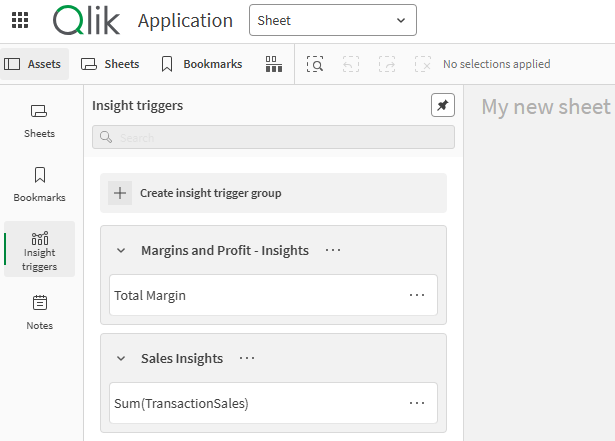
What is an insight trigger?
At a high level, an insight trigger defines a metric that is used to generate trend-based insights. This metric could be, for example, sales, cost of sale, or rate of customer churn. The metric is defined in the data of the analytics application.
You create insight triggers in analytics applications when editing or analyzing sheets. Insight triggers are stored inside an application and populate feeds with insights when certain trends are detected.
The next sections outline the various parts that make up an insight trigger.
Time series
In the context of Discovery Agent, the time series, or Time dimension, is a field in your application that tracks how the measure changes over time.
Here are some requirements for the time series:
-
Must contain data that is organized by date or time stamp values. For example: 2026-01-29 or 2026-01-29 13:24:59.
-
Must contain valid dates or time stamps.
-
Some data points can be missing. However, insight calculation fails if too many data points are missing.
-
Future dates and time stamps are allowed. However, they will not be used in insight calculation.
-
There are different data volume requirements for different insight types and time-based aggregations. See Data volume requirements — insight triggers.
Measure
The measure is the metric that determines insights. This can be a master measure in the application, or an aggregation you specify based on a field in the application. Common examples are Sum(Sales), Sum(Margin), and Sum(Cost).
Breakdown dimensions
Optionally, you can choose to calculate insights individually for up to 50 values of a dimension. For example, you might create an insight trigger to calculate sales insights for unique products. Alternatively, you can choose specific values to be used in insights, or only include a top or bottom number of values based on their corresponding metrics.
Breakdown dimensions are additional calculations to be performed. If you add a breakdown dimension, the same calculations on the data as a whole—in other words, all categories—will still be performed, in addition to the calculations for the breakdown dimension values.
The following options are available:
-
Values: Manually select the values to use.
-
Search: Include values based on text matching patterns.
-
Condition: Include values based on whether their corresponding metrics meet certain conditions.
-
Top/bottom: Include only a set of values with the highest or lowest corresponding metrics.
Follow these guidelines to add filters to a breakdown dimension:
-
Click
 to add a filter, and select a field.
 -
After adding a field, click it to select the values to use. To calculate insights individually for the first 50 values in the dimension, do not select any values.
-
Click
 to remove filters.
Time periods
When you create an insight trigger, you specify the time periods on which the measure values are aggregated and used for insights. For example, monthly insights will aggregate the measure on a monthly basis.
Similar to future dates and time stamps for the Time dimension, current and future time periods are not considered when aggregated insights are calculated. For example, if the current month is February and monthly insights are configured, any insights related to February will not be calculated until February has ended.
Insight types
You can choose between different types of insight calculations. If you do not specify any insight types, the insight trigger calculates insights for all insight types.
Each insight type results in a different calculation to help you identify time-based trends and anomalies.
Insight types are also available to be filtered in users' feeds as they analyze the resulting insights. In feeds, insight types are called analysis types. Discovery Agent insight and analysis types are similar to, but not to be confused with, analysis types in Insight Advisor.
| Insight type | Definition |
|---|---|
| Above model | Compares current metrics to forecasts made by predictive models. Insights are generated when metrics are larger compared to the predictions. |
| Below model | Compares current metrics to forecasts made by predictive models. Insights are generated when metrics are smaller compared to the predictions. |
| New baseline | Identifies shifts in the baseline values—for example, averages—for the time series. If the baseline of the metric changes significantly, insights are generated. |
| Record high | Detects whether the most recent observations are a new record high for the metric, compared to the historical data. |
| Record low | Detects whether the most recent observations are a new record low for the metric, compared to the historical data. |
| Spikes down | Detects temporary spikes with metrics significantly below the historical data patterns. |
| Spikes up | Detects temporary spikes with metrics significantly above the historical data patterns. |
| Trend changes | Identifies points where the trend of the time series shows a significant change—for example, changing from a slow downward trend to a strong upward trend. |
When are insights generated?
Each time the data in an application changes, up to once per day, all insight triggers are evaluated to determine the insights to generate.
For example, insight triggers are evaluated up to once per day when:
-
The application is reloaded and data has changed since the last reload.
You can ensure insight triggers are evaluated on a regular basis by scheduling reloads of your application. For more information, see Refreshing analytics data.
Insights are only generated when the evaluation of an insight trigger results in a discovery. In other words, insights are only generated and shown when something of interest—a changing trend, a significant anomaly, or a forecast deviation—is found.
Differences in insights between data updates
There is a difference between how insight triggers are evaluated when you first update the data, in comparison to later data updates.
First data update
When you create an insight trigger and the data updates the first time, insights are calculated on data going back seven data points. For example, for monthly insights, insights are calculated for the past seven months.
Data from farther back than seven data points may be analyzed during evaluation—for example, for a daily time period, 365 days' worth of data may be analyzed for historical trends. However, anomaly-based insights are only generated for the past seven data points.
Later data updates
For subsequent data updates and evaluations, insights are only calculated for new data points that were added since the latest update.
For example, suppose:
-
Your insight trigger uses a daily time period.
-
You update the data on January 31 with dates no later than that date.
-
You update the data again on February 1 with data covering that date.
In this example, insights are calculated by comparing February 1 data to the previous data points from the earlier update.
Insight triggers and time periods
Current and future time periods are not considered during insight evaluation:
-
Only the first data update of the day triggers insight evaluation. Insights can be only be calculated up to once per day, because current and future dates are not considered in calculations anyway.
-
Aggregated insights—that is, weekly, monthly, quarterly, or yearly—are calculated in the same way. For example, if the current month is February and monthly insights are configured, any insights related to February will not be calculated until February has ended.
How are insights calculated?
Insights are calculated in different ways according to the insight type. Various machine learning algorithms in the artificial intelligence space are utilized to detect and calculate insights. Large language models (LLMs) are used to present and format insight texts.
Scenarios for moving, publishing, and duplication
This section outlines the expected behavior for insight triggers when applications are moved, published, deleted, and duplicated.
Publishing
When you publish an application to a managed space, insight triggers must be created again.
Moving
When you move an application between spaces, insight triggers are preserved.
Duplication
Duplication happens in any of the following cases:
-
You duplicate an application.
-
You export an application and then import it back into Qlik Cloud.
In these duplication scenarios, insight triggers must be created again.
Limitations and capacities
For limitations and capacities related to insight triggers, see Discovery Agent capacities and limitations.