
Adding sparklines
A sparkline is a simple visualization, usually styled in the form of a line, that is helpful for analyzing trends for a single metric. You can add sparklines to your PixelPerfect report using the Sparkline object.
A sparkline generally consists of a field (equivalent to a dimension) and a value member (equivalent to a measure).

Sparkline

Requirements
The data you use for a sparkline has to be added as a table data binding. These data bindings are added under Tables in the  Field List menu.
The source data for the sparkline should ideally contain a single dimension and a single measure. To use sparklines to visualize more complex, multi-dimensional data, it is recommended that you apply a level to the band where you add the sparkline. In this case, the level should be an additional dimension along which you want to cycle the generation of multiple filtered sparklines.
Creating sparklines
This is the recommended workflow for adding sparklines in your report.
Gehen Sie folgendermaßen vor:
-
Open the
Field List menu available from the right-side panel in the designer. -
Click the plus icon next to Tables.
-
From the available sheets, select the Qlik Sense chart you want to add as a table. Click the
 icon next to it.
The data binding is added.
-
From the toolbox panel on the left side of the designer, drag a Sparkline onto the design surface.
-
Click the gear icon that appears next to the sparkline. In the pop-up menu, for Data Member, select the table data binding you created earlier.
-
Open the
 Properties menu from the right side of the designer, and expand Data.
 -
For Value Member, select the variable metric you want to visualize (for example, sales).
Refreshing source data for data bindings
Im Lauf der Zeit kann sich die Konfiguration des Quelldiagramms ändern, sodass Sie in der PixelPerfect-Berichtsvorlage Maßnahmen ergreifen müssen. Sie können die Daten der Quell-App in den Datenbindungen aktualisieren, die Ihre Sparkline definieren. Dies ist in folgenden Situationen hilfreich:
-
Dimensionen und Kennzahlen wurden dem Quelldiagramm hinzugefügt oder daraus entfernt, seit Sie die Datenbindung erstellt haben.
-
Die Definitionen von Dimensionen und Kennzahlen wurden im Quelldiagramm geändert, seit Sie die Datenbindung erstellt haben.
Durch das Aktualisieren von Datenbindungsquellen können Sie dieselben Objekte in Ihrem Menü Feldliste beibehalten und brauchen keine neuen Objekte zu erstellen, wenn sich Diagrammkonfigurationen ändern.
Gehen Sie folgendermaßen vor:
-
Öffnen Sie das Menü
Feldliste, das Sie auf der rechten Seite des Designers finden. -
Doppelklicken Sie auf Tabellen, um sie zu erweitern.
-
Bewegen Sie den Mauszeiger über das Element, das Sie aktualisieren möchten.
-
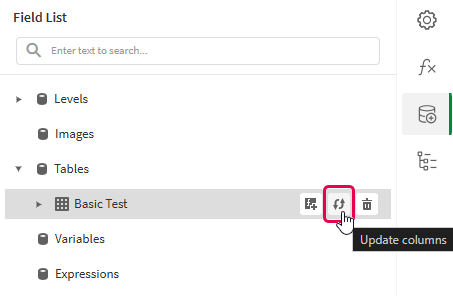
Klicken Sie auf das Symbol „Aktualisieren“ (Spalten aktualisieren).
Aktualisieren der Datenbindung einer Tabelle im Menü Feldliste
-
Fahren Sie mit der Entwicklung der Vorlage entsprechend Ihrem Anwendungsfall fort. Dazu kann gehören, dass Sie bestehende Inhalte neu konfigurieren oder neue Inhalte hinzufügen. Nach dem Aktualisieren der Datenbindung stehen die neu hinzugefügten Diagrammspalten nun im Menü
Feldliste zur Verfügung.
Example - Sparklines with a level
Sehen Sie sich die Quellen der Beispiel-App hier an: Beispielmaterialien – In-App-Berichte. Laden Sie die App und die Datendateien in einen Bereich hoch und laden Sie dann die App neu. Sie sind bereit, das Beispiel fertigzustellen.
We will create sparklines with monthly sales by region.
Part 1: Add data bindings
Gehen Sie folgendermaßen vor:
-
Create a new PixelPerfect template.
-
Open the
Field List menu available from the right-side panel in the designer.Field List menu in the PixelPerfect designer

-
Click the plus icon next to Levels.
-
Expand Fields, and click the
icon next to Region.The data binding is added.
-
You are brought back to the main
Field List menu. Click the plus icon next to Tables. -
Expand the Sales Table sheet, and click the
icon next to the Regional Sales over Time chart.The data binding is added.
Part 2: Add DetailReport band and connect it with data banding
You need to create a DetailReport band to use a level.
Gehen Sie folgendermaßen vor:
-
Right-click the Detail1 band, and then click Insert Band > DetailReport.
-
To bind the DetailReport1 band to the level, select the band and then open the
Properties menu. Under Detail Report Tasks > Data Member, select the Region level.
Part 3: Add a label and sparkline
Gehen Sie folgendermaßen vor:
-
Open the
Field List menu, and double-click Levels to expand it. -
For Region, expand the level object and drag the Region field within it onto the DetailReport1 band.
Position the label at the top of the band, centered horizontally.
-
From the toolbox panel on the left side of the designer, drag a Sparkline onto the DetailReport1 band, below the Region label.
-
Resize the sparkline so that it occupies all horizontal space on the band, and its shape is a narrow rectangle.
-
Resize the DetailReport1 band so there is a small space at the bottom of the sparkline.
Region label and empty sparkline added to template

-
Select the sparkline and then open the
Properties menu. -
Expand Appearance > View.
-
Check Highlight Max Point and Highlight Min Point.
-
For Color, expand the drop down menu. Paste the following hex code in the # field: 0d00ff. Click OK.
-
For Max Point Color, expand the drop down menu. Paste the following hex code in the # field: 0dff00. Click OK.
-
For Min Point Color, expand the drop down menu. Paste the following hex code in the # field: ff0000. Click OK.
-
In the top right corner, click Save template.
-
Click Preview report. Download the report and open it.
Report preview with sparklines
