Skip to main content Skip to complementary content

Interacting with OpenAI

About this task

This scenario will show you how to use the cLangChainChat component to interact with OpenAI.

Dropping and linking the components

Procedure

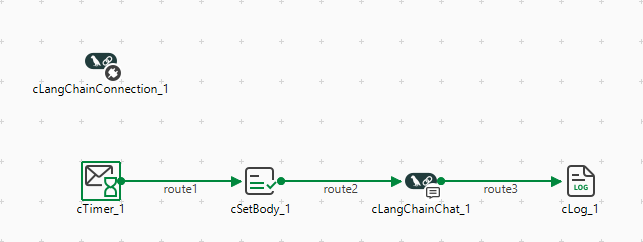
  1. From the Palette, drag and drop a cLangChainConnection, a cTimer, a cSetBody, a cLangChainChat, and a cLog component onto the design workspace.
  2. Link the components with the Row > Route connection as shown above.
Configuring the components

Procedure

  1. Double-click the cLangChainConnection component to display its Basic settings view in the Component tab.
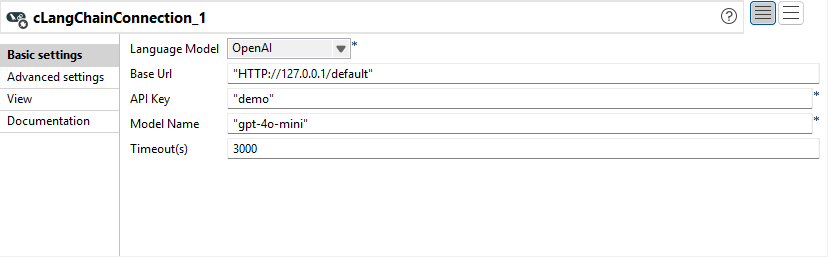
  2. From the Language Model list, select OpenAI.
    In the Base URL field, keep the default address of the API server, http://127.0.0.1/default.
    In the API Key field, enter your API Key to access OpenAI.
    In the Model Name field, enter the name of the model to be used, "gpt-4o-mini" in this use case.
    In the Timeout(s) field, enter 3000 for the component to establish a connection to the language model.
  3. Double-click the cTimer component to open its Basic settings view in the Component tab.
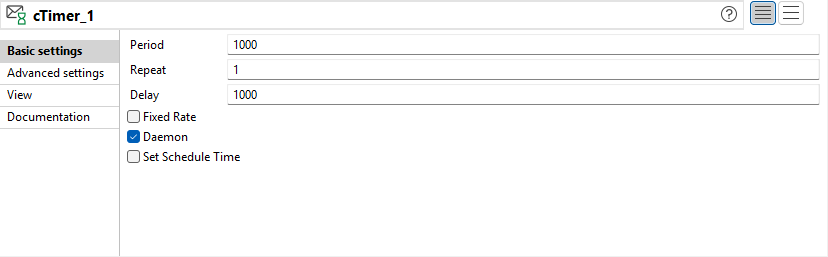
  4. In the Repeat field, enter 1 to generate a message exchange. Keep the default settings of the other options.
  5. Double-click the cSetBody component to open its Basic settings view in the Component tab.
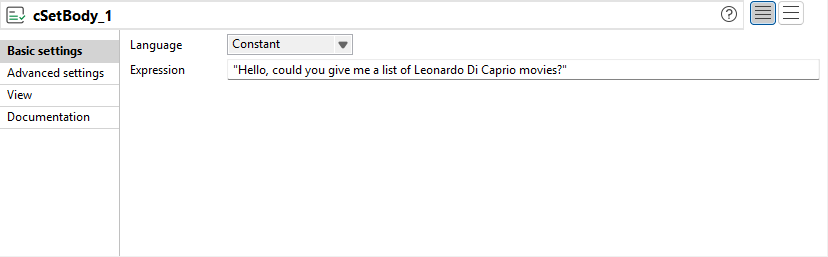
  6. Select Constant from the Language list box and type in "Hello, could you give me a list of Leonardo Di Caprio movies?" in the Expression field as the message body.
  7. Double-click the cLangChainChat component to display its Basic settings view in the Component tab.
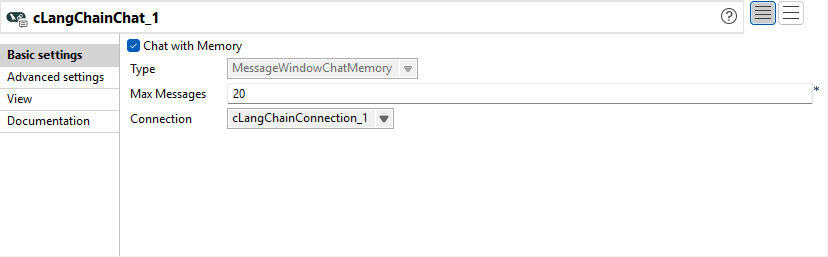
  8. The Chat with Memory check box is selected by default to retain the latest 20 messages.
    In the Connection list, select the cLangChainConnection component you just configured to connect to OpenAI.
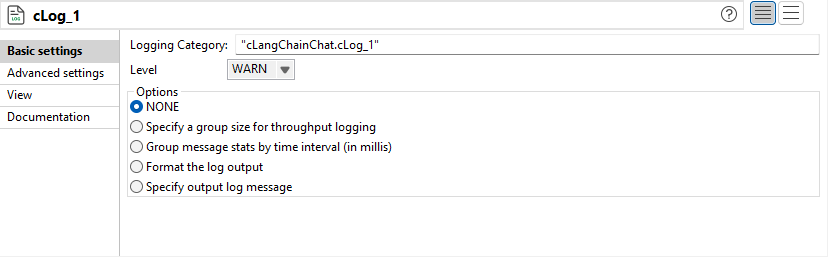
  9. Keep the default settings of the cLog component to log the message exchanges.
  10. Press Ctrl+S to save your Route.

Viewing the code and executing the Route

Procedure

  1. Click the Code tab at the bottom of the design workspace to check the generated code.
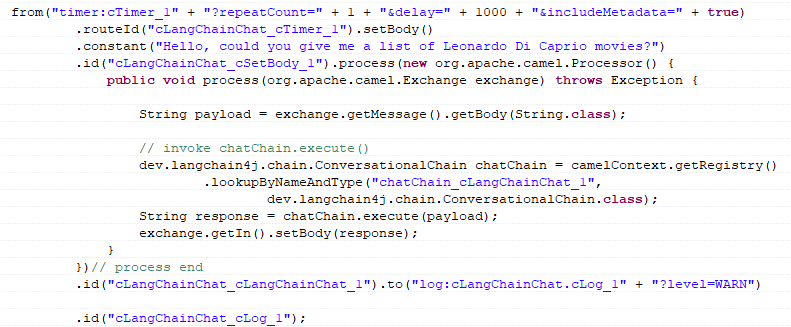
    As shown above, the message flow is routed from cTimer_1 to cLog_1.

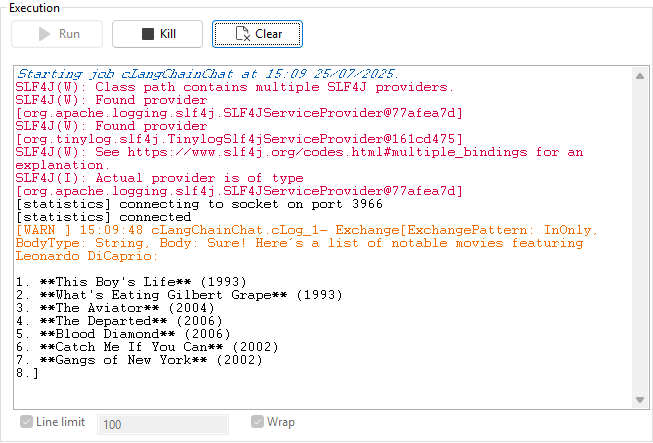
  2. Click the Run view to display it and click the Run button to launch the execution of your Route. You can also press F6 to execute it.
    The response from OpenAI is shown in the execution console.
Did this page help you?

If you find any issues with this page or its content – a typo, a missing step, or a technical error – please let us know!