
Using a level to loop over app data
You can loop and repeat the creation of report elements using data from the Qlik Sense app.
For an overview of levels, see Working with levels.

High-level workflow
This is the recommended workflow for using levels in your PixelPerfect report. It covers some of the most common and simple ways to work with levels in the designer.
Part 1: Add data bindings
First, you need to add the data binding that will be used to cycle the generation of unique report elements. For example, if you want a separate section in the report for each region, you need to add a Region field as a data binding. Data bindings are added in the  Field List menu.
This workflow assumes you already have content, in the applicable areas in the template, for which you want to create a level.
Procedere come indicato di seguito:
-
Open the
Field List menu available from the right-side panel in the designer. -
Click the plus icon next to Levels.
-
Expand the sections to find the item you want to use. You can select a field from Fields, or an entire chart from any of the sheet sections.
-
Click the
 icon next to an item to add it as a data binding.
Part 2: Connect the data binding to the band
Next, you need to connect the level data binding to a band.
You cannot bind a level to the default Detail1 band, so you will need to create a new DetailReport band for content where you plan on using a level.
Procedere come indicato di seguito:
-
Create a new DetailReport band. See Creating a new band.
-
Select the new band, if not already selected.
-
Open the
 Properties menu from the right side of the designer.
 -
Under Detail Report Tasks > Data Member, select the item to use as the level.
Refreshing source data for data bindings
È possibile aggiornare i dati dell'app di origine utilizzati per i grafici che sono stati aggiunti come associazioni dati del livello. Questo tipo di grafico è utile per:
-
Le dimensioni e le misure sono state aggiunte o rimosse dal grafico di origine dalla creazione dell'associazione dati.
-
Le definizioni di dimensioni e misure sono state modificate nel grafico di origine dalla creazione dell'associazione dati.
L'aggiornamento delle sorgenti delle associazioni dati consente di mantenere gli stessi oggetti nel menu Elenco campi, senza doverne creare di nuovi quando le configurazioni del grafico cambiano.
Procedere come indicato di seguito:
-
Aprire il menu Elenco campi
, disponibile nel pannello laterale destro dello strumento di progettazione. -
Fare doppio clic su Livelli per espandere l'opzione.
-
Posizionare il cursore sull'elemento che si desidera aggiornare.
-
Fare clic sull'icona Aggiorna (Aggiorna campi).
Aggiornamento dell'associazione dati di un livello nel menu Elenco campi
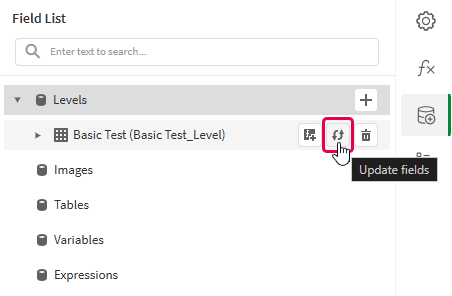
-
Continuare a sviluppare il modello in base al proprio caso d'uso. Ciò può comportare la riconfigurazione dei contenuti esistenti o l'aggiunta di nuovi contenuti. Dopo aver aggiornato l'associazione dati, le colonne del grafico appena aggiunte saranno ora disponibili per l'uso nel menu
Elenco campi.
Example - Looping chart images over a dimension
Fare riferimento alle sorgenti delle app di esempio qui: Materiali di esempio: report in app. Caricare i file di app e dati in uno spazio, quindi ricaricare l'app; quindi, è possibile completare l'esempio.
Part 1: Add data bindings
Procedere come indicato di seguito:
-
Create a new PixelPerfect template.
-
Open the
Field List in the designer.Field List menu in the PixelPerfect designer

-
Click the plus icon next to Levels.
-
Expand Fields, and click the
icon next to the Region chart.The data binding is added.
-
You are brought back to the main
Field List menu. Click the plus icon next to Images. -
Expand the Dashboard sheet, and click the
icon next to the Top 5 Customers chart.The data binding is added.
Field List menu showing newly created level and image data bindings

Part 2: Add band and content
Procedere come indicato di seguito:
-
On the design surface, right-click the Detail1 band and select Insert Band > DetailReport.
-
Open the
Field List menu, and double-click Levels to expand it. -
For Region, expand the level object and drag the Region field within it onto the DetailReport1 band.
Position the label at the top of the band.
-
In the
Field List menu, expand Images and drag Top 5 Customers onto the DetailReport1 band. Place it below the Region label.
You can customize and style the content as desired.
Part 3: Bind the level to the band
Procedere come indicato di seguito:
-
Click the DetailReport1 band.
-
Open the
Properties menu from the right side of the designer. -
Under Detail Report Tasks > Data Member, select the Region field.
Report template with content and DetailReport1 band bound to level

-
In the top right corner, click Save template.
-
Click Preview report. Download the report and open it.
Report preview
