Skip to main content Skip to complementary content

Inserting and updating records in ServiceNow

This Job connects to a ServiceNow account and inserts new records into existing ServiceNow entities.

Before you begin

  • You have access to a ServiceNow instance with valid credentials.
  • You have permissions to insert/update records in the ServiceNow table.
  • For more information about ServiceNow Table API, see the ServiceNow documentation.

Linking the components

Procedure

  1. Drag and drop the following components from the Palette: tServiceNowConnection, tFixedFlowInput, tJava, and two tServiceNowOutput components.
  2. Connect the tServiceNowConnection component to the tFixedFlowInput component using a Trigger > On SubJob OK connection.
  3. Connect the tFixedFlowInput component to the first tServiceNowOutput component using a Row > Main connection.
  4. Connect the tFixedFlowInput component to the tJava component using a Trigger > On SubJob OK connection.
  5. Connect the tJava component to the second tServiceNowOutput using a Row > Main connection.
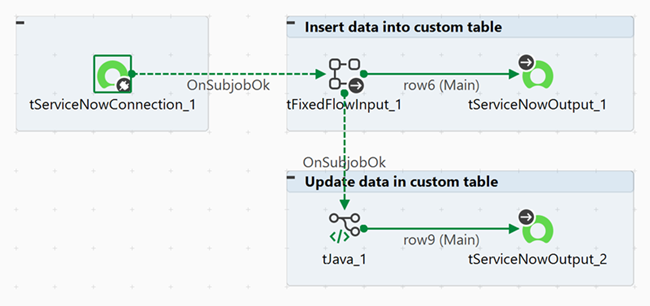
    Job layout showing all components and subJobs linked together.

Configuring the components

Procedure

  1. Double-click the tServiceNowConnection component to display its Component view.
  2. Fill in the connection information (URL and credentials) to access your ServiceNow account.
  3. Double-click the tFixedFlowInput component to display its Component view.
  4. In the Basic settings view, click Edit schema to open the schema editor, then define the two following columns: u_id (String), u_name (String).
  5. In the Values table of the Use Single Table section, enter the values you want to insert for each column.
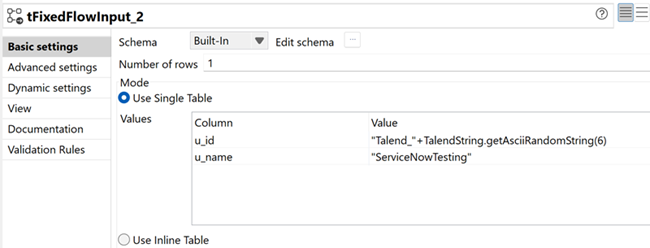
    tFixedFlowInput configuration showing the values to be inserted in the columns.
  6. Double-click tServiceNowOutput to display its Component view.
  7. In the Basic settings view, select the Use Existing Connection checkbox to reuse the connection details you already defined.
  8. In the Action list, select Insert as you want to insert the records defined in the tFixedFlowInput component.
  9. In the Table list, select Use Custom Table as you want to insert records in a custom table.
  10. Enter the name of the table in the Custom Table Name field. You can use context variables.
  11. Click Sync columns to retrieve the schema from the previous component.
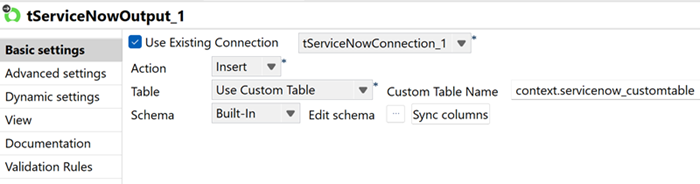
    tServiceNowOutput configuration with Insert action and the custom table selected.
  12. In the Advanced settings view, make sure the Enable response debug mode checkbox is selected. The response variable stores the sys_id column that is needed for update operations.
  13. Double-click the tJava component to display its Component view.
  14. In the Code area, enter the code corresponding to the record updates you want to perform.
    // Populate the output row for the tServiceNowOutput component
    String insertResponse = (String) globalMap.get("tServiceNowOutput_1_RESPONSE");
    
    JSONObject insertResult = new JSONObject(insertResponse).getJSONObject("result");
    
    row9.sys_id = insertResult.getString("sys_id"); // the "sys_id" attribute is mandatory for the "update" tServiceNowOutput component
    row9.u_name = insertResult.getString("u_name") + "_Updated"; // Update the "u_name" attribute
  15. Double-click the second tServiceNowOutput component to display its Component view.
  16. In the Basic settings view, select the Use Existing Connection checkbox to reuse the connection details you already defined.
  17. In the Action list, select Update as you want to update the records as defined in the tJava component.
  18. In the Table list, select Use Custom Table. You can use context variables.
  19. Enter the name of the table in the Custom Table Name field.
  20. Click Sync columns to retrieve the schema from the previous component.
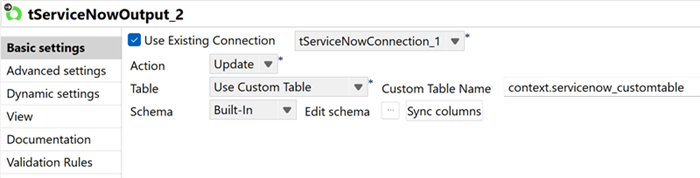
    tServiceNowOutput configuration with Update action and the custom table selected.

Executing the Job

Procedure

  1. Press Ctrl + S to save your Job.
  2. Press F6 to execute it.

Results

The Job connects to a ServiceNow account, inserts, and updates the selected records in the ServiceNow table defined.

You can verify the updates in your ServiceNow instance by navigating to the table and checking the updated records.

What to do next
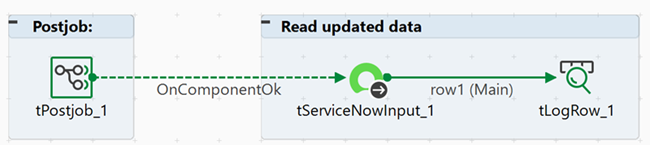
If needed, you can read the updated data in a post-Job using tServiceNowInput and tLogRow components.
Post-Job that reads the updated data.
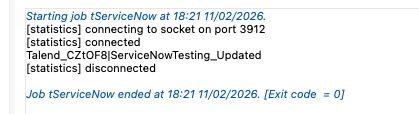
Run console showing the updated data.

Did this page help you?

If you find any issues with this page or its content – a typo, a missing step, or a technical error – please let us know!