Skip to main content Skip to complementary content

Indexing phone reviews with embeddings and vector database

This Job reads phone review text files from a folder, splits the content into smaller chunks for better analysis, generates vector embeddings using Azure OpenAI, and stores them in a Pinecone vector database to enable semantic search.

Before you begin

Before running this Job, ensure you have:

  • An active Azure OpenAI account with access to the text-embedding-3-small model.
  • Your Azure OpenAI API key and endpoint configured.
  • A Pinecone account with an index created for storing embeddings.
  • Your Pinecone API key and host endpoint configured.
  • Downloaded the archive file tembeddingai-tpineconeclient_phone-review-files.zip and extracted the LG.txt and Iphones.txt files.
  • Created the directory <folder_path>/phone-reviews/ with the phone review text files.

Linking the components

Procedure

  1. Drag and drop the following components from the Palette: tFileList, tFileInputRaw, tJavaFlex, tEmbeddingAI, tMap, tPineconeClient, and three tLogRow components.
  2. Connect tFileList to tFileInputRaw using a Trigger > Iterate connection.
  3. Connect tFileInputRaw to tJavaFlex using a Row > Main connection.
  4. Connect tJavaFlex to the first tLogRow using a Row > Main connection.
  5. Connect the tLogRow to tEmbeddingAI using a Row > Main connection.
  6. Connect tEmbeddingAI to the second tLogRow using a Row > FLOW connection.
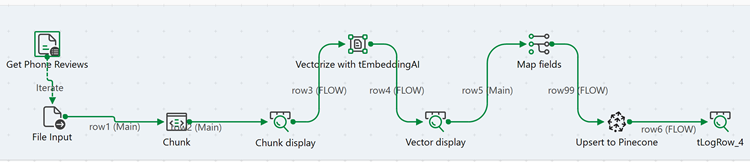
  7. Connect tLogRow to tMap using a Row > Main connection.
  8. Connect tMap to tPineconeClient using a Row > Main connection.
  9. Connect tPineconeClient to the last tLogRow using a Row > FLOW connection.
    Job design showing the flow: tFileList → tFileInputRaw → tJavaFlex → tLogRow → tEmbeddingAI → tLogRow → tMap → tPineconeClient → tLogRow.

Configuring the components

About this task

This Job processes phone review text files from a folder, splits the content into smaller chunks for better analysis and more precise semantic search, generates embeddings for each chunk, and stores them with metadata in Pinecone.

Procedure

  1. Double-click the tFileList component to open its Component view.
  2. In the Basic settings tab, configure the following parameters:
    • In the Directory field, enter or select: "<folder_path>/phone-reviews/"
    • In the Files field, add a line and enter: "*.txt" to list all text files in the directory (LG.txt and Iphones.txt).
  3. Click OK to close the component view.
  4. Double-click the tFileInputRaw component to open its Component view.
  5. In the Basic settings tab, configure the following parameters:
    • In the Filename field, enter: ((String)globalMap.get("tFileList_1_CURRENT_FILEPATH")) to read each phone review file from the list.
  6. Click Edit schema and verify the schema has the following column:
    • chunk (String)
  7. Click OK to close the schema editor and OK to close the component view.
  8. Double-click the tJavaFlex component to open its Component view.
  9. In the Basic settings tab, configure the following:
    • Click Sync columns to retrieve the column schema from the previous component.
    • In the Start code field, enter the following code:
      //String regex = "(?:\\d(?:\\.\\d)?[A-Z]{5})\\b";
      //Pattern pattern = Pattern.compile(regex);
      int nbParts=2;
    • In the Main code field, enter the following code to convert byte content to string and split into smaller chunks:
       //System.out.println(part);
      String input = row7.content.toString();
      String[] lines = input.split("\\r?\\n");
      int nbLines=lines.length;
      int linesPerPart = nbLines / nbParts;
      int remainder = nbLines % nbParts;
      int linesProcessed = 0;
      //System.out.println("nb lines:"+nbLines); 
       for (int i = 0; i < nbParts; i++) {
                  StringBuilder partBuilder = new StringBuilder();
                  int linesInThisPart = linesPerPart + (remainder > 0 ? 1 : 0);
                  remainder--;
                  for (int j = 0; j < linesInThisPart; j++) {
                  partBuilder.append(lines[linesProcessed]).append(" ");
                  linesProcessed++;
                  }
                                 
                  String body=partBuilder.toString();
                  row8.chunk=body;
                  //System.out.println("text:"+body);
                  globalMap.put("id",((String)globalMap.get("tFileList_1_CURRENT_FILE"))+i);
                  globalMap.put("chunk",body);
                              
      Information noteNote: This code splits the phone review text into smaller chunks to facilitate better analysis and more precise semantic search in the vector database.
    • In the End code field, enter the following code:
      
      }
  10. Click OK to close the component view.
  11. Double-click the first tLogRow component to open its Component view.
  12. Select Table in the Mode area.

    This component displays the chunked phone review text in the console as a table.

  13. Double-click the tEmbeddingAI component to open its Component view.
  14. In the Basic settings tab, configure the following parameters:
    • Click Edit schema and verify the schema has the following column: embedding (List).
    • In the Platform list, select Azure OpenAI.
    • In the Model name field, click the [...] button and select text-embedding-3-small.
    • In the Token/API Key field, click the [...] button and enter your Azure OpenAI API key, then click OK.
    • In the Azure endpoint field, enter your Azure OpenAI endpoint (for example: https://your-resource-name.openai.azure.com/).
    • In the Column for embedding list, select chunk.
    This component generates vector embeddings for each phone review text chunk.
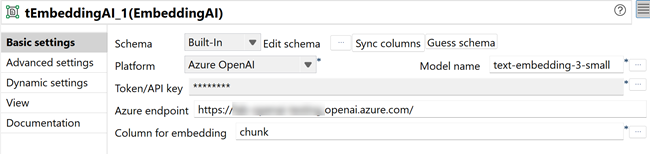
    Basic settings view of the tEmbeddingAI component configuration.
  15. Click OK to close the component view.
  16. Double-click the second tLogRow component to open its Component view.
  17. Select Table in the Mode area.

    This component displays the generated embeddings in the console.

  18. Double-click the tMap component to open the Map Editor.
  19. In the Map Editor, create the output schema with the following columns:
    • id (String)
    • vector (List) - Map it with the embedding input column
    • text (String)
    This mapping verifies that all metadata are correctly transferred to tPineconeClient. The id and values columns are required by Pinecone for upsert operations.
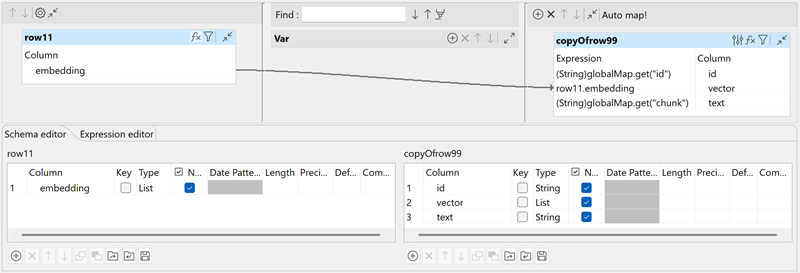
    Map Editor view with the mapped required columns.
  20. Click OK to close the Map Editor.
  21. Double-click the tPineconeClient component to open its Component view.
  22. In the Basic settings tab, configure the following parameters:
    • Click Edit schema and verify the schema has the following column: upsertedCount (Int).
    • In the API Key field, click the [...] button and enter your Pinecone API key, then click OK.
    • In the Host field, enter your Pinecone index host (for example: "your-index-name.svc.environment.pinecone.io").
    • In the Operation list, select Upsert to load the vectorized phone review data into the Pinecone index.
    • In the Namespace field, enter the namespace name (for example: phones") or leave empty to use the default namespace.
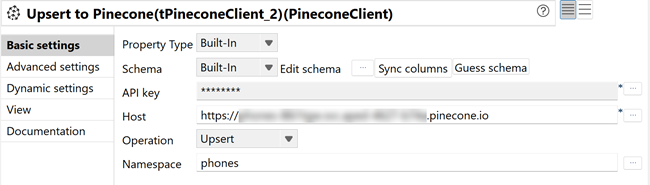
      Basic settings view of the tPineconeClient component configuration with the Upsert operation selected.
  23. Click OK to close the component view.
  24. Double-click the last tLogRow component to open its Component view.
  25. Select Table in the Mode area.

    This component displays the upserted records in the console, confirming successful loading into Pinecone.

Executing the Job

Procedure

  1. Press Ctrl+S to save the Job.
  2. Press F6 to execute the Job.

Results

The Job reads the phone review files, chunks the text, generates embeddings using Azure OpenAI, verifies metadata transfer through tMap, and upserts the vectorized data into Pinecone for semantic search.
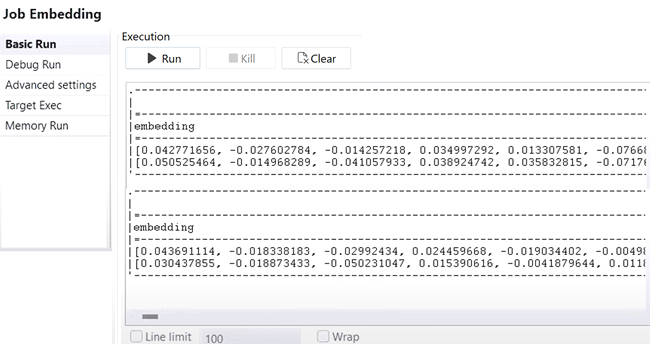
Run console showing successful execution with chunked phone review text and generated embeddings.

The phone review embeddings stored in Pinecone enable semantic search queries, allowing users to find relevant reviews based on meaning and context rather than exact keyword matches. The text chunking ensures more precise search results and better analysis capabilities.

Did this page help you?

If you find any issues with this page or its content – a typo, a missing step, or a technical error – please let us know!