Configuring the components
Last updated: 8/27/2026Procedure
-
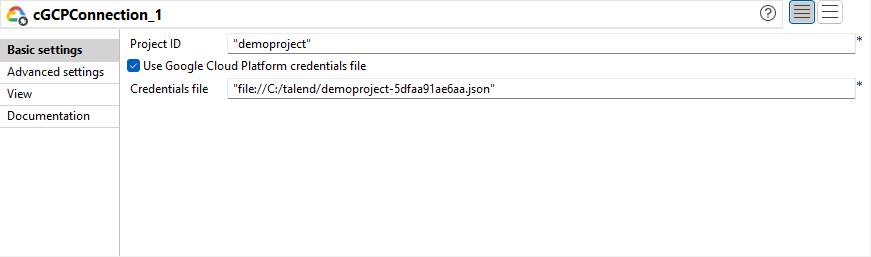
Double-click the cGCPConnection
component to display its Basic settings view in
the Component tab.
-
From the Project ID field, enter
your Google Cloud project ID.
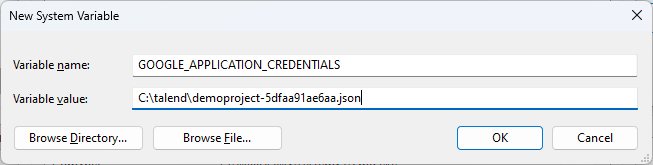
Select the Use Google Cloud Platform credentials file check box and enter the path to your credentials file in the Credentials file field.Alternatively, you can clear the Use Google Cloud Platform credentials file check box and add a system variable named GOOGLE_APPLICATION_CREDENTIALS with the value of the path to your credentials file. Note that you need to restart Talend Studio after this system variable is added.
-
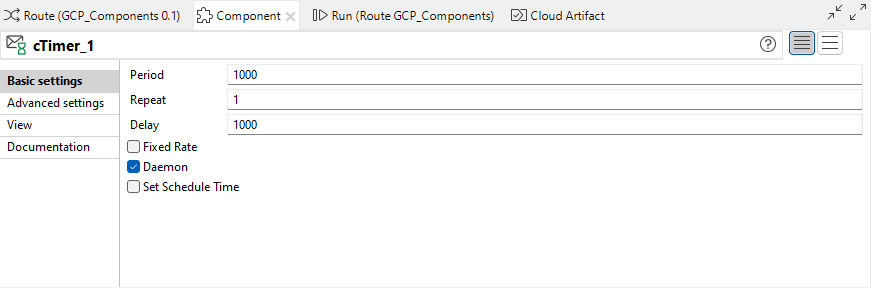
Double-click the cTimer component to open
its Basic settings view in the Component tab.
-
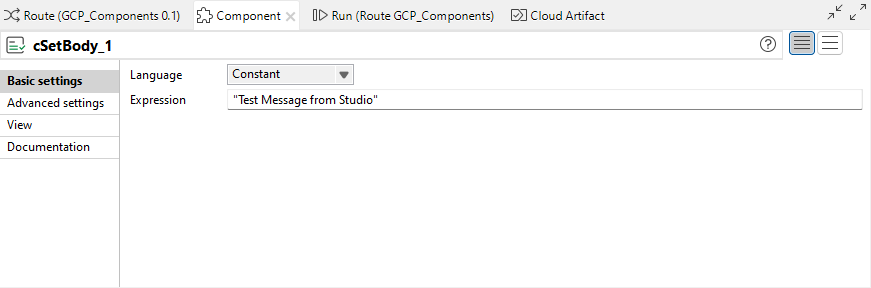
Double-click the cSetBody component to
open its Basic settings view in the
Component tab.
-
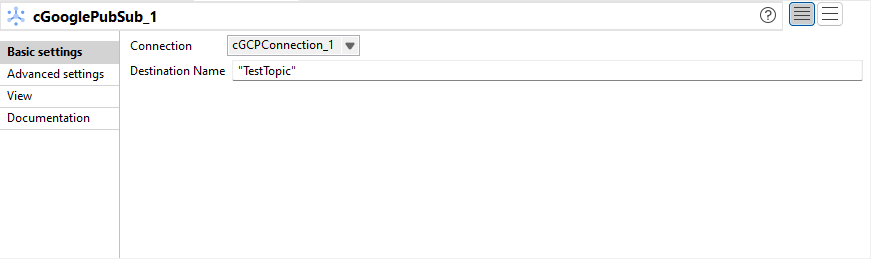
Double-click the first cGooglePubSub component to open its Basic
settings view in the Component
tab.
-
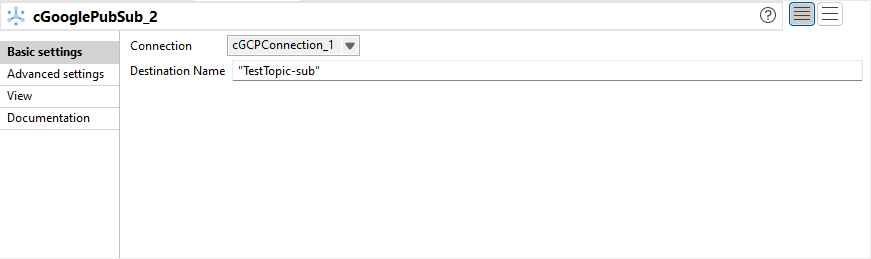
Double-click the second cGooglePubSub component to open its
Basic settings view in the Component
tab.
-
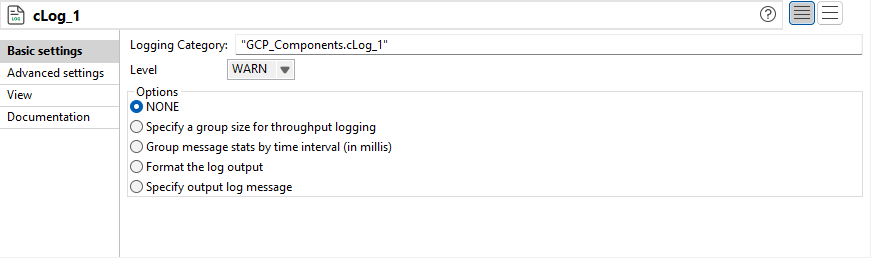
Keep the default settings of the cLog component to
log the message exchanges.