Analyzing customer feedback with Llama text summarization model
This Job reads customer feedback messages from a CSV file, uses the tOllamaClient component to generate AI-powered summaries and sentiment analysis, and outputs the enriched results to a new file.
Placed the CSV file in the directory of your choice, C:/temp/
for example.
Linking the components
Procedure
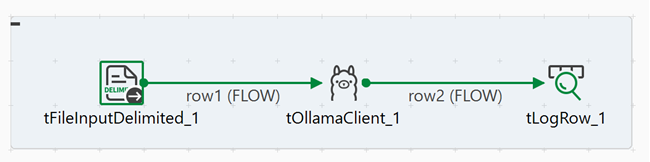
Create a new Standard Job and add the following components by typing their names
in the design workspace or dragging them from the Palette:
tFileInputDelimited,
tOllamaClient, and tLogRow.
Connect tFileInputDelimited to
tOllamaClient using a Row >
FLOW connection.
Connect tOllamaClient to tLogRow
using a Row > FLOW
connection.
Configuring the components
Procedure
Double-click tFileInputDelimited to open its
Component view.
In the Basic settings tab, configure the following parameters:
In the File name/Stream field, select or enter the
path to your sample file, for example
"C:/temp/sample-customer-feedback.csv".
In the Row Separator field, keep the default value: "\n".
In the Field Separator field, change the default
value to ",".
Click Edit schema and define the following columns:
feedback_id (String)
customer_name (String)
feedback_text (String)
date_received (Date)
Click OK to close the schema editor and OK to close the component view.
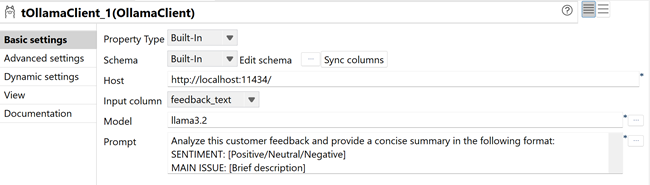
Double-click tOllamaClient to open its
Component view.
In the Basic settings tab, configure the following parameters:
Click Sync columns to retrieve the schema from tFileInputDelimited.
In the Input column list, select: feedback_text.
In the Host field, enter:
http://localhost:11434 (default Ollama host).
In the Model field, click the [...] button and select llama3.2 from the list.
In the Prompt field, enter the following
instruction:
Analyze this customer feedback and provide a concise summary in the following format:
SENTIMENT: [Positive/Neutral/Negative]
MAIN ISSUE: [Brief description]
ACTION: [Recommended action]

Keep the response under 100 words.
Double-click the tLogRow component to display its
Component view.
Click Sync columns to retrieve the schema from the
previous component.
In the Mode area, select Table to
display the search results in a formatted table in the console.
Click OK to close the component view.
Executing the Job
Procedure
Press Ctrl+S to save the Job.
Press F6 to execute the Job.
Results
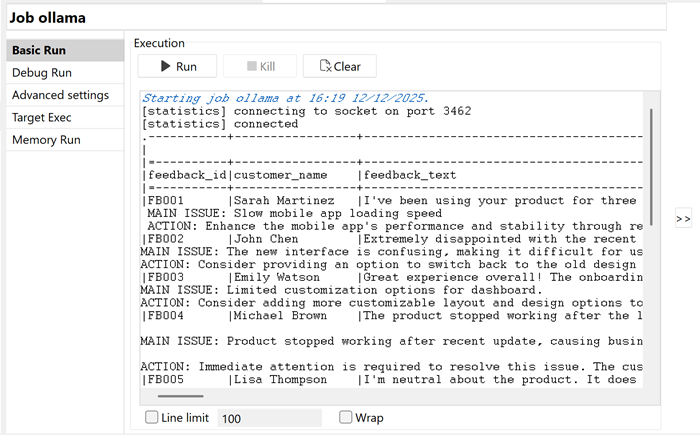
The Job reads customer feedback from the input CSV file, sends each feedback message
to the local Ollama Llama 3.2 model for analysis, and writes the enriched data
(including AI-generated sentiment, issue identification, and recommended actions) to
the console.
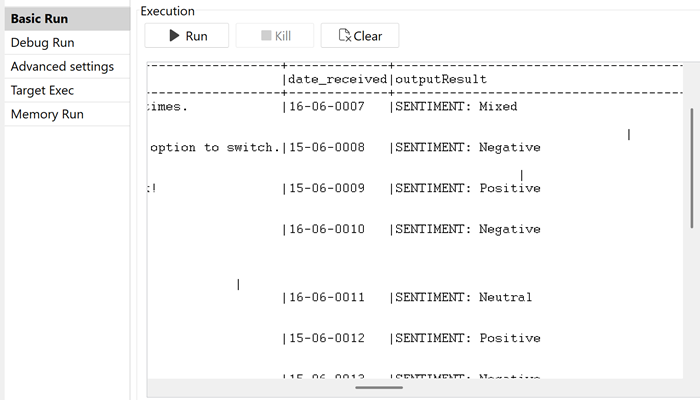
The output text contains the original feedback data plus the AI-generated analysis in
the outputResult column, providing structured insights for each
customer message.