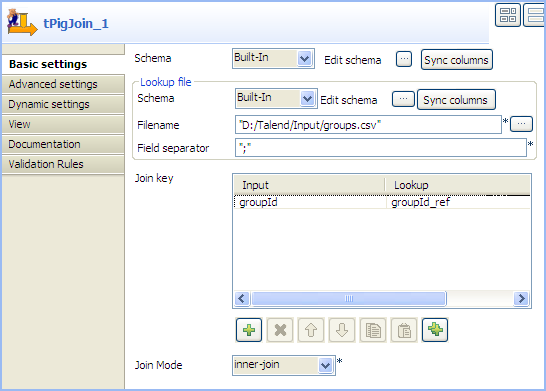
Double-click tPigJoin to open its
Basic settings view.
Click the [...] for the main schema to
open the Schema dialog box.
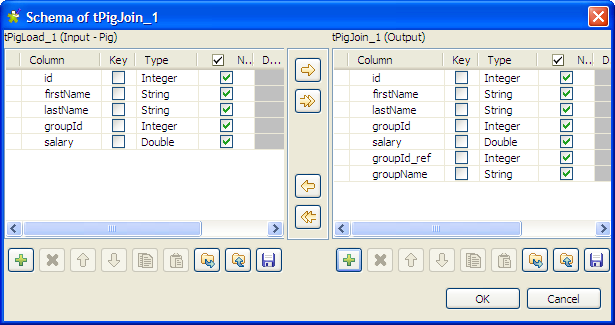
Check that input schema is correctly retrieved from the preceding
component. If needed, click the ->>
button to copy all the columns of the input schema to the output schema.
Click the [+] button under the output
panel to add new columns according to the data structure of the reference
file, groupId_ref (integer) and groupName (string) in this example. Then click
OK to close the dialog box.
Click the [...] for the schema lookup
flow to open the Schema dialog
box.
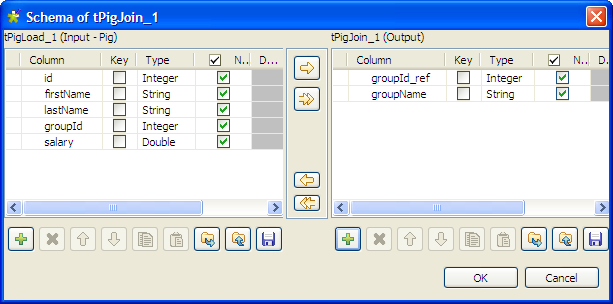
Click the [+] button under the output
panel to add two columns: groupId_ref
(integer) and groupName (string), and
then click OK to close the dialog
box.
In the Filename field, specify the full
path to the reference file.
Click the [+] button under the Join key table to add a new line, and select
groupId and groupId_ref
respectively from the Input and Lookup lists to match data from the main input
flow with data from the lookup flow based on the group ID.
From the Join Mode list, select inner-join.
Did this page help you?
If you find any issues with this page or its content – a typo, a missing step, or a technical error – please let us know!