
Amplitude
Amplitude is a product analytics platform that enables you to build products by tracking and understanding user behavior.
Amplitude integration relies on the Amplitude Query product add-on, which utilizes a Snowflake database to store data.
Amplitude integrations can replicate event and merged user ID data.
See the Schema section for a list of objects available for replication.Preparing for authentication
To access your data, you need to authenticate the connection with your account credentials.
You must be on the Amplitude Enterprise or Growth plan and have access to the Query product add-on.
To retrieve your Snowflake credentials, contact the Amplitude support.
Creating the connection
詳細については、「SaaSアプリケーションへの接続」を参照してください。
- 必要な接続プロパティを入力します。
接続名に接続の名前を入力します。
接続メタデータを開くを選択して、作成時の接続のメタデータを定義します。
[作成] をクリックします。
| Setting | Description |
|---|---|
| Data gateway | ユース ケースに応じて Data Movement gateway を選択します。 情報メモ Qlik Talend Cloud スターター サブスクリプションでは Data Movement gateway をサポートしていないため、この項目は使用できません。別のサブスクリプション ティアを利用しており、Data Movement gateway を使用しない場合は、 [None] (なし) を選択します。 Data Movement gateway の利点とそれを必要とするユース ケースの詳細については、「Qlik データ ゲートウェイ - データ移動」を参照してください。 |
| Start Date | ソースからターゲットにデータをレプリケートする必要がある日付を |
| Amplitude Snowflake Username | Enter your Snowflake username. |
| Amplitude Snowflake Password | Enter the Snowflake user's password. |
| Amplitude Snowflake Account | Enter the Snowflake account. |
| Amplitude Snowflake Warehouse | Enter the name of the Snowflake warehouse. |
| Amplitude Snowflake Database | Enter the name of the Snowflake database. |
Schema
Schemas and naming conventions can change from version to version. It is recommended to verify your version before continuing.
Amplitude replicates two types of tables: Events and merged user IDs.
For each project in your Amplitude account, a set of these tables will be available for replication. Stitch will append a project’s ID to each table name to make them easily identifiable. For example: If a project has an ID of 168342, the events table for the project will be named events_168432.
You can identify which tables are for a specific project by comparing the ID in the table name to the projects in your Amplitude account. You can access this page in your Amplitude account by clicking the User menu (top right corner) > Settings > Projects.
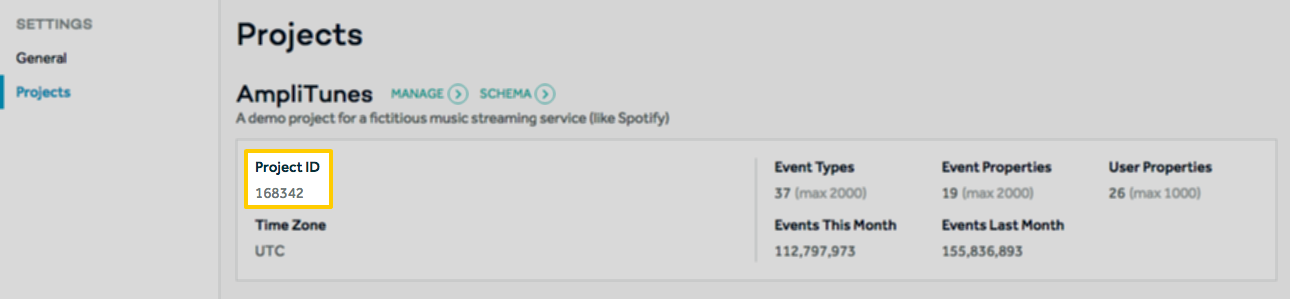
Depending on your destination, table and column names may not appear as they are outlined below.
events
events_[project_id] tables contain info about the events logged in your Amplitude projects.
Note: Each event table will have the project ID appended. For example: If a project has an ID of 168342, the events table for the project will be named events_168432.
Replication Method | CDC |
Primary Key | uuid |
Replication Key | event_time |
| Useful links |
merge_ids
merge_ids_[project_id] tables contain info about merged users. These are users whose records have been merged with other user records to eliminate duplicates.
For example: If an anonymous user logs events anonymously before signing in, they will go from being anonymous to a recognized user. Without merging the user’s records, it’ll look like two users with two sets of events, rather than one user completing a series of events.
For more info on how Amplitude handles merging users, refer to their documentation.
Note: Each table will have the project ID appended. For example: If a project has an ID of 168342, the merged ID table for the project will be named merge_ids_168432.
Replication Method | CDC |
Primary Keys | amplitude_id merge_server_time merged_amplitude_id merge_event_time |
Replication Key | merge_event_time |
| Useful links |