The administrative assets migration transfers users, groups, projects, and associated
authorizations from the source TAC to the target TAC.
This is the first step in the
on-premises migration workflow.
Selecting the TAC environments
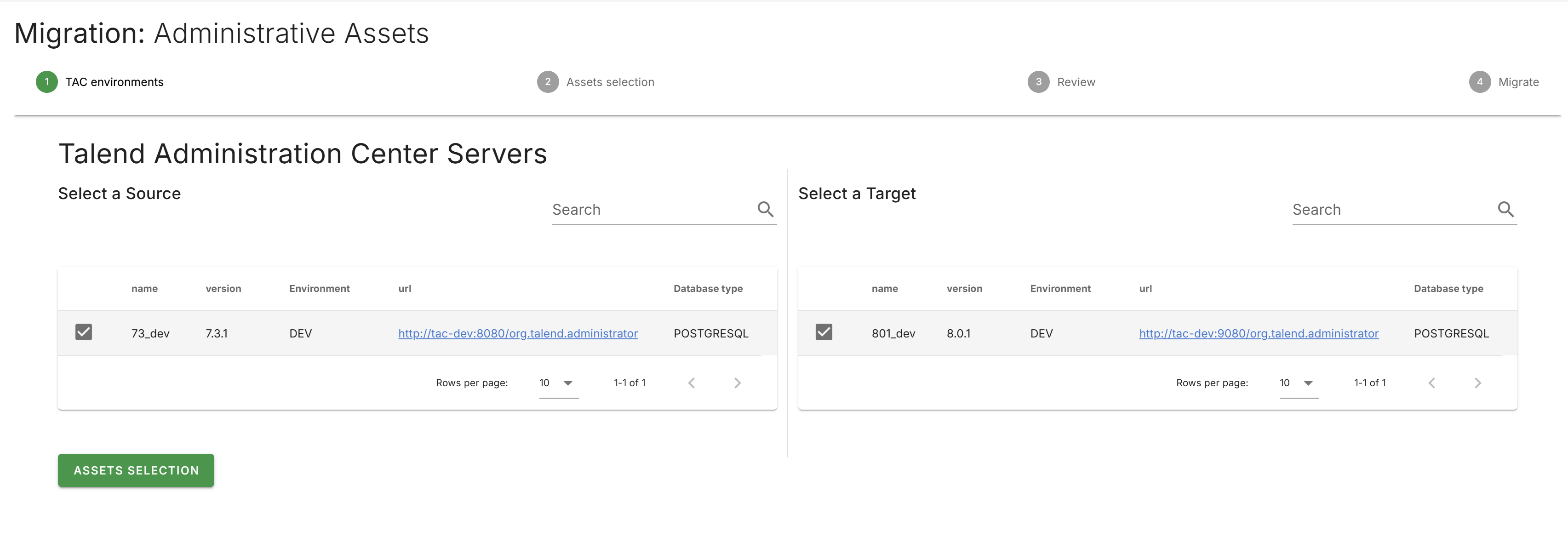
Select Migration in the left navigation drawer to open the
migration selection page.
Click the Administrative Assets tile.
Select the source TAC server from the left table.
Select the target TAC server from the right table.
Click Assets Selection to proceed.
Selecting assets
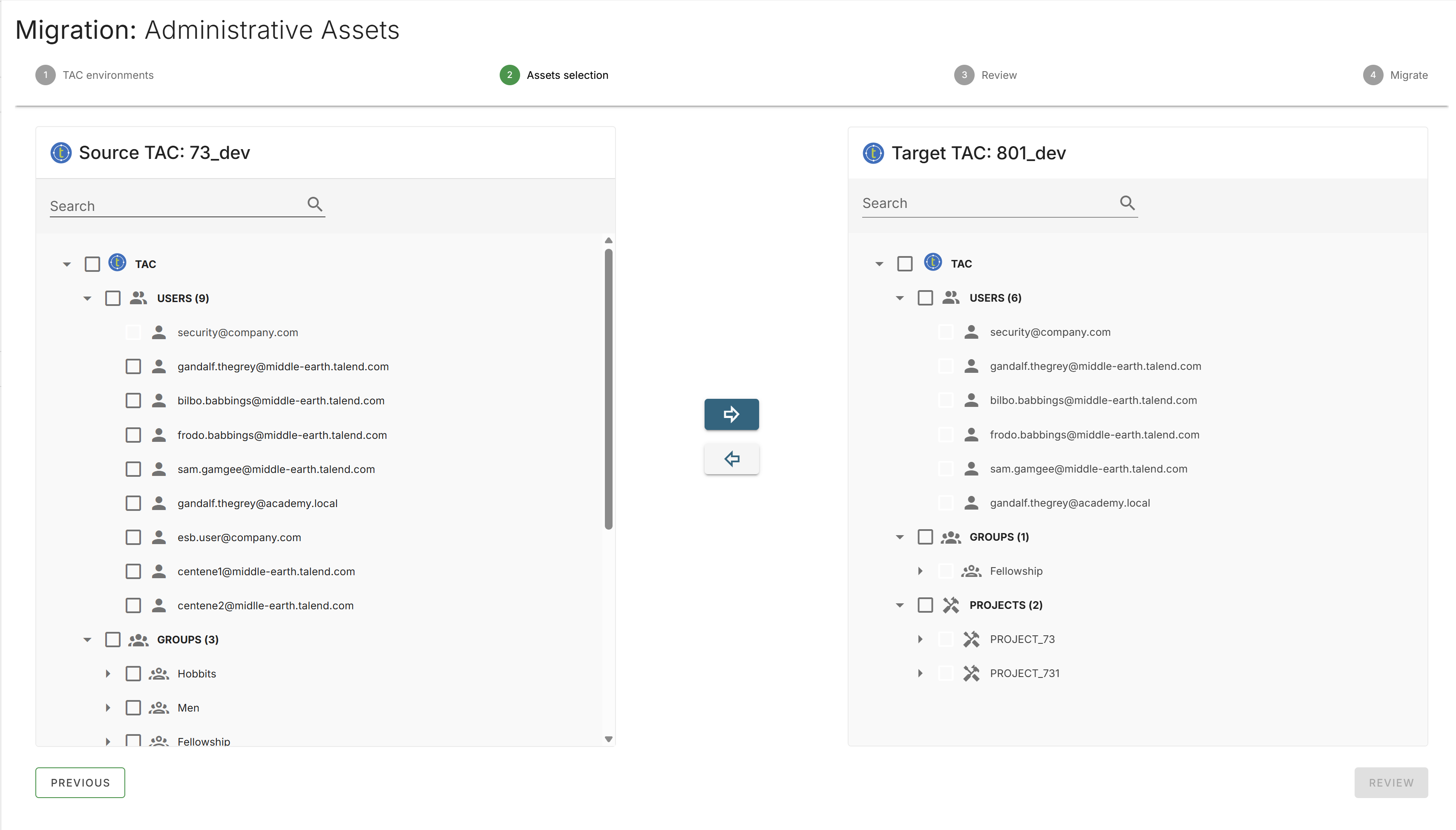
Two tree views are displayed: the source tree on the left and the target tree on the right.
Expand the source tree to view the available users, groups, and projects.
Select the assets to migrate by checking the corresponding checkboxes.
Click the right arrow button to move the selected assets to the target tree.
Information noteNote: The default security user (ID 1) is disabled in the source tree and
cannot be selected for migration. The security user is reserved by the system and
already exists on the target TAC.
To remove an asset from the target tree that has not yet been migrated, select the asset
and click the left arrow button.
Reviewing the selection
Click Review to view a summary of the selected
assets.
The review screen displays the following counts:
Total Users
Total Groups
Total Projects
Total User authorizations
Total Group authorizations
Optionally enter a comment in the Comment field.
Verify the target TAC tree structure on the right panel.
Running the migration
Click Migrate to begin the migration.
The migration progress screen displays real-time status updates for each asset.
The migration status for each asset is indicated by the following icons:
Checkmark: Migrated successfully
Blue square: Migrated successfully with additional
information.
Hover over the icon to view details.
Red circle: Migration failed with an error message.
Hover over the icon to view the error.
Migration behavior
Authorizations: User and group project authorizations are
migrated along with the associated users, groups, and projects.
Duplicates: If a user, group, or project with the same
name already exists on the target TAC, the existing entry is overwritten with the
source values.
Security user: The default security user (ID 1) is
excluded from migration.