Skip to main content Skip to complementary content

Configuring the components

Procedure

  1. Double-click the cAzureConnection component to display its Basic settings view in the Component tab.
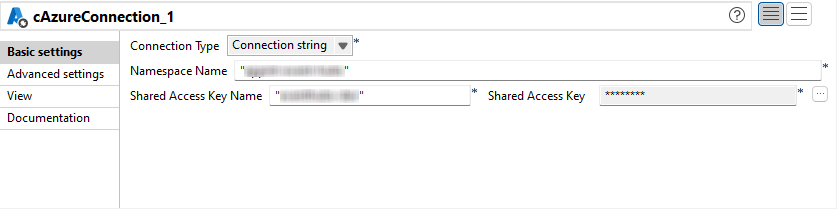
  2. From the Connection Type list, select Connection string.
    In the Namespace Name field, enter the name of the Azure Service Bus namespace.
    In the Shared Access Key Name field, enter the name of your Shared Access Key.
    In the Shared Access Key field, enter the value for your Shared Access Key.
  3. Double-click the cTimer component to open its Basic settings view in the Component tab.
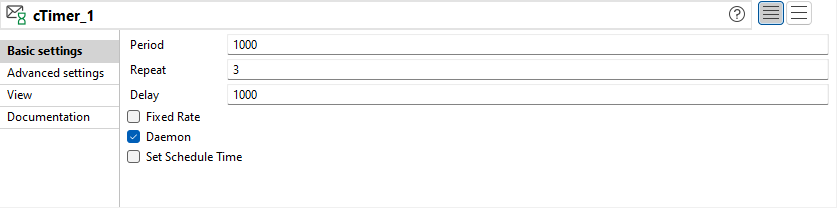
  4. In the Repeat field, enter 3 to generate three message exchanges. Keep the default settings of the other options.
  5. Double-click the cSetBody component to open its Basic settings view in the Component tab.
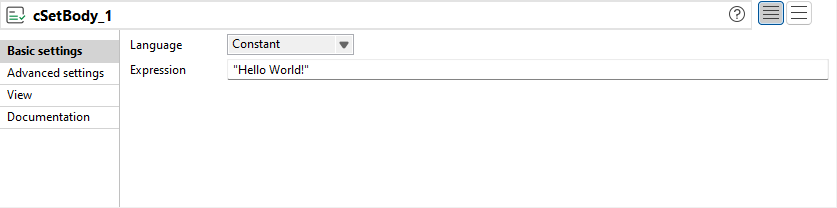
  6. Select Constant from the Language list box and type in "Hello World!" in the Expression field as the message body.
  7. Double-click the first cAzureServiceBus component to open its Basic settings view in the Component tab.
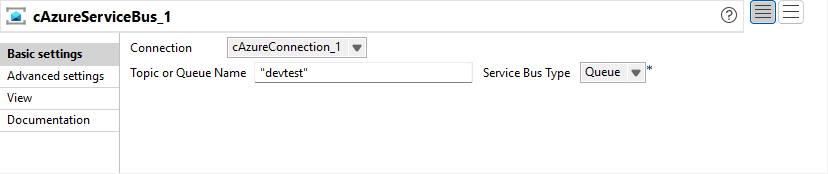
  8. In the Connection list, select the cAzureConnection component that you have just configured to handle messages.
    In the Service Bus Type list, select Queue in this use case.
    In the Topic or Queue Name field, enter the Queue name to publish the message to.
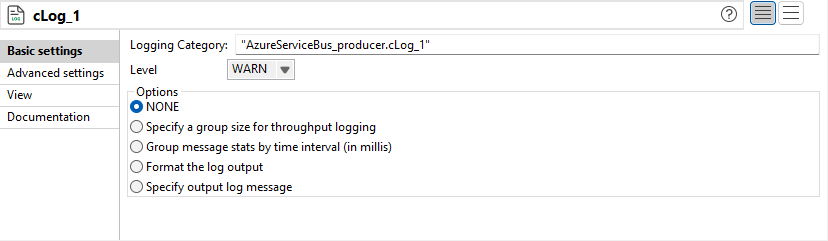
  9. Keep the default settings of the cLog component to log the message exchanges.
  10. Press Ctrl+S to save your Route.

Did this page help you?

If you find any issues with this page or its content – a typo, a missing step, or a technical error – please let us know!