
Adding sparklines
A sparkline is a simple visualization, usually styled in the form of a line, that is helpful for analyzing trends for a single metric. You can add sparklines to your PixelPerfect report using the Sparkline object.
A sparkline generally consists of a field (equivalent to a dimension) and a value member (equivalent to a measure).

Sparkline

Requirements
The data you use for a sparkline has to be added as a table data binding. These data bindings are added under Tables in the  Field List menu.
The source data for the sparkline should ideally contain a single dimension and a single measure. To use sparklines to visualize more complex, multi-dimensional data, it is recommended that you apply a level to the band where you add the sparkline. In this case, the level should be an additional dimension along which you want to cycle the generation of multiple filtered sparklines.
Creating sparklines
This is the recommended workflow for adding sparklines in your report.
Faça o seguinte:
-
Open the
Field List menu available from the right-side panel in the designer. -
Click the plus icon next to Tables.
-
From the available sheets, select the Qlik Sense chart you want to add as a table. Click the
 icon next to it.
The data binding is added.
-
From the toolbox panel on the left side of the designer, drag a Sparkline onto the design surface.
-
Click the gear icon that appears next to the sparkline. In the pop-up menu, for Data Member, select the table data binding you created earlier.
-
Open the
 Properties menu from the right side of the designer, and expand Data.
 -
For Value Member, select the variable metric you want to visualize (for example, sales).
Refreshing source data for data bindings
Com o passar do tempo, a configuração do gráfico de origem pode mudar, exigindo ações em seu modelo de relatório do PixelPerfect. Você pode atualizar os dados do aplicativo de origem em vinculações de dados que definem seu mini-gráfico. Isso é útil ao:
-
Dimensões e medidas foram adicionadas ou removidas do gráfico de origem desde que você criou a vinculação de dados.
-
As definições de dimensões e medidas foram alteradas no gráfico de origem desde que você criou a vinculação de dados.
A atualização das fontes de dados permite que você mantenha os mesmos objetos no menu Lista de Campos sem ter de criar novos objetos à medida que as configurações do gráfico mudam.
Faça o seguinte:
-
Abra o menu
Lista de Campos disponível no painel do lado direito do designer. -
Clique duas vezes em Tabelas para expandi-lo.
-
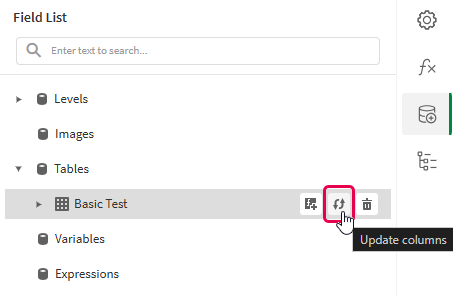
Passe o cursor sobre o item que você deseja atualizar.
-
Clique no ícone de atualização (Atualizar colunas).
Atualizando uma vinculação de dados de tabela no menu Lista de Campos
-
Continue com o desenvolvimento do modelo de acordo com seu caso de uso. Isso pode envolver a reconfiguração do conteúdo existente ou a adição de novo conteúdo. Depois de atualizar a vinculação de dados, as colunas de gráfico recém-adicionadas estarão disponíveis para uso no menu
Lista de Campos.
Example - Sparklines with a level
Consulte os exemplos de fontes de aplicativos aqui: Exemplo de materiais - Relatórios no aplicativo. Carregue o aplicativo e os arquivos de dados em um espaço e, em seguida, recarregue o aplicativo. Está tudo pronto para concluir o exemplo.
We will create sparklines with monthly sales by region.
Part 1: Add data bindings
Faça o seguinte:
-
Create a new PixelPerfect template.
-
Open the
Field List menu available from the right-side panel in the designer.Field List menu in the PixelPerfect designer

-
Click the plus icon next to Levels.
-
Expand Fields, and click the
icon next to Region.The data binding is added.
-
You are brought back to the main
Field List menu. Click the plus icon next to Tables. -
Expand the Sales Table sheet, and click the
icon next to the Regional Sales over Time chart.The data binding is added.
Part 2: Add DetailReport band and connect it with data banding
You need to create a DetailReport band to use a level.
Faça o seguinte:
-
Right-click the Detail1 band, and then click Insert Band > DetailReport.
-
To bind the DetailReport1 band to the level, select the band and then open the
Properties menu. Under Detail Report Tasks > Data Member, select the Region level.
Part 3: Add a label and sparkline
Faça o seguinte:
-
Open the
Field List menu, and double-click Levels to expand it. -
For Region, expand the level object and drag the Region field within it onto the DetailReport1 band.
Position the label at the top of the band, centered horizontally.
-
From the toolbox panel on the left side of the designer, drag a Sparkline onto the DetailReport1 band, below the Region label.
-
Resize the sparkline so that it occupies all horizontal space on the band, and its shape is a narrow rectangle.
-
Resize the DetailReport1 band so there is a small space at the bottom of the sparkline.
Region label and empty sparkline added to template

-
Select the sparkline and then open the
Properties menu. -
Expand Appearance > View.
-
Check Highlight Max Point and Highlight Min Point.
-
For Color, expand the drop down menu. Paste the following hex code in the # field: 0d00ff. Click OK.
-
For Max Point Color, expand the drop down menu. Paste the following hex code in the # field: 0dff00. Click OK.
-
For Min Point Color, expand the drop down menu. Paste the following hex code in the # field: ff0000. Click OK.
-
In the top right corner, click Save template.
-
Click Preview report. Download the report and open it.
Report preview with sparklines
