
Creating a PixelPerfect chart with automated series splitting
With series templates, you can create native PixelPerfect charts where the app data is automatically split into different series. This method is useful when you do not need to manually split the series yourself.
Requirements
Before you start creating a native PixelPerfect chart, you need to have a chart in your Qlik Sense app with a source table that adapts well to what you want to visualize. In the Qlik Sense chart, select the appropriate dimensions and measures to filter the data sufficiently from the app's data model.
The data you use for a native PixelPerfect chart has to be added as a table data binding. To create this type of data binding, use the  Field List menu and add an item under Tables.
Creating an auto-split PixelPerfect chart
This process is similar to creating a chart with a user-defined series, but there are key differences. Notably, you use the same types of data bindings, but these are connected using a series template rather than by adding a series manually.
Faça o seguinte:
-
Open the
Field List menu available from the right-side panel in the designer. -
Click the plus icon next to Tables.
-
From the available sheets, select the Qlik Sense chart you want to add as a table. Click the
 icon next to it.
The data binding is added.
-
From the toolbox panel on the left side of the designer, drag a
 Chart onto the design surface.
 -
Select the blank chart and then open the
 Properties menu from the right side of the designer.
 -
Under Chart Tasks > Data Member in the menu, select the table you added as a data binding.
-
Inside the chart, click Run Designer....
The Properties for the chart are shown on the right side.
-
Select a field for Series Data Member. This sets the primary grouping for the chart. PixelPerfect automatically creates a new series for each distinct value in the field.
-
Expand Series Template.
-
To choose a chart type, select a value for View. The default is Bar. For a list of available charts, see Available chart types.
-
For Argument Data Member, use the drop down menu to select a field containing the secondary data groupings.
-
Expand Value Data Members. For Value, select a field containing the variable metrics you want to visualize. For certain advanced chart types (for example, Candle Stick chart), you might need to select more than one Value field.
Nota de dicaIn this context, selecting the Value is similar to selecting a measure in Qlik Sense. -
When using a series template, it is often required to add summary functions to fulfill the aggregations specified in the chart. You need to set the summary options. Depending on the type of data you are using for your groupings, this might be labeled as one of the following:
-
Qualitative Summary Options
-
Numeric Summary Options
-
Date-Time Summary Options
Expand the section.
-
-
Expand Summary Function.
-
Select a Function to use (for example, SUM).
-
Select an Argument. This is usually the variable metric your chart is meant to visualize (for example, sales).
Additional tips for configuring the chart
The above workflow shows you how to create a native chart with automatically generated series, and connect it to Qlik Sense data sources. Here are some extra tips to help you make the most out of these charts.
Labels and legends
You might need to configure labels and legends so that they appear correctly.
Changing the text
You can change the text shown in the labels and legend. You can do this by entering specific placeholders for the following properties:
-
Labels: Open the Properties for the series, and add a placeholder to Label > Text Pattern.
-
Legend: Open the Properties for the series, and add a placeholder to Legend Text Pattern.
The placeholders instruct PixelPerfect to generate dynamic text with commonly needed values. For a chart with autogenerated series, the following are commonly used placeholders:
-
{S}
-
{A}
For a full list of placeholders you can use, see Text definition placeholders for native PixelPerfect charts.
Turning labels and legends off
If your chart has a lot of data, it is often preferred to turn labels off (they are turned on by default). To turn off labels for the chart, change the Labels Visibility setting in the Properties to False.
With auto-generated series, the chart legend can play a key role to help distinguish each series in the chart. However, if you want to turn the legend off, expand Legend and set Visibility to False.
Refreshing source data for data bindings
Com o passar do tempo, a configuração do gráfico de origem pode mudar, exigindo ações em seu modelo de relatório do PixelPerfect. Você pode atualizar os dados do aplicativo de origem em vinculações de dados que definem seu gráfico nativo do PixelPerfect. Isso é útil ao:
-
Dimensões e medidas foram adicionadas ou removidas do gráfico de origem desde que você criou a vinculação de dados.
-
As definições de dimensões e medidas foram alteradas no gráfico de origem desde que você criou a vinculação de dados.
A atualização das fontes de dados permite que você mantenha os mesmos objetos no menu Lista de Campos sem ter de criar novos objetos à medida que as configurações do gráfico mudam.
Faça o seguinte:
-
Abra o menu
Lista de Campos disponível no painel do lado direito do designer. -
Clique duas vezes em Tabelas para expandi-lo.
-
Passe o cursor sobre o item que você deseja atualizar.
-
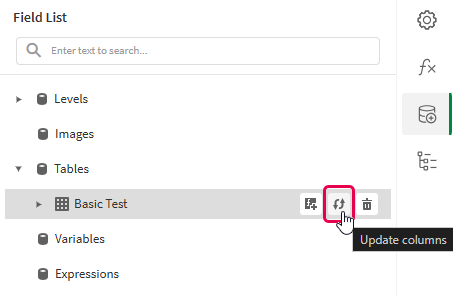
Clique no ícone de atualização (Atualizar colunas).
Atualizando uma vinculação de dados de tabela no menu Lista de Campos
-
Continue com o desenvolvimento do modelo de acordo com seu caso de uso. Isso pode envolver a reconfiguração do conteúdo existente ou a adição de novo conteúdo. Depois de atualizar a vinculação de dados, as colunas de gráfico recém-adicionadas estarão disponíveis para uso no menu
Lista de Campos.
Available chart types
The following charts are shown as options when creating an auto-split PixelPerfect chart.
Example - Creating a multi-bar chart with auto-split series
Consulte os exemplos de fontes de aplicativos aqui: Exemplo de materiais - Relatórios no aplicativo. Carregue o aplicativo e os arquivos de dados em um espaço e, em seguida, recarregue o aplicativo. Está tudo pronto para concluir o exemplo.
This example shows you how to create a bar chart with automatically generated series for each value in a specific dimension.
Part 1: Add data binding and chart
Faça o seguinte:
-
Create a new PixelPerfect template.
-
Open the
Field List menu available from the right-side panel in the designer.Field List menu in the PixelPerfect designer

-
Click the plus icon next to Tables.
-
Expand the Sales Tables sheet, and click the
icon next to the Sales Details 2021-2023 chart.The data binding is added.
-
From the toolbox panel on the left side of the designer, drag a
Chart onto the Detail1 band.Blank chart added to template. The image also shows the data source that will be used to bind to the chart.

Part 2: Connect the chart to data binding
Faça o seguinte:
-
Select the blank chart and then open the
Properties menu from the right side of the designer. -
Under Chart Tasks > Data Member in the menu, select the Sales Details 2021-2023 table.
-
Inside the chart, click Run Designer....
The Properties for the chart are shown on the right side.
-
In the left panel in the Chart Designer, hover over Series and click the plus icon. In the menu, select Bar to create a bar chart series.
The Properties for the new series are shown on the right side.
-
For Series Data Member, select the Year field.
-
Expand Series Template if not already expanded.
-
For View, leave the chart type as Bar.
-
For Argument Data Member, select Region field.
-
Expand Value Data Members. For Value, select the Sales field.
-
Next ,define the summary function to use. Expand Qualitative Summary Options.
-
Expand Summary Function.
-
For Function, select SUM.
-
For Argument, select the Sales field.
Part 3: Refine the appearance
Finally, we want to hide the labels and arrange the data in descending order along the total sales for each dimension.
Faça o seguinte:
-
Still in the Properties in Chart Designer, set Labels Visibility to False.
-
Set Series Points Sorting to Descending.
-
Set Series Points Sorting Key to Value.
-
Add a title to the chart. In the left panel in the Chart Designer, hover over Titles and click the plus icon. Select a title position using the popup menu.
-
In the Properties for the title, enter Yearly Sales By Region for the Text property.
-
Click OK to exit the Chart Designer.
-
Increase the size of the chart and the Detail1 band.
-
In the top right corner, click Save template.
-
Click Preview report. Download the report and open it.
Generated report showing a chart created using automated series splitting
