
The Qlik Sense Enterprise administrator publishes applications to a stream from the Qlik Management Console. The sheets and stories in the application are then available to the users that have access to the stream. You can publish your own applications from the hub, to a stream which you have publish access to. You can also move your published applications between streams from the hub.
An application that has been published to a stream is locked, although the owner of a published application can edit the thumbnail, application name, and the description of their published application. Others can interact with the visualizations and analyze the data. However, no one can edit the public sheets and public stories that were published with the application. If you have the correct access rights, you can add your private sheets and stories to a published application.
If you own a published application, you can add your private sheets and stories to a published application, and approve your own and community sheets for inclusion in the public sheets of an application. You cannot edit the public sheets and public stories of the application, but you can make them private sheets and stories if you want to edit them.
If a published application needs to be changed, it can be republished, updating the published application with content from a duplicate.
For information about:
- Access rights in the Qlik Management Console, see Creating access rights for streams.
- Publishing applications in the Qlik Management Console, see Publishing applications from the QMC.
- Publishing applications in the hub, see Publishing an application from the hub.
Streams
The content in the hub is organized in streams. A stream is a collection of applications that a group of users has specific access to. The users of the stream can have different access rights. Some users might only be able to read the content in the stream, while others might have the rights to publish their content to the stream.
By default, Qlik Sense includes a stream called Everyone, which all users have both read and publish rights to.
All users have their own spaces, Work and Published, for the content they own. Work contains personal unpublished applications. Published contains links to your published applications. These links enable you to keep track of your published work and perform tasks such as moving or duplicating a published application more easily. You can also mark your favorite applications for easy access. The Favorites space appears after you tag at least one application as a favorite, and then refresh the page.
The read and publish rights on the streams are defined in the Qlik Management Console.
You can use a duplicate of a published application to use as a template for a new one.
You can move your own applications from the hub between streams to which you have publish access.
Sheets and stories
You can create private sheets and stories as a part of a published application. These sheets and stories can be published as part of the application. Published sheets and stories can be added to public sheets of an application by the application owner. You can also remove public sheets and stories from your application and make them published sheets and stories.
When working with a published application, sheets and stories are organized in sections in the application overview depending on their status.
Sample application with overview showing four sections: Public , Community, Published by me, and My own.
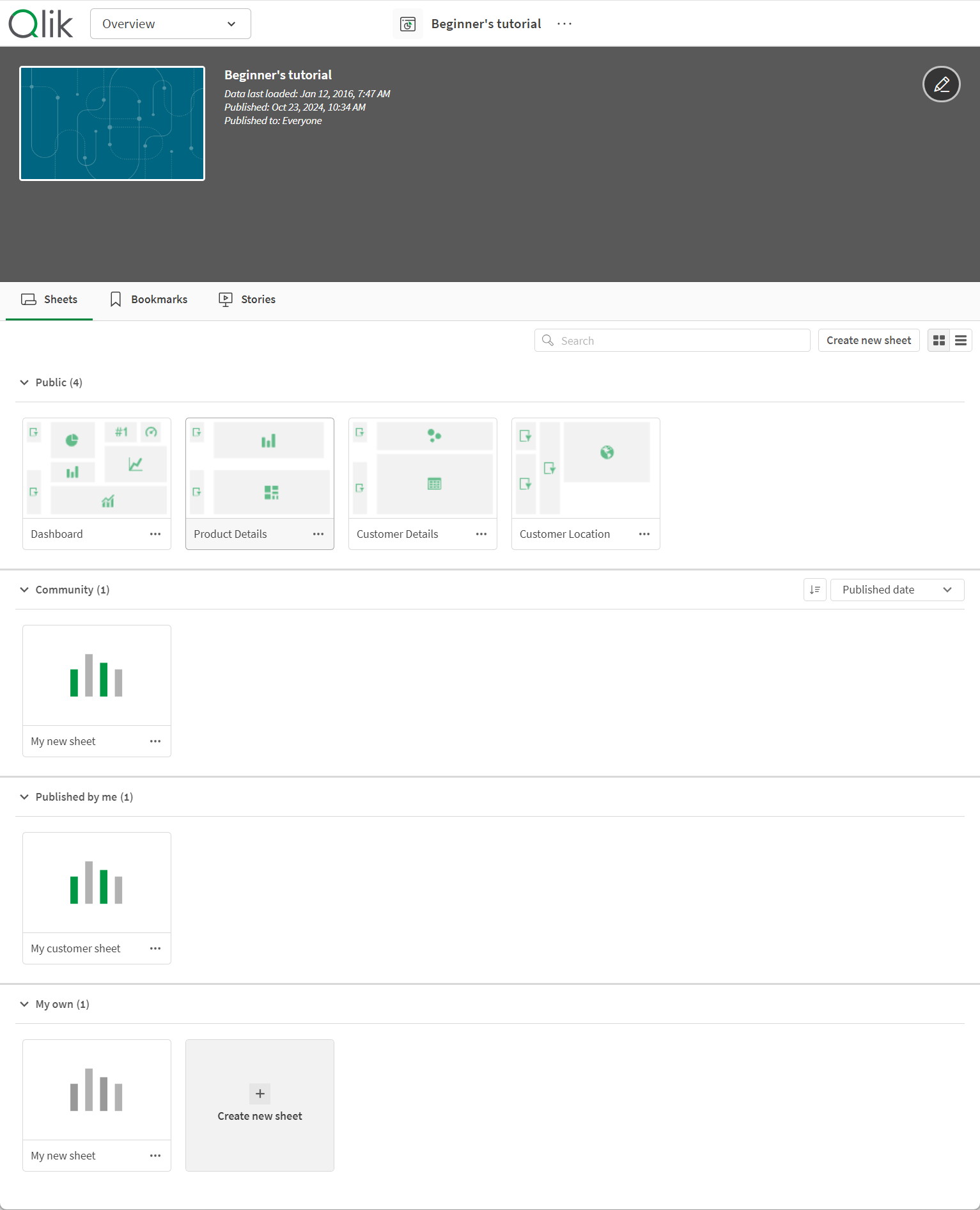
| Section | Description |
|---|---|
|
Public |
Sheets and stories that were included in the application when it was published or republished, or added to the public sheets and stories of the application after it was published. All users of the application have access to these. |
| Community | Sheets, bookmarks, and stories that someone else has created and published to the application that you have access to. Sheets and stories in this section can be added to public sheets and stories. |
| Published by me | Sheets, bookmarks, and stories that you have created and then published so that all the users of the application can access them. The other users will find these in their Community section. Sheets in this section can be approved for inclusion in public sheets. |
|
My own |
Sheets and stories that you have created but not published. No one else can see these. |
Bookmarks
Bookmarks created in an application before it is published will become public bookmarks in the published application. After the application is published, new bookmarks can be created and published as community bookmarks.
Interacting with applications
The tasks that you can perform in an application depend on whether or not that application has been published.
Unpublished application
You can:
- Edit the load script and reload the data.
- View the data structure and details about the data from the data model viewer.
- Create, edit, and delete sheets, visualizations, and bookmarks.
- Create master items (dimensions, measures, and visualizations) for reuse.
- Navigate between sheets, stories, and bookmarks.
- Make and clear selections.
- Apply/recall bookmarks.
Published application
You can:
- Navigate between sheets.
- Explore sheets and visualizations that were included in the application from the beginning.
- View stories that were included in the application from the beginning.
- Create and edit your own private sheets, visualizations and stories based on the data in the application.
- Publish sheets, stories, and bookmarks that you have created so that others can use them.
- Unpublish sheets, stories, and bookmarks that you have published so that they become private again.
- Update your private sheets.
- Add published sheets and stories to the public sheets and stories.
- Remove sheets and stories from the public sheets and stories.
- Copy and paste visualizations between sheets.
- Use master items (dimensions, measures and visualizations) that were included in the application from the beginning.
- Create and edit your own private bookmarks.
- Make and clear selections.
- Apply/recall bookmarks.
- Access the data model viewer, if you are the owner of the application with the default permissions.
You cannot:
- Edit the load script or reload the data.
- Access the data model viewer if you do not own the application.
- Edit visualizations, sheets, stories and bookmarks that were included in the application from the beginning.
- Edit sheets and stories that have been published.