
Pages
Last updated: 9/10/2026Pages let you build a customized operational dashboard from charts, text, lists, and sections. You can use a page to organize the information that you need for a specific workflow in one place.
Accessing pages
Pages are available in all activity centers: Insights, Analytics and Data Integration.
To open a page, open the activity center that contains it and click Pages. Pages availability and available actions depend on your user entitlement, roles, and space permissions.
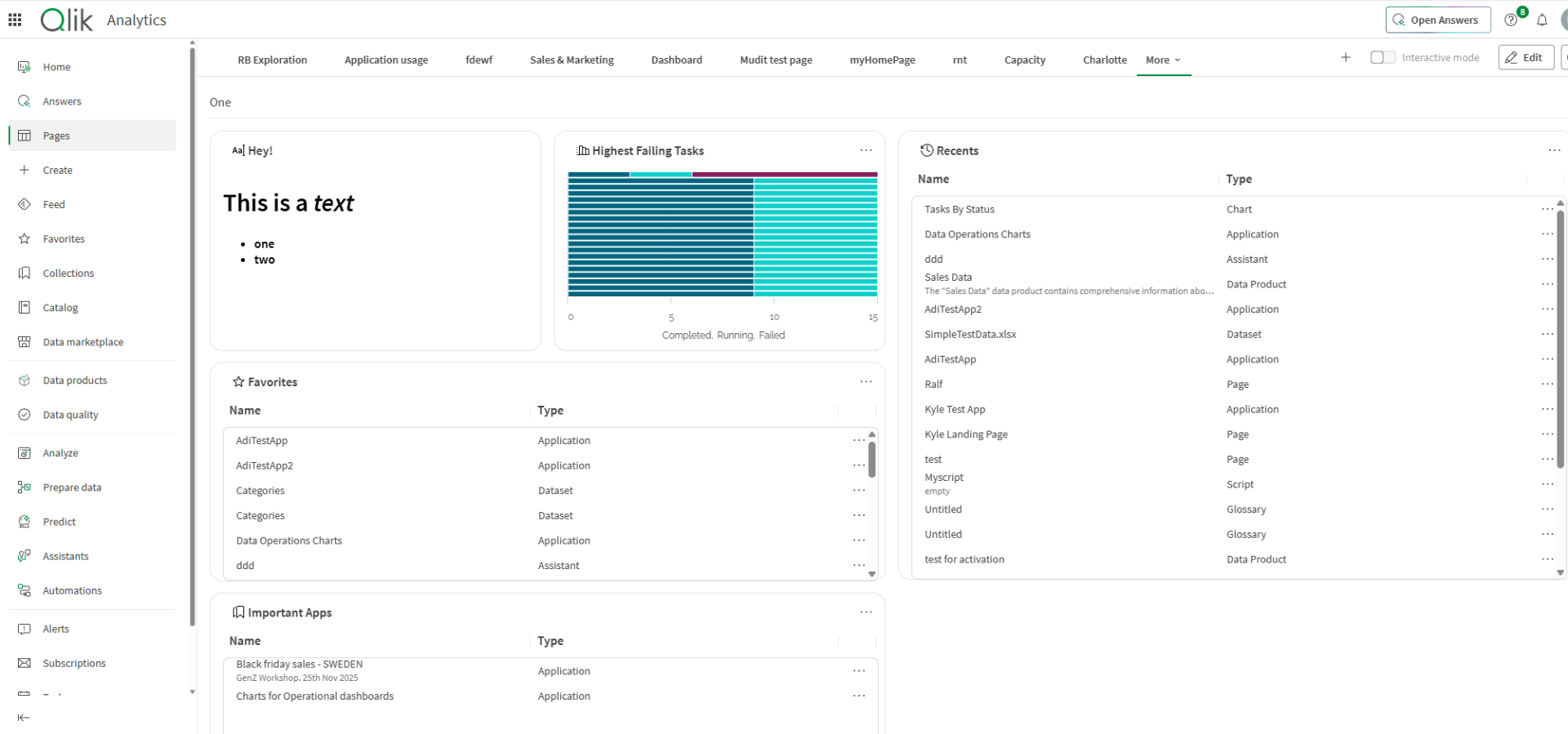
A page belongs to a space. You must have access to the page's space to open it. You might also need access to the spaces that contain charts used by the page.
Creating a page
To create a page, from any activity center:
- Click Pages and then click the Create page button.
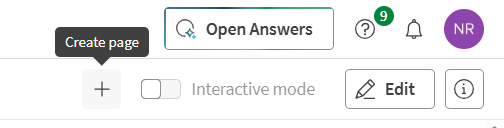
If it is the first page you are creating, a dedicated button will be shown.
Additionally, from the Analytics or Data Integration activity centers, you can click Create and then Page.
- Enter a name for the page, select a space, optionally add a description and tags, and click Confirm.
An empty page opens in edit mode.
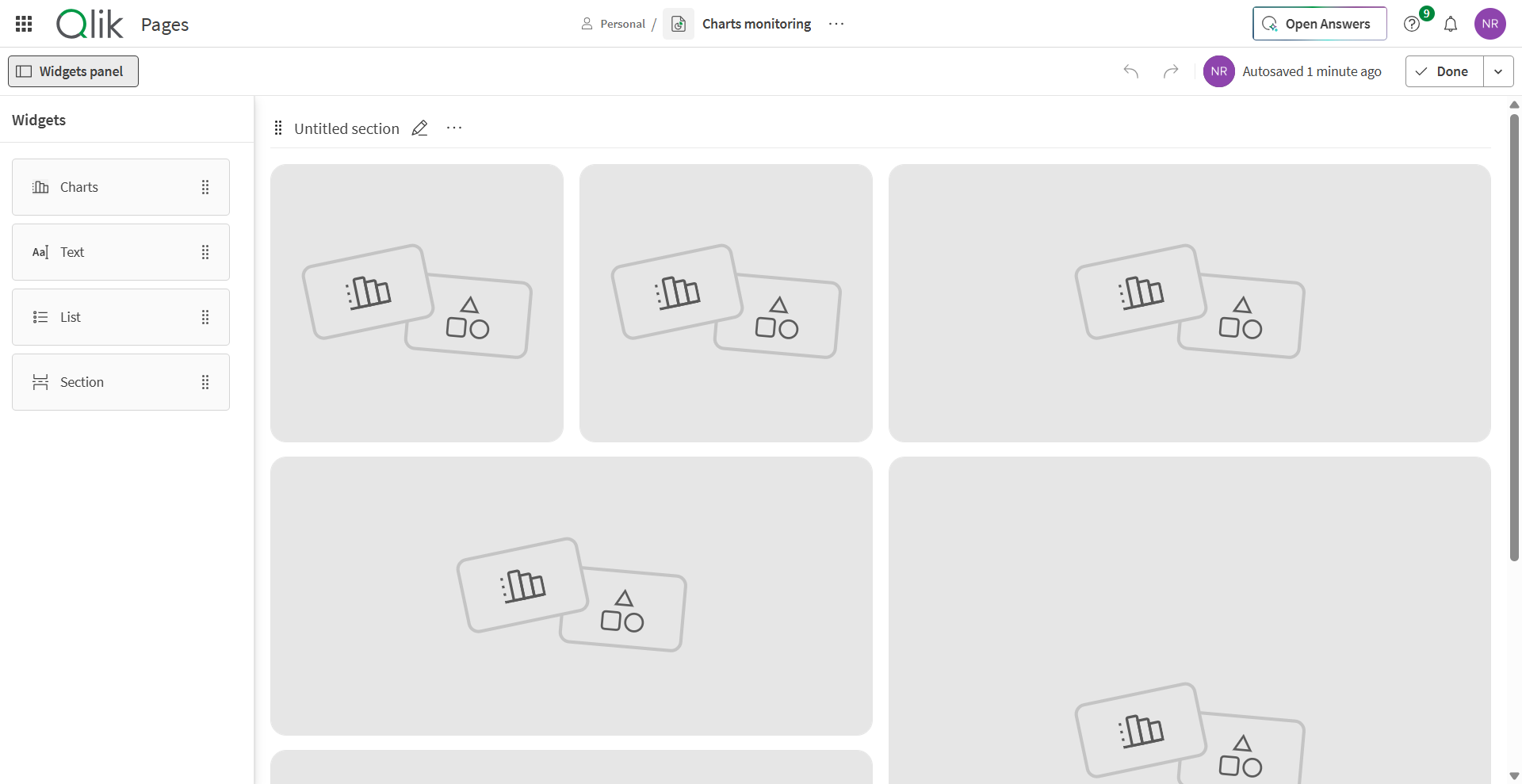
- Add widgets to the page.
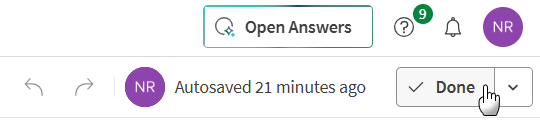
- When ready, click Done to leave the editor.
The page is saved in its space. The page's visibility depends on its publication status and the permissions for the space.
Building a page
Open a page in edit mode to add content and arrange the layout.
Available widgets
The following widgets are currently available:
| Widget | Purpose |
|---|---|
| Chart | Display a chart from an application that you can access.
Before a chart can be added to a page, you must monitor it from the application by clicking Monitor in activity center on the chart. For a chart to appear in the list of available charts in the Chart widget, the chart must be in a shared or managed space. |
| Text | Add explanatory or contextual text to the page. |
| List | Display a list of selected content or resources. |
| Section | Group related widgets on the page. |
Adding a widget
A page can contain a maximum of 100 widgets across all its sections.
To add widgets in edit mode, you can:
- Point your mouse over a placeholder widget and click the Add widget button.
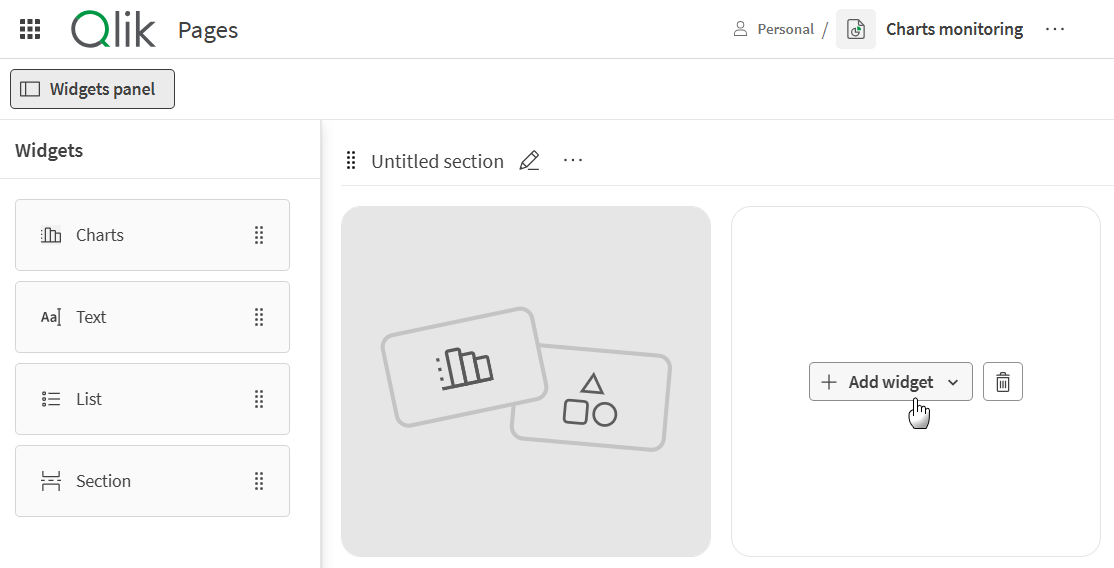
- Drag a widget from the list, and drop in an empty area or between existing widgets.

Configure the widget and confirm the configuration.
Actions on widgets
To perform an action on a widget, click the ... button in the top-right corner of the widget to open its action menu. Several actions are available:
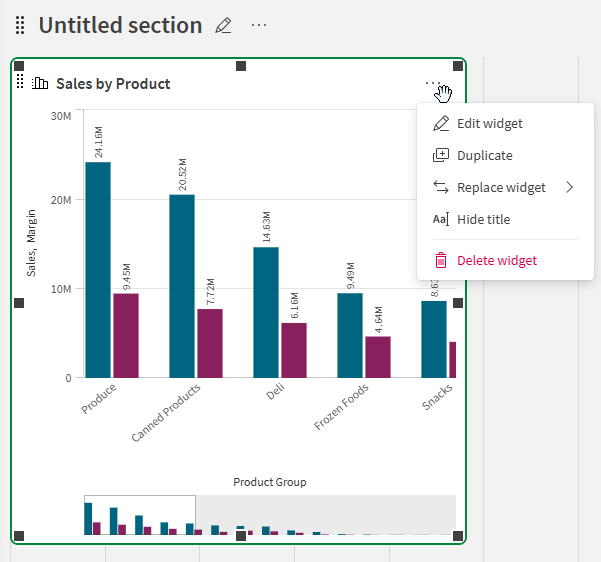
- Edit widget: Change the configuration and content of the widget.
- Duplicate: Create a copy of the widget.
- Replace widget: Change the widget type with another one.
- Hide/Show title: Toggle the visibility of the widget's title.
- Delete widget: Delete the widget from the page.
Resizing and moving widgets
Widgets support free-form resizing. You can resize a widget by selecting it and dragging your cursor from one of the handles at its edges.
Additionally, you can move a widget by dragging it to another location on the page. Drop it in the new location when the insertion area is highlighted.
Managing sections
Sections organize widgets into groups on a page. Add a section when you need to separate related content. You can add widgets to a section, move widgets within the section, and remove an empty section.
To create a new section, drag the Section widget from the left panel and drop it at the desired location on the page.
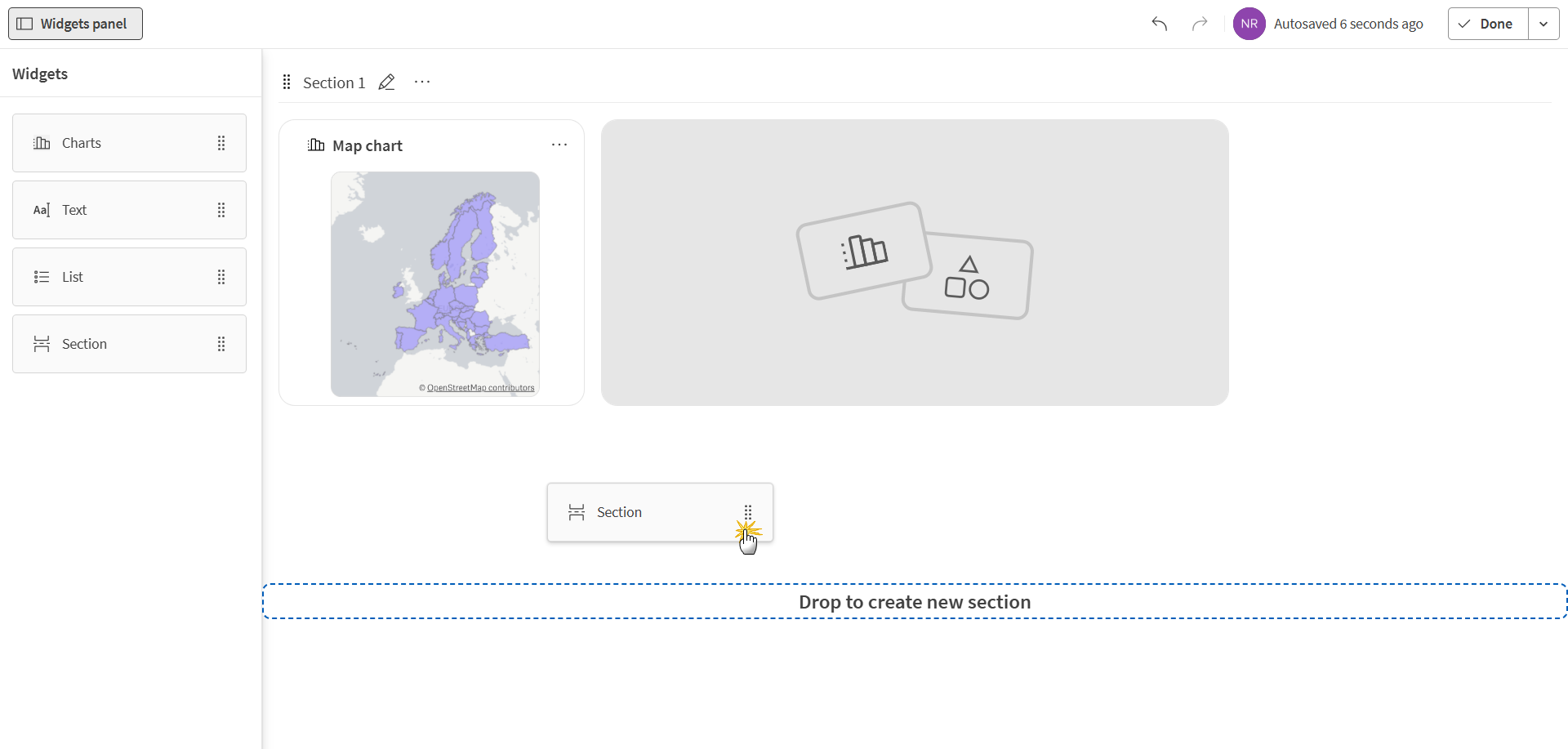
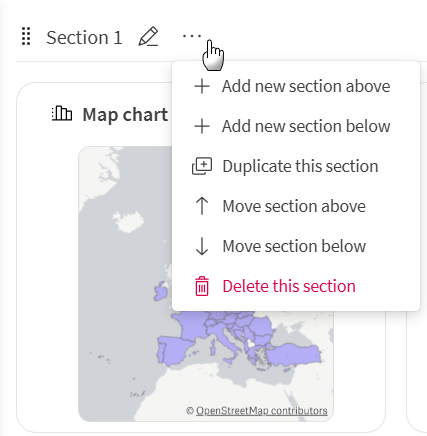
You can also create and manage sections by using the section's ... actions menu. It is also possible to move sections on the page by dragging them up or down.
Publishing and managing a page
Pages use a draft and published lifecycle. Keep a page as a draft while you build or update it. Publish the page when it is ready for other users with access to the page's space.
To publish a page, Click the Done button in the top-right corner of the page editor.
Depending on your permissions, you can access several actions for a page. To manage a page, in edit mode, click the ... actions menu next to the name of the page.

Publishing a page does not grant access to the charts or other content used by its widgets. Users can view only the content for which they have the required permissions.