
Teradata change processing
Last updated: 9/25/2026Teradata sources do not generate transaction logs that can be read directly for change processing. To capture changes, Qlik Talend Cloud Data Integration scans context columns in the source tables to identify INSERT, UPDATE, and DELETE operations.
Prerequisites
Before you configure change processing, make sure that at least one special context column exists in the source tables. A context column enables Qlik Talend Cloud Data Integration to determine whether the data has changed.
- Add context columns specifically for change processing, or use existing columns that contain suitable context data.
- You can use multiple context columns, but the column names must be the same in all source tables.
- Each value in the context columns must be unique.
- For non-datetime context columns, such as counters, strings, and numeric values that are not based on epoch time, use a singleton entity to generate the values. Generating values from multiple concurrent sources can cause events to be missed.
Example
In the following example, the cf context column has been added to the table. The column contains timestamps that Qlik Talend Cloud Data Integration uses to determine whether a change occurred by comparing the current timestamp with the timestamp stored in its repository.
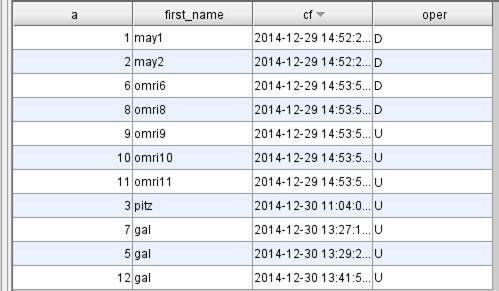
By default, all changes are treated as INSERT operations. If the source tables also receive UPDATE or DELETE operations, define update and delete expressions to identify the operation type.
Configuring change processing settings
- Select the source connection and open the CDC properties section.
- In Context columns, enter the names of the context columns as a case-sensitive, comma-separated list. For example,
context1,context2. - Select Ascending or Descending for the context column sorting order. The selected order must match the actual order of the values in the source tables. Otherwise, an error occurs.
- Set Check for changes every (seconds) to specify how often to check for changes. The default is 10 seconds.
- Enter an Update Expression to identify UPDATE operations.
- Enter a Delete Expression to identify DELETE operations.
If you do not define an update or delete expression, or if an expression does not match, a row whose context is higher than the previous context value when sorting is ascending, or lower when sorting is descending, is treated as an INSERT operation.
Expressions
Write expressions in the native syntax of the source database. The following examples use an oper column that contains U for updates and D for deletes:
- Update Expression:
case when oper='U' then 1 else 0 end - Delete Expression:
case when oper='D' then 1 else 0 end
To process DELETE operations, use soft deletes. A soft delete marks the row as deleted instead of removing it from the table.
For additional Teradata change-processing limitations, see Limitations and considerations.
Additional settings and summary
In the CDC properties section, you can also configure internal parameters, add more options, and view a summary of the change-processing settings.
Internal parameters
Internal parameters are not exposed in the standard user interface. Add or change them only when instructed by Qlik Support.
- Open the internal parameters settings.
- Enter the parameter name and add it to the parameter list.
- Change the parameter value as instructed by Qlik Support.
More options
More options are not exposed in the standard user interface and apply only to specific versions or environments. Do not set these options unless Qlik Support or the product documentation instructs you to do so.
Override connection string parameters
You can append connection string parameters that are not exposed in the user interface. These parameters are normally not required. Consult Qlik Support before adding them.
Settings summary
View a summary of the change-processing settings when you need to review or provide the configuration details to Qlik Support.