
Managing data contracts
Last updated: 10/30/2026A data contract is a formal agreement that defines quality checks for datasets in your organization. Data contracts establish rules helping teams rely on data quality before building applications or making business decisions.
High-quality data is essential for accurate analytics and reliable applications. Data contracts protect your organization by:
- Reducing risk: Catch data quality issues before they impact business decisions or applications.
- Increasing trust: Teams gain confidence in data when contracts ensure reliability over time.
- Enabling observability: Contracts trigger alerts when data fails to meet quality checks.
- Clarifying expectations: Contracts document what producers promise and what consumers need.
- Speeding troubleshooting: When data breaks, contracts help identify and locate the problem quickly.
Core concepts
Understanding these key terms helps you work with data contracts:
- Expectation: A specific check that verifies data or metadata compliance.
- Score: The metric's value that indicates how well the data meets the defined quality check.
- Error threshold: A numerical limit that defines acceptable behavior. An expectation fails when the score is below this threshold.
- Warning range: A range of values that triggers a warning when data falls within it, indicating potential issues before reaching the error threshold.
- Alert: An automated notification sent to specified users when a data breach occurs, enabling rapid response to quality issues.
- Dimension: A metric from the Qlik Trust Score™.
Configuring a data contract
- In Qlik Cloud, navigate to the Catalog section.
- Click the dataset for which you want to configure the data contract.
- Click the Data contract tab.
- Do one of the following:
- Click Activate all expectations when they are all deactivated.
- Activate or deactivate an expectation by clicking the tile > Activate expectation or Deactivate expectation.
The status of the data contract is updated.
- Click a tile to configure the expectation. For quality metric expectations, you can define the error threshold and warning range. For the Data volume expectation, you can define the record range. For more information, see Defining the error threshold and warning range.
- When the configuration is complete, click Apply changes.
The status of the data contract is updated.
When you want to deactivate all expectations, it is recommended to deactivate the data contract. This will stop the evaluation of all expectations and disable alerts for this contract.
In the Data contract overview, click Deactivate data contract.
Defining the error threshold and warning range
For quality metric expectations, the error threshold establishes acceptable limits for data quality. The warning range lets you define a buffer zone where data quality is approaching the error threshold but the expectation has not yet failed. This helps teams address issues before they become critical.
- Select the expectation to configure.
- In the right panel, click the edit icon next to Error threshold.
- Enter the error threshold.
- Click Add warning range.
- Enter the maximum value.
- Click OK to validate the values. The Evaluation preview shows you the status if you apply the changes.
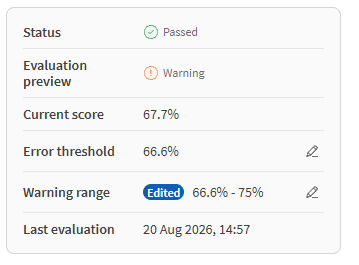
- Click Apply changes to update the data contract evaluation.
If you have subscribed to notifications, one is sent when:
- The score falls in the warning range. Only for quality metrics expectations.
- The score is below the error threshold. Only for quality metrics expectations.
- The row count is not in the record range. Only for Data volume expectation.
To remove the warning range, click  next to the warning range value.
Status of the data contract
The status of the data contract is automatically updated when:
- Expectations are activated or deactivated.
- The error threshold or warning range is modified.
- The record range is modified.
- The Qlik Trust Score™ is updated.
From the dataset menu, you can quickly know whether the data contract has issues or not. An icon is displayed on the Data contract tab.
Setting up alerts
Configure alerts to notify your team when some events happen on your dataset. Alerts ensure that quality issues are discovered and addressed quickly, preventing unreliable data from being used in dashboards, applications, or business decisions.
- In Qlik Cloud, navigate to the Catalog section.
- Locate the dataset with the contract you want to configure alerts for.
- Click the More actions button > Manage > Notification settings.
- Select the notification you want to configure.
For more information, see Managing your alerts.