
Organizing API folders
You can organize your APIs into folders.
Creating a folder
- Enter a name and click Create.
The name cannot contain any of the following characters: " : < > \ | * ?
You can use slashes to create multiple subfolders like "sub/folder". There is a limit of 10 nested folders.
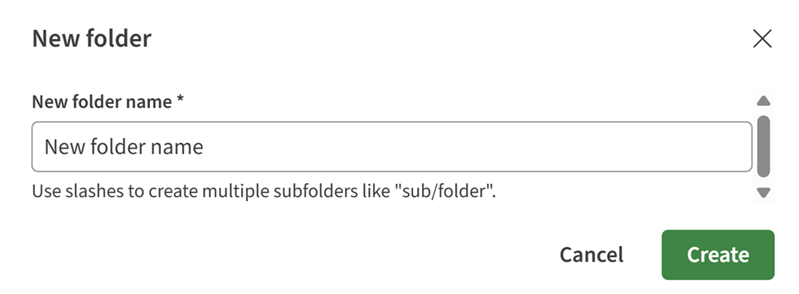
A new folder is now created and opens on the general information page. You can
start adding APIs to the folder.
Adding an API to a folder
You can add new or already existing APIs to your folders.
- To add a new API in your folder:
- Click New API.
For more information, see Creating a new API.
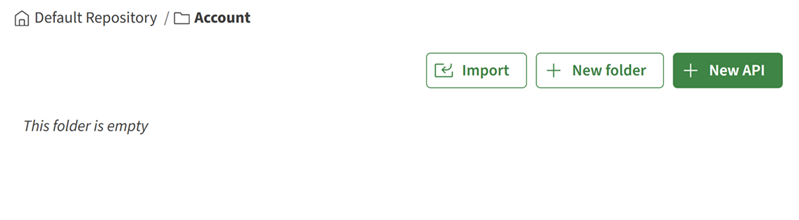
- Click New API.
- To add an existing API in your folder:
- On the left panel, click the
 button next to the API that you want to move in your
folder.
button next to the API that you want to move in your
folder.
- Select the folder in which you want to move the API and click
Move.
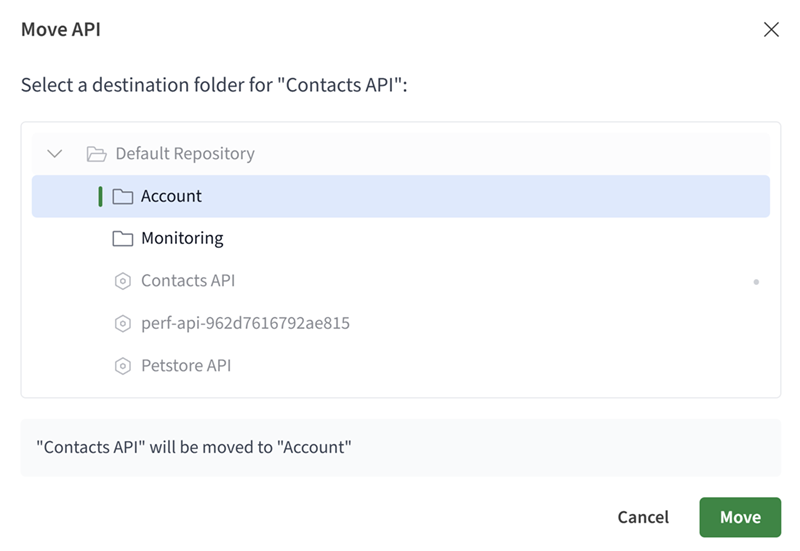
Your API is visible in the folder you selected. - On the left panel, click the
Renaming a folder
- On the left panel, click the button next to the folder that you want to rename and click
Rename.
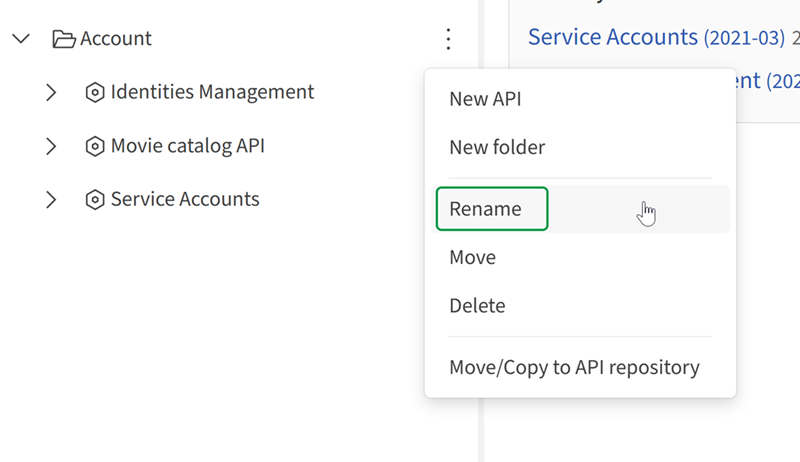
Your folder is renamed.
Deleting a folder
You can delete a folder. However, if your folder's content is published or shared, it is then impossible to delete the folder. First, make sure to move the folder's content if needed.
- On the left panel, click the button next to the folder that you want to delete and click
Delete.
If the folder is empty, it is immediately deleted.
- To confirm your decision, enter the folder's name that you want to
delete.
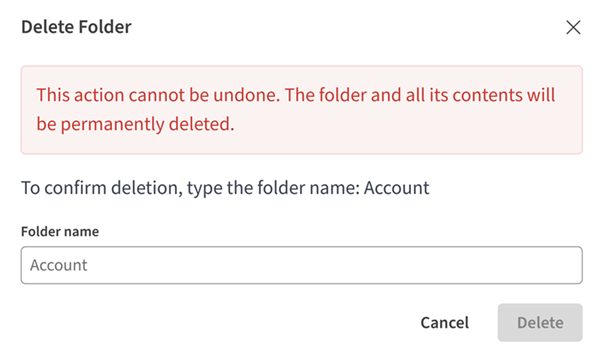
Your folder is deleted and removed from the left panel.