
Working with multiple versions
Last updated: 10/22/2026Talend Cloud API Designer lets you maintain multiple versions of the same API contract while you prepare changes in a new version.
- Maintain an existing API version in production while introducing significant or breaking changes in a new version.
- Track and manage API versions from a single location.
- Work on API changes without affecting existing versions.
When you create a new version of an API, all content is copied to the new version. The latest version can then be updated independently without affecting earlier versions.
Only the latest version is editable, and you can create a new version only from it. Older versions are read-only.

Creating a new API version
Create a new version of an existing API definition.
Before you begin
Procedure
-
Open the latest version to view the Preview, then click
Create a new version.

Results
Deleting an API version
Before you begin
Procedure
-
On the homepage, click
 next to the version that you want to delete and click
Delete.
Information noteNote: You cannot delete a version if its documentation is published on API Portal. You need to unpublish it or mark it as unpublished before deleting it. For more information, see Managing your API documentation.
next to the version that you want to delete and click
Delete.
Information noteNote: You cannot delete a version if its documentation is published on API Portal. You need to unpublish it or mark it as unpublished before deleting it. For more information, see Managing your API documentation.
Results
Importing version content
Import content from an existing contract into an API version, replacing or merging its current content.
Before you begin
About this task
Use this feature to update a version from an external contract file without creating a new version. The version identifier is preserved throughout the import.
This is different from importing a definition, which creates a new API in Talend Cloud API Designer.
Procedure
-
Open Import version content for the version you want to
update.
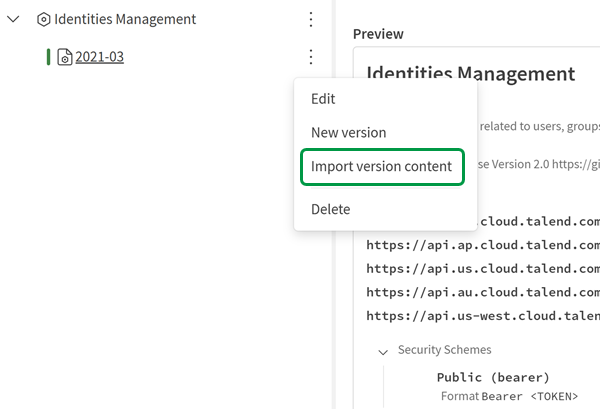
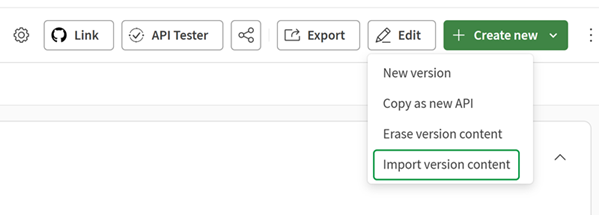
You can access this action from the following locations:
- On the homepage, click next to the version and click Import version
content.
- On the Preview, click , then click Import version content.

- In the version editor, click .
- On the homepage, click
-
Under Behavior, select how to apply the imported
content.
- Replace: overwrites all current content with the imported contract. The API name, version identifier, and specification version are preserved.
- Merge: combines the imported content with the existing version content. The API name and version identifier are preserved. If an imported element has the same name as an existing element, the imported element is renamed with a _merge suffix (for example, User_merge). Duplicate base URLs and media types are skipped.

Results
The version editor opens with the updated content applied.