
Laatst bijgewerkt: 21-07-2026
Het radardiagram (Radardiagram) geeft een tweedimensionaal diagram weer met radiale assen. Het diagram geeft een of meerdere groepen waarden weer over meerdere variabelen. Radardiagrammen kunnen worden gebruikt om prestaties te visualiseren en te vergelijken met een ingestelde standaard of met de prestatie van een groep.
Radardiagrammen vereisen twee dimensies en één meting. De y-as loopt van het midden naar buiten en de x-as is de buitenrand van het diagram. Elke waarde vertegenwoordigt de afstand vanaf het midden van het diagram en wordt weergegeven op assen die starten vanuit het midden. Het midden van het diagram vertegenwoordigt de minimumwaarde, de rand de maximumwaarde.
Een radardiagram kan meerdere reeksen weergeven, elk apart verbonden met hun waarden. De gegevens gaan maar één keer rond in het diagram. Het toevoegen van waarden verhoogt alleen de gedetailleerdheid van het diagram.
Een selectie die in een radardiagram wordt gemaakt, wordt onmiddellijk bevestigd. Maak, indien van toepassing, één voor één extra selecties.
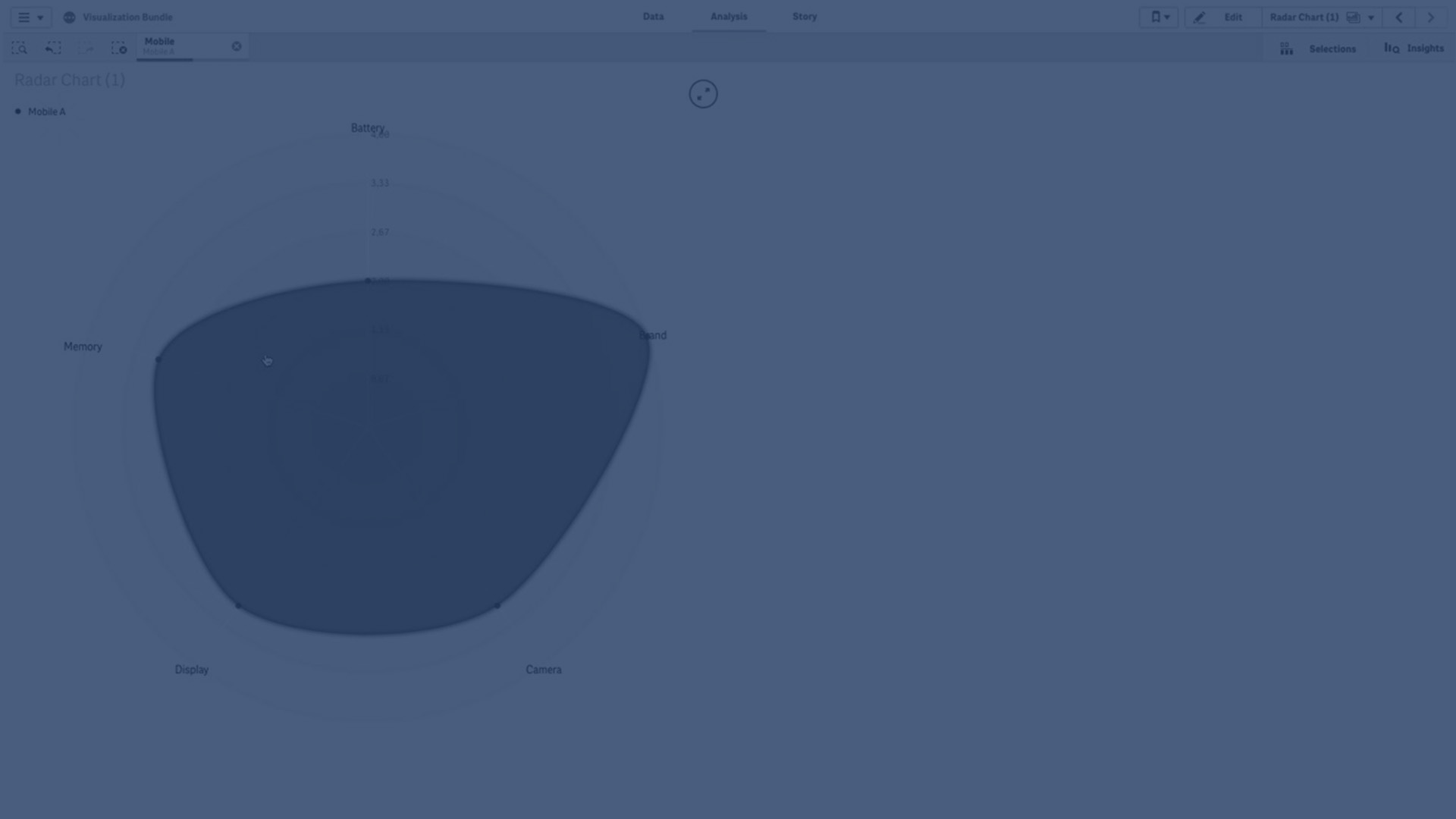
Een radardiagram begrijpen
Een radardiagram bestaat uit segmenten (assen) met gelijke tussenruimte die radiaal om een punt zijn geordend. Er is één segment voor elke gegevenswaarde van de tweede dimensie. De waarde van elke meting wordt weergegeven door een knooppunt op de toepasselijke as. Een lijn verbindt de waarden die bij dezelfde reeks horen, waarbij de stervorm van het diagram gemaakt wordt.
Een radardiagram met één as voor elke maand van de Date.Maand dimensie.

Wanneer gebruiken
Met radardiagrammen kunt u gegevens vergelijken en meten met een willekeurig aantal variabelen. Dit is handig wanneer u de functies of prestatie van iets wilt vergelijken over meerdere meetcriteria. Bijvoorbeeld: voordat u een computer koopt, kunt u verschillende computers vergelijken over meerdere functies, zoals geheugenopslag, verwerking en schermgrootte. Een radardiagram is ook handig om:
- Kwaliteitsverbetering en prestatie te meten.
- Toegewezen budget te vergelijken met werkelijke uitgaven in een organisatie.
- Uitschieters, gemeenschappelijkheid en clusters gegevens met vergelijkbare waarden en functies te identificeren.
- De sterke en zwakke punten van een atleet in kaart te brengen.
-
De resultaten van kleine tot gemiddelde multivariabele gegevensverzamelingen te vergelijken.
Een radardiagram maken
Doe het volgende:
- Open Diagrammen in het bedrijfsmiddelenvenster.
- Sleep onder Visualisaties een radardiagram-object naar het werkblad.
- Klik op Dimensie toevoegen en selecteer een veld of masterdimensie om als eerste dimensie te gebruiken.
- Klik op Dimensie toevoegen en selecteer een veld of masterdimensie om als tweede dimensie te gebruiken.
- Klik op Meting toevoegen en selecteer een veld of mastermeting om als meting te gebruiken.
Stijl van radardiagrammen
Er zijn een aantal stijlopties beschikbaar onder Uiterlijk in het eigenschappenvenster.
Klik op  Stijlen onder Uiterlijk > Presentatie om de stijl van het diagram verder aan te passen. U kunt uw stijlen resetten door te klikken op
  naast elke sectie. Als u op Alles opnieuw instellen klikt, worden de stijlen voor alle beschikbare tabbladen in het stijlvenster opnieuw ingesteld.
Raadpleeg Aangepaste stijl toepassen op een visualisatie voor algemene informatie over het stijlen van een afzonderlijke visualisatie.
De tekst aanpassen
U kunt de tekst voor de titel, subtitel en voetnoot instellen onder Uiterlijk > Algemeen. Schakel Titels tonen uit als u deze elementen wilt verbergen.
De zichtbaarheid van de verschillende labels in het diagram is afhankelijk van diagramspecifieke instellingen en labelweergave-opties. Deze kunnen worden geconfigureerd in het eigenschappenvenster.
U kunt de stijl van de tekst bepalen die in het diagram verschijnt.
Doe het volgende:
-
Vouw in het eigenschappenvenster de sectie Uiterlijk uit.
-
Onder Uiterlijk > Presentatie klikt u op
Stijlen. -
Stel op het tabblad Algemeen het lettertype, de nadrukstijl, de grootte en de kleur in voor de volgende tekstelementen:
-
Titel
-
Ondertitel
-
Voetnoot
-
De achtergrond aanpassen
U kunt de achtergrond van het diagram aanpassen. De achtergrond kan worden ingesteld met een kleur en afbeelding.
Doe het volgende:
-
Vouw in het eigenschappenvenster de sectie Uiterlijk uit.
-
Onder Uiterlijk > Presentatie klikt u op
Stijlen. -
Op het tabblad Algemeen van het stijlvenster kunt u een achtergrondkleur (enkele kleur of uitdrukking) selecteren. U kunt de achtergrond ook instellen op een afbeelding uit uw mediabibliotheek of van een URL.
Als u een achtergrondkleur gebruikt, kunt u de schuifregelaar gebruiken om de mate van transparantie van de achtergrond aan te passen.
Wanneer u een achtergrondafbeelding gebruikt, kunt u de afbeeldingsgrootte en -positie aanpassen.
De rand en schaduw aanpassen
U kunt de rand en schaduw van het diagram aanpassen.
Doe het volgende:
-
Vouw in het eigenschappenvenster de sectie Uiterlijk uit.
-
Onder Uiterlijk > Presentatie klikt u op
Stijlen. -
Op het tabblad Algemeen van het stijlvenster, onder Rand, wijzigt u de omvang van de Omtrek om de randlijnen rondom het diagram te vergroten of te verkleinen.
-
Selecteer een kleur voor de rand.
-
Wijzig de Hoekstraal om de ronding van de rand in te stellen.
-
Onder Schaduw op het tabblad Algemeen selecteert u de omvang en de kleur van de schaduw. Selecteer Geen om de schaduw te verwijderen.
Beperkingen
Radardiagrammen hebben de volgende beperkingen:
- Radardiagrammen kunnen slechts 100 unieke waarden per dimensie verwerken.
- Geëxporteerde radardiagrammen nemen de diagramlegenda niet mee.
- Zie Beperkingen van voor meer informatie over algemene beperkingen.