
Migrating runtime assets
Last updated: 9/1/2026The runtime assets migration transfers tasks and plans from the source tenant to the target tenant.
This step can migrate a task together with the associated artifact, or migrate the task only when the artifact already exists in the target tenant.
Selecting the artifact migration type
- Migrate With Artifact: The artifact associated with the task is migrated. This is a lift-and-shift migration, so no changes are made to the resulting artifact.
- Migrate Without Artifact: The artifact associated with the task is not migrated. An artifact with the same name as the source task artifact must already exist in the target tenant.

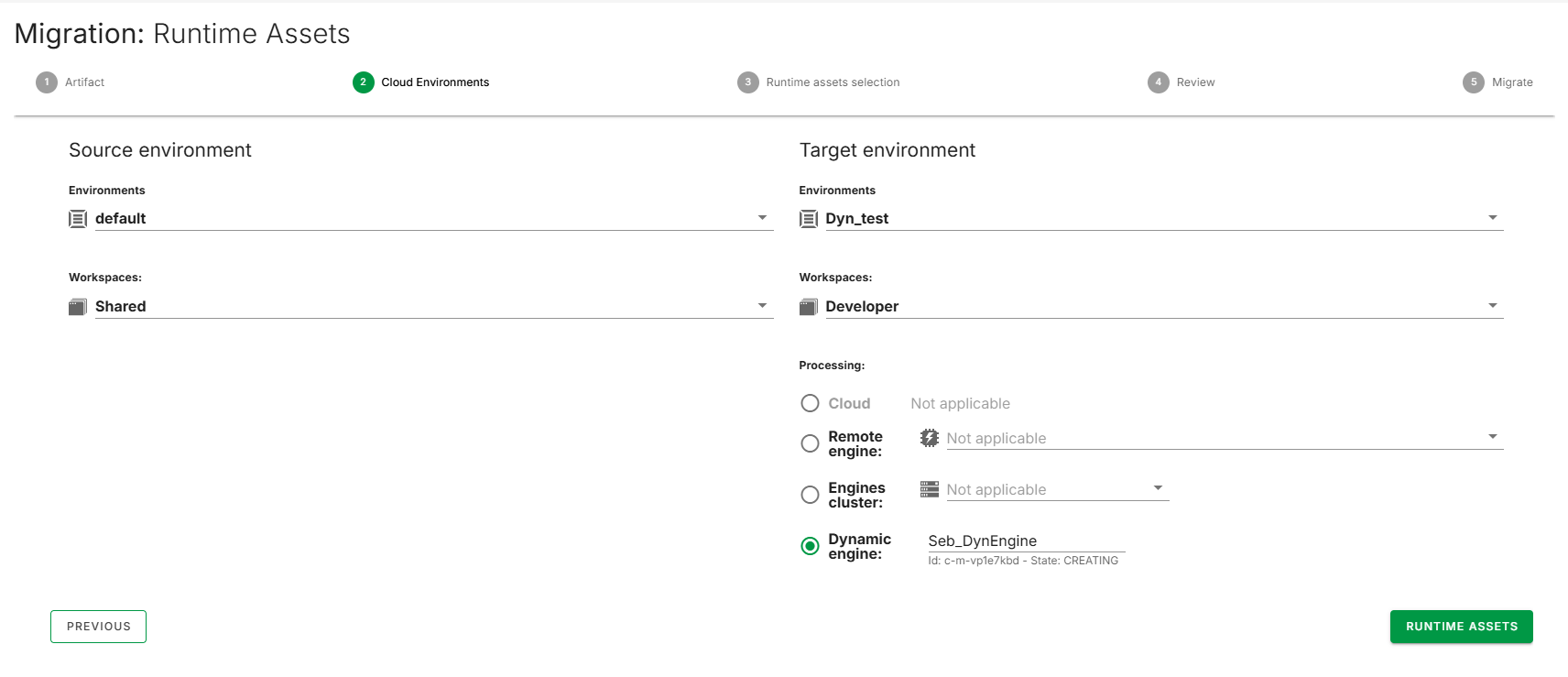
Selecting the environments, spaces, and engines
- In the source column, select the environment and space to migrate the assets from.
- In the target column, select the environment and space to migrate the assets to.
After the target space is selected, the processing section is displayed.
- In the processing section, select the engine to migrate the new assets into.
Selecting tasks and plans
Two tree views are displayed: the source tree on the left and the target tree on the right.
- Expand the source tree to view the available tasks and plans.
- Select the assets to migrate by checking the corresponding checkboxes.
- Click the right arrow button to move the selected assets to the target tree.
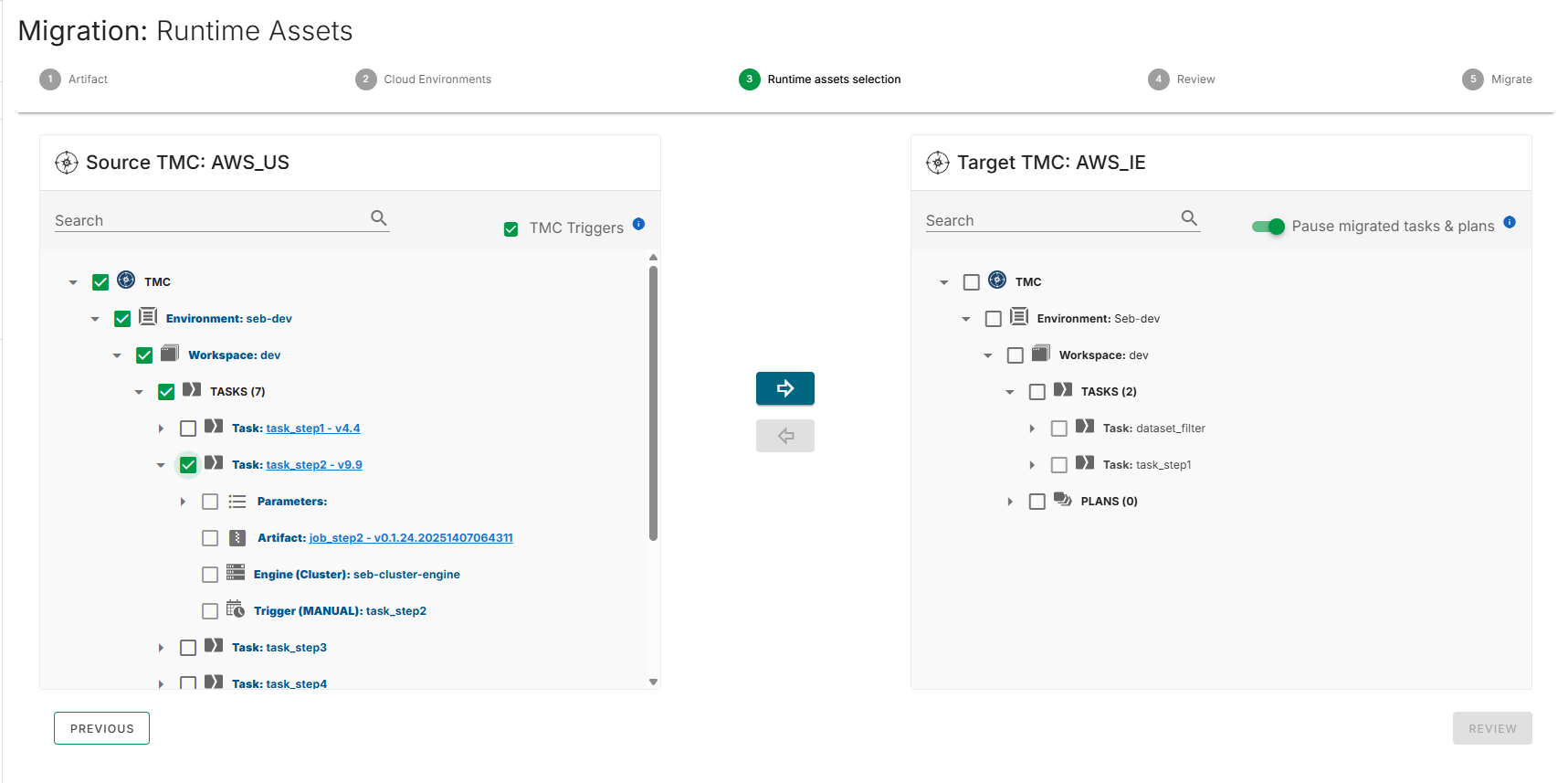
To exclude triggers from the migration, clear the TMC Triggers checkbox at the top of the source tree.
Migrated triggers are paused by default. To migrate a trigger without pausing it, click the orange pause button next to the task in the target tree. A green play button is then displayed.
To migrate all triggers in the same state as the source tenant, disable the Pause migrated tasks & plans option.
To remove an asset from the target tree, select the asset and click the left arrow button.
Reviewing the selection
- Click Review to view a summary of the selected assets.
- Review the counts on the review screen:
- Total Tasks
- Total Plans
- Optionally enter a comment in the Comment field.
- Verify the target TMC tree structure on the right panel.
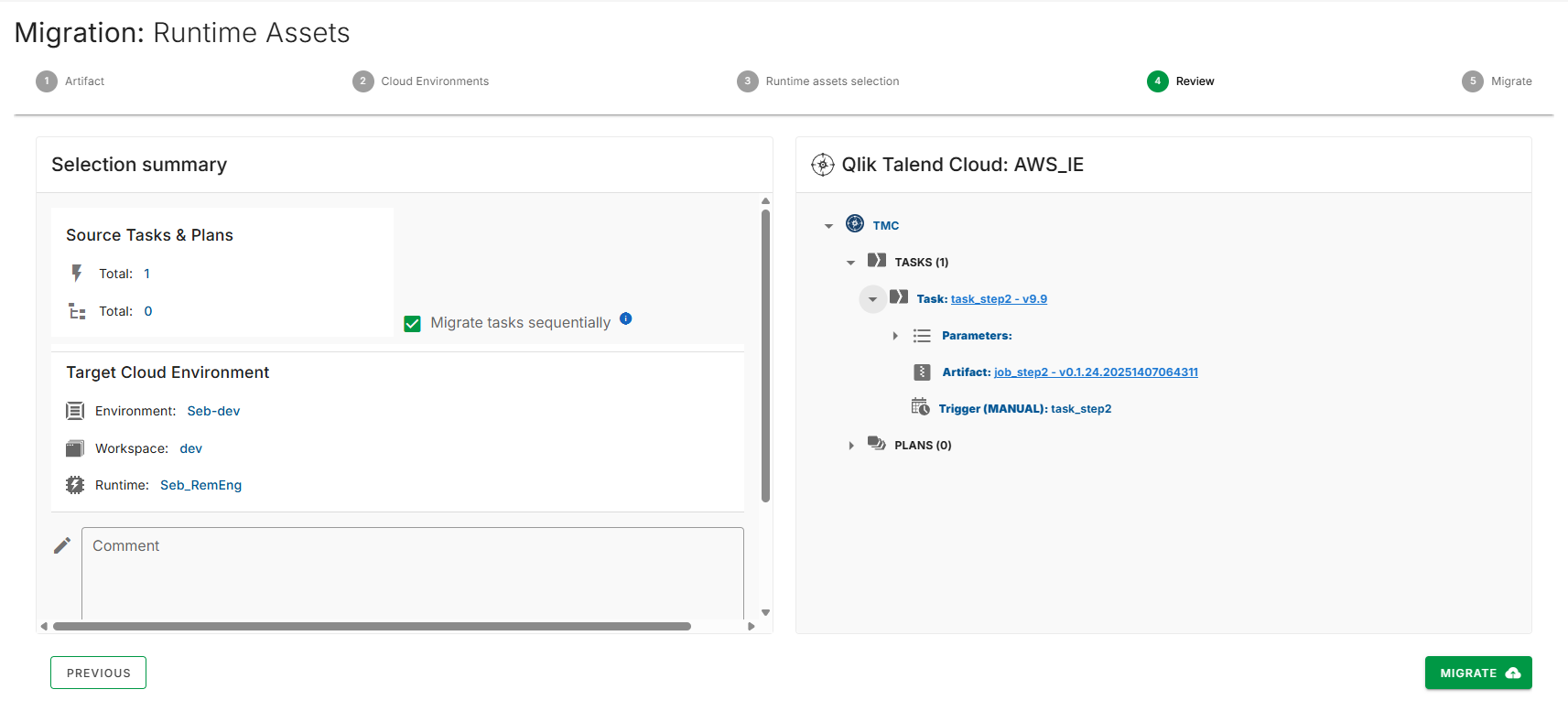
Tasks and plans are migrated sequentially by default, one at a time. To migrate all tasks and plans concurrently, clear the Migrate tasks sequentially option.
By default, Region Mover does not update the artifact to the latest version. To update the artifact to the latest version found in the source tenant, select Auto update task with the latest artifact version.
Ensure that enough space is available on the drive where QTCMT is installed.
Concurrent task migration downloads all artifacts at the same time, which can require several gigabytes of space depending on the number and size of the artifacts.
Running the migration
Click Migrate to begin the migration.
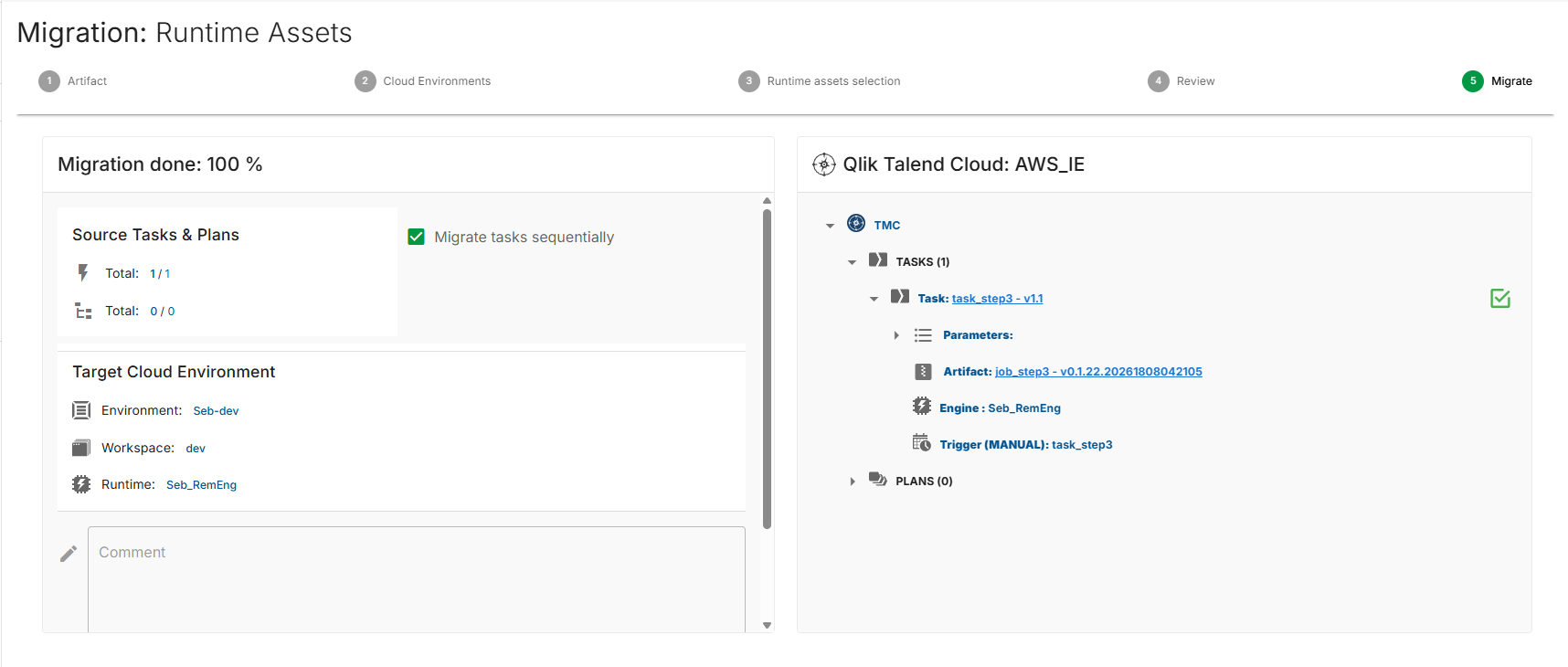
The migration progress screen displays real-time status updates for each asset.
- Green checked checkbox: Migrated successfully.
- Blue information box: Migrated successfully with additional information. Hover over the icon to display the details.
- Amber exclamation triangle: Task migrated successfully, but the trigger or parameters failed to migrate. Hover over the icon to display the message.
- Red exclamation circle: Migration failed. Hover over the icon to display the error message.
Migration behavior
- Tasks: If the task already exists in the target tenant, the task, parameters, and triggers are overwritten with the source values. An existing artifact with the same name is not overwritten.
- Plans: Execution plans, associated task relationships, and plan steps are migrated.