Running the Jenkins pipeline
Last updated: 9/18/2025Before you begin
- Your artifact repository (Nexus or Artifactory) is started.
- Your Talend CommandLine is configured
and started:
- Go to the Talend CommandLine directory and open the commandline.bat or commandline-linux.sh according to your Operating system.
- Edit the -data value with the
$WORKSPACE variable to ensure each Jenkins
pipeline will use its own dedicated workspace:
For Linux:
./Talend-Studio-linux-gtk-x86_64 -nosplash -application org.talend.commandline.CommandLine -consoleLog -data $WORKSPACE -p 8002For Windows:
Talend-Studio-win-x86_64.exe -nosplash -application org.talend.commandline.CommandLine -consoleLog -data $WORKSPACE -p 8002 - Start the Talend CommandLine
at least once to create the local .m2 repository
then close it.Information noteNote: Starting Talend CommandLine as a server is deprecated.
Procedure
- From the Jenkins home page, select Talend_Pipeline.
- Click Open Blue Ocean in the left panel.
- Click Run.
- Click the new line that appears on the list to see the pipeline progress.
Results
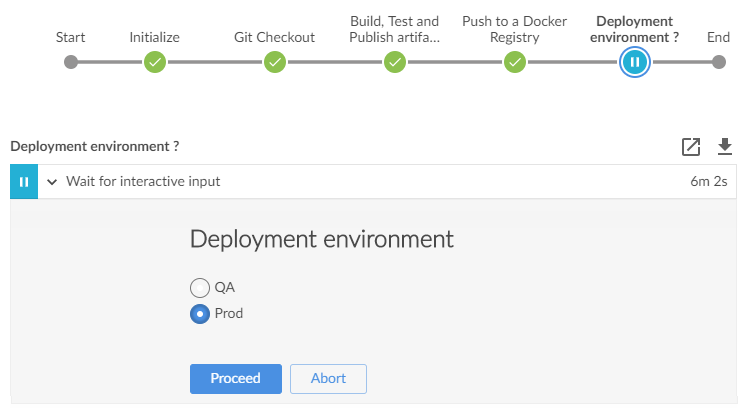
The pipeline is launched and your project is being processed according to the Maven phases that have been defined in your script. The best practice is to use the deploy phase in order to generate the source code, compile it, test it, package it and then deploy the packages.
You can see their results displayed:
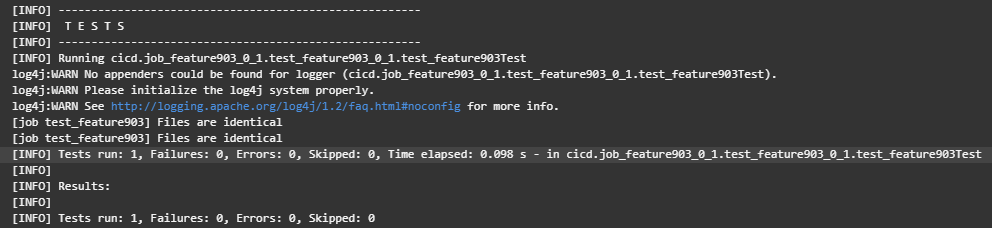
- in Jenkins: the detail of your results can be found in the logs that you can
display by clicking the Display the log in new window
icon.Example where you can see the successful execution of the test named test_feature903:
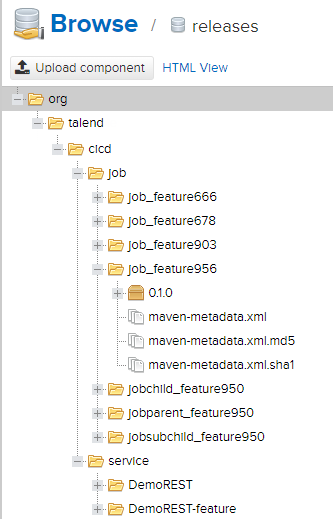
- in your Nexus web application or Artifactory: example of Jobs and Services
artifacts with version 0.1.0 deployed in the
releases repository with an
org.talend.cicd Group ID:
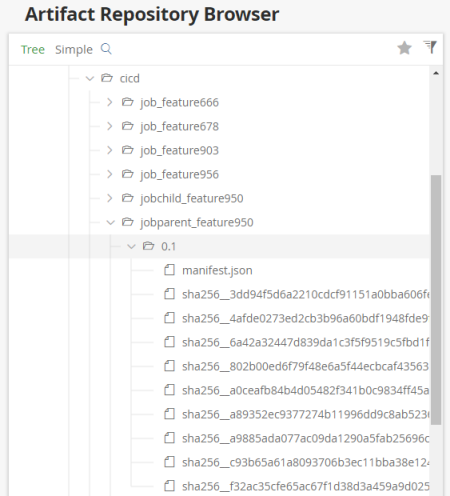
- in your Docker registry: example of artifacts with version
0.1 (image tag) pushed as a
cicd Docker image in an Artifactory Docker registry: