
Changing the deployment type of a Dynamic Engine
You can change the deployment type already selected for your Dynamic Engine and its environment(s). This change requires a new download for a new deployment.
The change can be done from Kubectl to Helm or the other way around, but must be done when the deployment files are not applied yet, or when the files are applied but the deployment fails.
You cannot change the deployment type of a downloaded zip or already deployed services. Upgrading from Kubernetes manifests to Helm charts is not supported for deployed Dynamic Engine services.
Before you begin
You must have the Infrastructure Administrator (containing the TMC_CLUSTER_MANAGEMENT permission) role in Talend Management Console.
Procedure
- Optional:
Follow one of the following approaches to set a new deployment type:
- If you need to assign one or more environments to this Dynamic Engine, at the end of the assignment, you are prompted to select the deployment type.
This ensures you to deploy the Dynamic Engine services all at once.
For detailed instructions about this workflow, see Assigning an environment to a Dynamic Engine. - If you need to unassign an environment, select the environment and click Unassign. Then click Edit deployment to select the deployment type.
- If you need to keep the engine's current assignments, click Edit deployment to select the deployment type.
Example
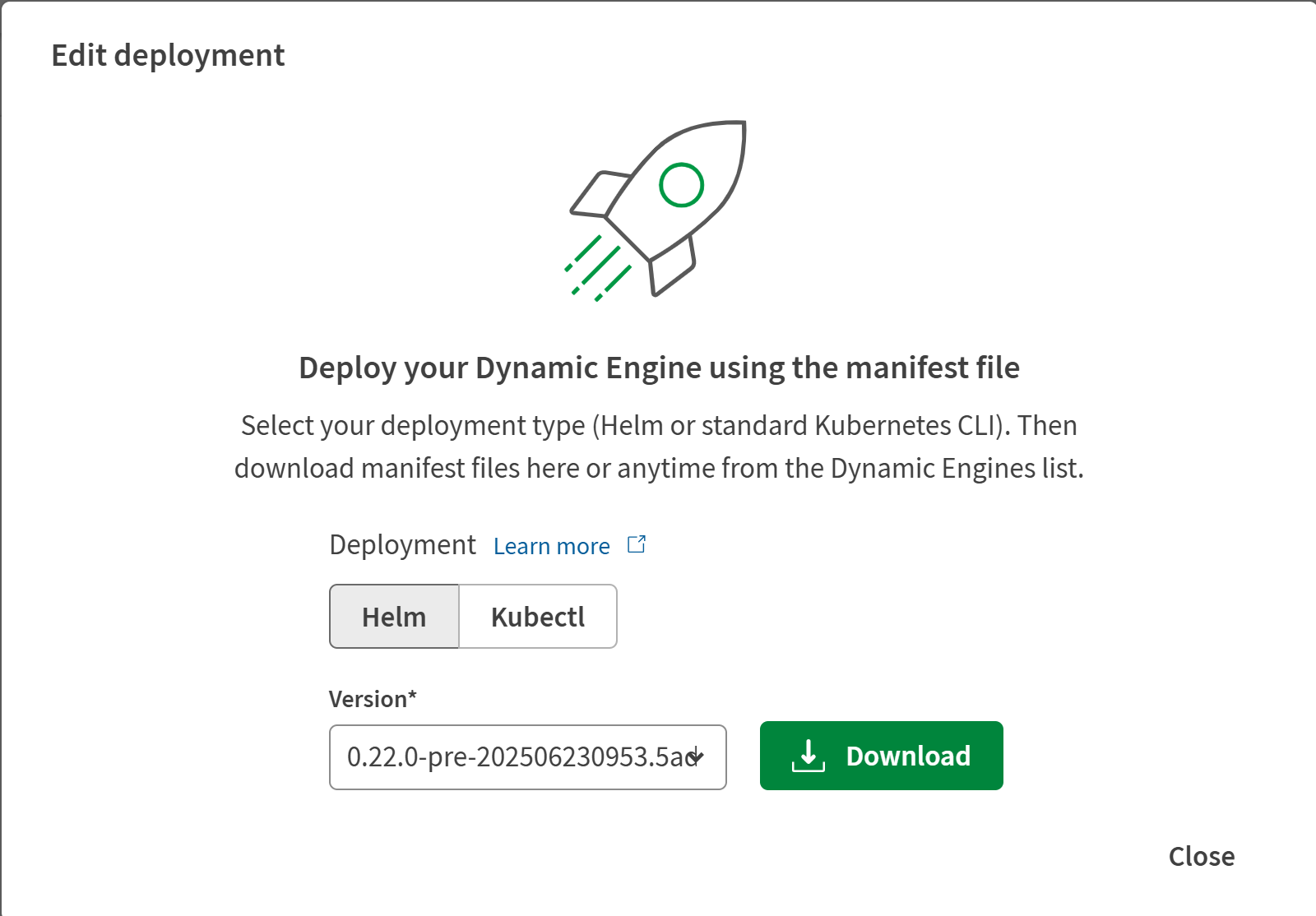
- If you need to assign one or more environments to this Dynamic Engine, at the end of the assignment, you are prompted to select the deployment type.
Results
 button next to the Dynamic Engine name in
the Dynamic Engines tab of the Processing page. button.
button next to the Dynamic Engine name in
the Dynamic Engines tab of the Processing page. button. To access the Kubectl download, you must first successfully apply a Kubectl deployment. After its default behavior is changed, the button provides access to whichever deployment file type you last successfully applied.