
Displaying favorite entries in the Repository tree view
Talend Studio
provides the possibility to add/remove entries to/from favorites in order to have a quick
access to all the entries that you mostly use.
Information noteNote: The
favorite settings are not supported for:
- Data Quality repository
- Data Mapper repository
- Hierarchical Mappers and generated documents in Data Integration repository
Procedure
-
In the Repository tree view, right-click the entry you want
to set as favorite and select Set as favorite.
A favorite overlay
 is added on left bottom on the icon of the entry.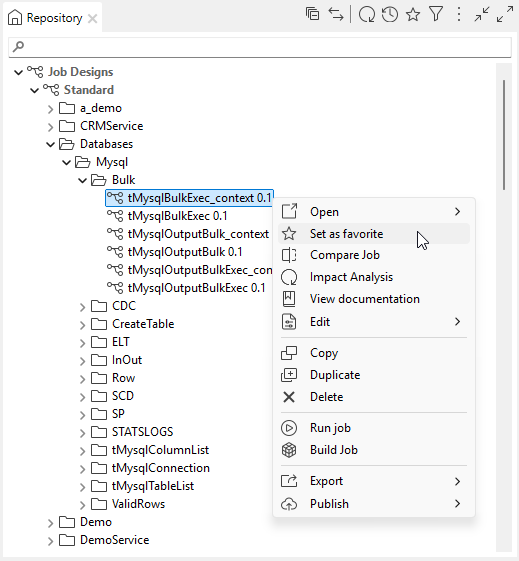
-
Click
 in the upper right corner of the Repository tree
view.
The favorite entries are displayed.
in the upper right corner of the Repository tree
view.
The favorite entries are displayed.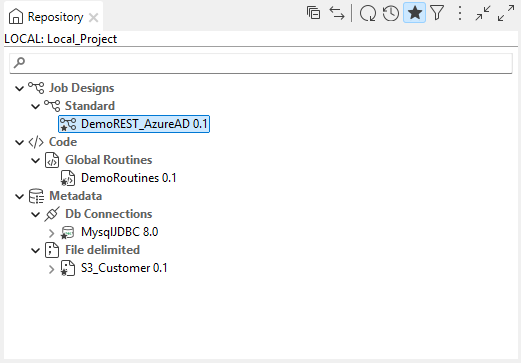 To remove an entry from favorite, right-click the entry and select Remove from favorites.
What to do next
Information noteTip: You can switch back to the by-default tree view,
which lists all entries, by clicking the icon  . The icon goes back to its default version: .
. The icon goes back to its default version: .