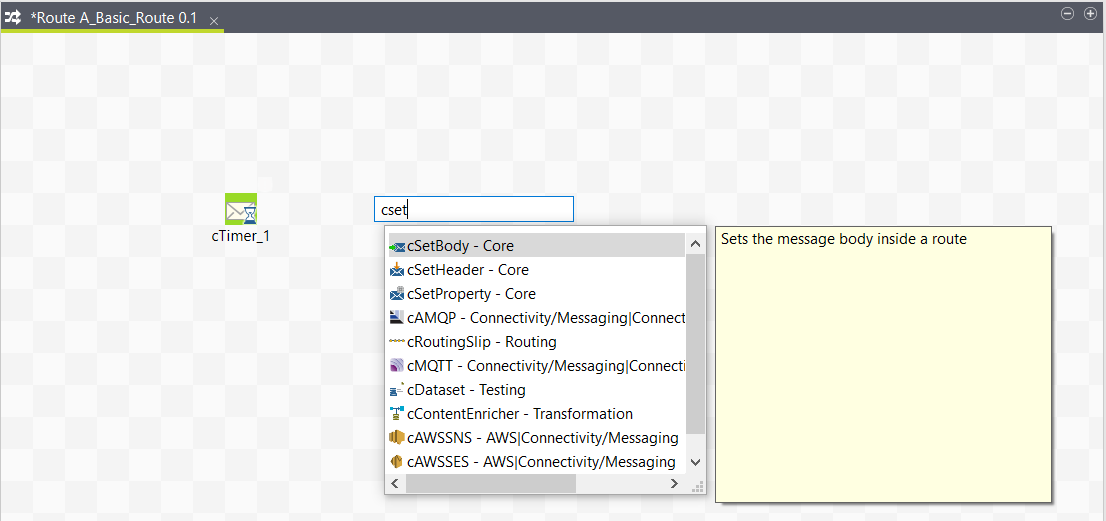
Typing on the design workspace to add the second Route component
Last updated: 5/18/2026About this task
The second component of our Route will be added by typing its name directly on the workspace, instead of dropping it from the Palette.
Prerequisite: Make sure you have selected the Enable Component Creation Assistant check box in the Talend Studio preferences. For more information, see Using centralized metadata in a Job.
To add a component directly on the workspace, proceed as follows:
Procedure
-
Click where you want to add the component on the design workspace, and
type your keywords, which can be the full or partial name of the component,
or a phrase describing its functionality if you don't know its name. In our
example, start typing cset.
Information noteNote: Components may not always have a prefix letter in the name. Therefore, as a best practice, you may want to simply specify the main body when searching for a component by its name.A list box appears below the text field displaying all the matching components in alphabetical order.