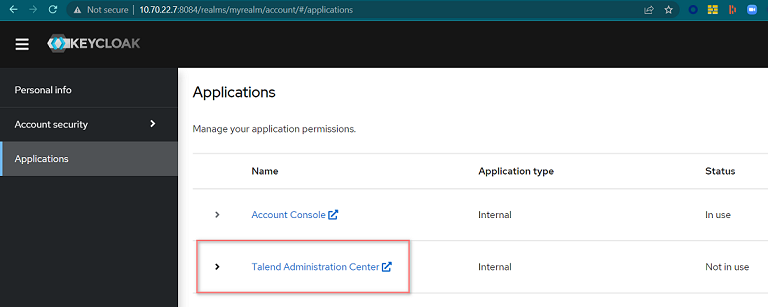
Creating a Talend Administration Center application on Keycloak
This article explains the process to create a Talend Administration Center application on Keycloak identity provider system. It enables users to authenticate with a single sign-on (SSO) point on Keycloak rather than with individual applications on different platforms.
Before you begin
- a realm is created,
- a user is created (with the Security Administrator role if role mapping feature is not used),
- the user session is open on Keycloak web platform.
Procedure
-
Select the Client menu and create a Client:
- ID: tac
- Protocol: saml
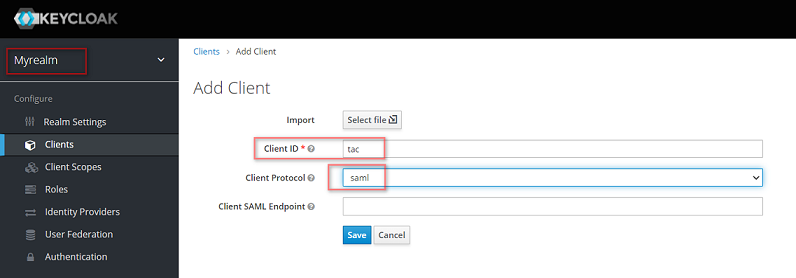 Click Save.
 -
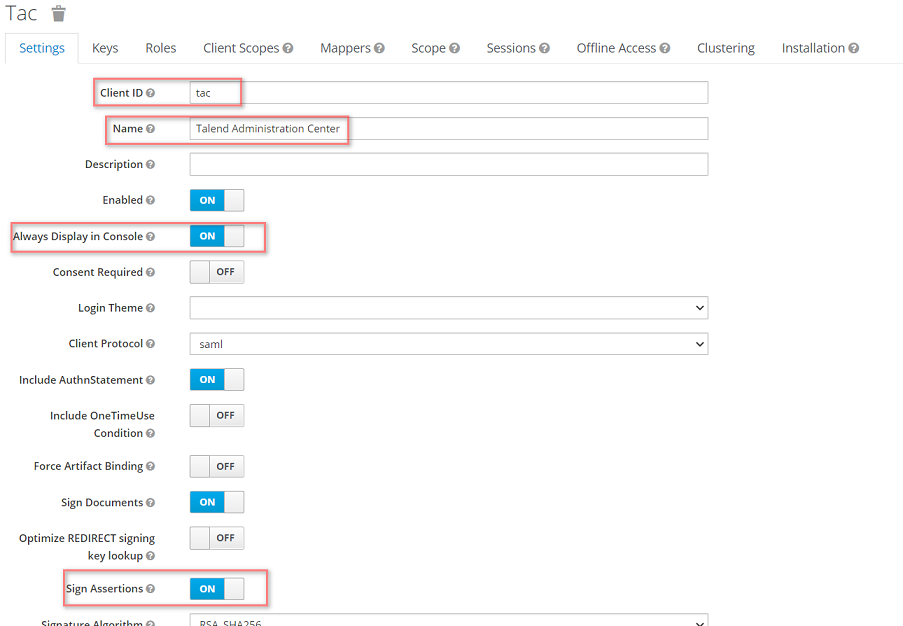
From the Settings tab, enable the Always
Display in Console and Sign
Assertions:
-
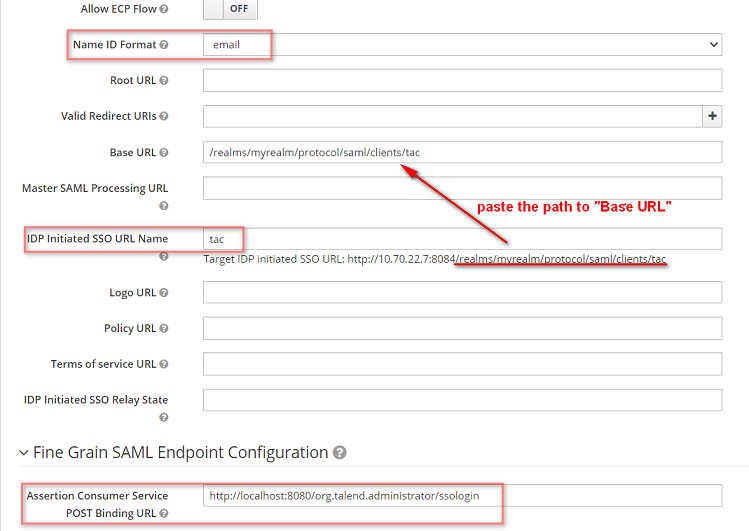
Set parameters as follows:
- change Name ID Format to email
- enable the Always Display in Console and Sign Assertions
- set tac to IDP Initiated SSO URL name. The realm URL is now displayed below.
- extract/realms/myrealm/protocol/saml/clients/tac and paste it in Base URL field
- set the Assertion Consumer Service POST Binding URL: http://localhost:8080/org.talend.administrator/ssologin. Then click Save.
Results