Enabling global email notifications
Last updated: 10/1/2026Enable the global email notifications for Dynamic Engines and Dynamic Engine environments from the Profile preferences page.
Once you enable the notifications for an event type, you are notified about all the events of this type for any Dynamic Engines or Dynamic Engine environments for which you have permissions.
About this task
By default, email notifications are disabled, except the mandatory ones.
You can only enable notifications for yourself. They are sent to the email address defined in the About me menu of the profile preferences.
Depending on your permissions, roles, or space permissions if an event is space-related, that list can be different.
For information about mandatory notifications for tasks running on an unavailable engine, see Mandatory email notifications.
| Event | Description | Required permissions/roles |
|---|---|---|
| Dynamic Engine environment is not ready | An email notification is sent each time a Dynamic Engine environment reaches the Not ready status due to:
|
Environments - Manage user permission (ID: TMC_ENVIRONMENT_MANAGEMENT) or the Environment Administrator role |
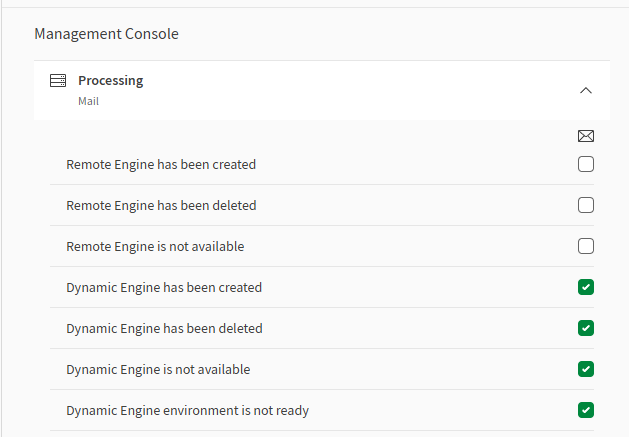
| Dynamic Engine has been created | An email notification is sent each time a Dynamic Engine is created. | Engines - Manage user permission (ID: TMC_CLUSTER_MANAGEMENT) or the Infrastructure Administrator role |
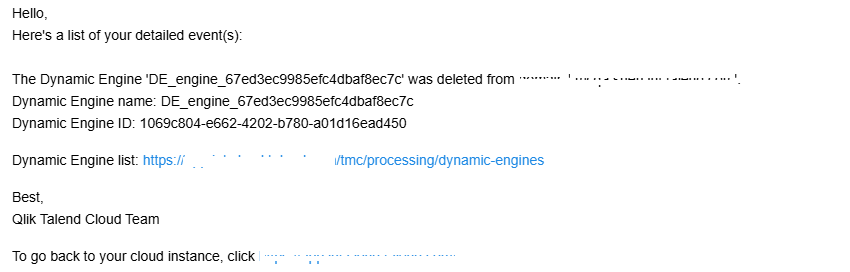
| Dynamic Engine has been deleted | An email notification is sent each time a Dynamic Engine is deleted. | Engines - Manage user permission (ID: TMC_CLUSTER_MANAGEMENT) or the Infrastructure Administrator role |
| Dynamic Engine is not available | An email notification is sent each time a deployed Dynamic Engine is not available and reaches the Error status due to issues during the deployment. | Engines - Manage user permission (ID: TMC_CLUSTER_MANAGEMENT) or the Infrastructure Administrator role |
Procedure
-
Select the events you want to be notified about by email.
Results