Configuring the Basic settings of tBonitaInstantiateProcess
Procedure
Double-click tBonitaInstantiateProcess
to open its Basic settings view.
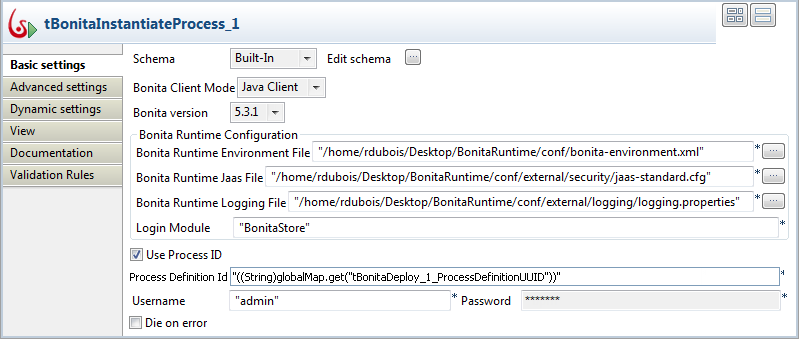
Select Bonita version 5.3.1 from the Bonita
version list. The version you select should be in sync with
the version number of the Bonita Runtime engine you are using.
In the Bonita Runtime Configuration
area, browse to the Bonita Runtime variable files. In the Bonita Runtime Environment file field, browse to
the bonita-environnement.xml file; in the Bonita Runtime Jaas File field, browse to the
jaas-standard.cfg file; in the Bonita Runtime Logging File field, browse to the
logging.properties file.
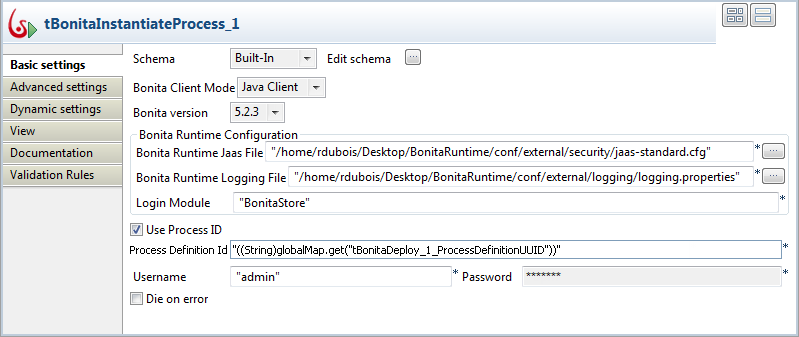
For users based on Bonita version 5.2.3, only the Bonita Runtime Jaas File field and the
Bonita Runtime Logging File field
need to be filled.
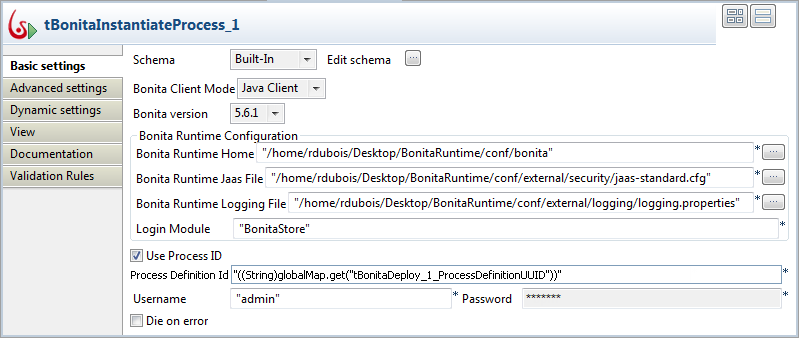
For users based on Bonita version 5.6.1, in the Bonita Runtime Home field, browse to the Bonita Runtime
environment directory.
Select the Use Process ID check box to
activate the Process Definition Id
field.
In the Process Definition Id field, click
between the quotation marks and press Ctrl+space to open the auto-completion drop-down list
containing the available global variables for this Job.
Double-click the variable you need use to add it between the quotation
marks. In this scenario, double-click
tBonitaDeploy_1_ProcessDefinitionUUID, which
retrieves the process definition ID of the process being deployed by
tBonitaDeploy.
Information noteNote:
You can as well clear the Use Process
ID check box to activate the Process name and the Process
version fields and enter the corresponding information in
the two fields. tBonitaInstantiateProcess concatenates the process name
and the process version you type in to construct the process definition
ID.
In the Username and Password fields, enter the username and password to connect
to your Bonita.
Did this page help you?
If you find any issues with this page or its content – a typo, a missing step, or a technical error – please let us know!