
Last updated: 9/18/2025
You can open a sheet from the app overview. In sheet view, you can do the following:
- Analyze with the app. You make selections in the visualizations and go into detail in your data to gain insights.
- Take snapshots of visualizations. You use these static snapshots for building stories in data storytelling.
- Develop, or edit the app. You create sheets and visualizations to be used for data analysis. You cannot edit sheets of a published app, but if you have the correct permissions, you can create your own private sheets. You can also load another data file into the app.
The status of an app (published or not) affects what options are available in the menus and edit panel.
Analyze
You start analyzing data on a sheet by making selections in the visualizations. You can quickly see and move around among the sheets with the sheet navigator.

| A |
The toolbar contains the navigation menu, the global menu and other useful commands.
|
Managing data in the app with the Data manager Collecting insights for a story using snapshots |
||||||||||||||||||
| B |
The selections bar with tools for working with selections.
|
|||||||||||||||||||
| C | The sheet with visualizations. | |||||||||||||||||||
| D |
Hover menu with options: Take snapshots: to take a snapshot of the visualization. Exploration menu: to change visualization properties without making selections or editing the sheet. Full screen: to explore data on a detailed level you can expand and work with one visualization at a time on the sheet. |
Take snapshots
When you are in sheet view, you can take snapshots of the visualizations and use them to build a story in data storytelling.
You can take snapshots of all the different visualization types but not the filter panes.
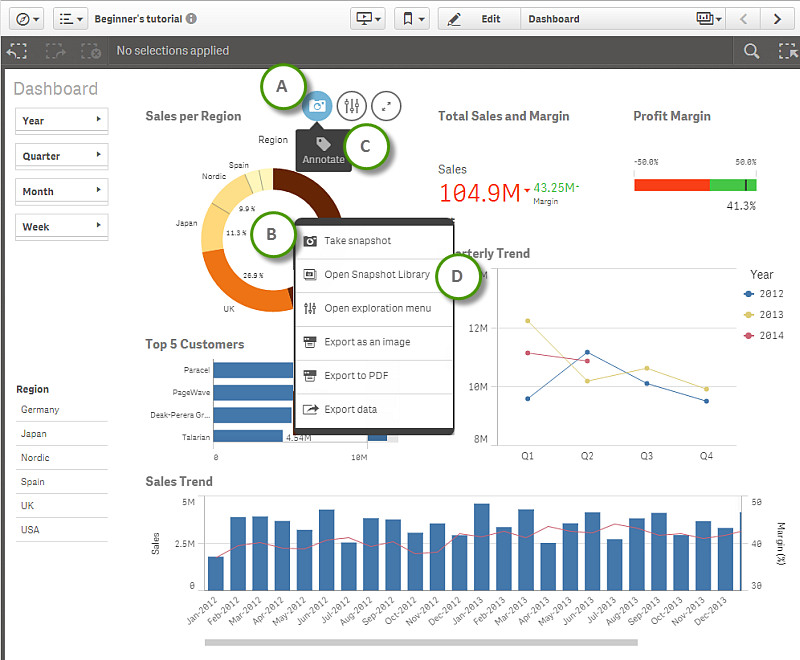
| A |
Å Take snapshot. |
|
| B |
Å Take snapshot from the shortcut menu. |
|
| C | z Annotate snapshot. | |
| D | ↓ Open the snapshot library for this visualization. | Snapshot library |
Develop (edit)
You enable editing of the sheet and its visualizations by clicking @Edit in the toolbar. The properties panel opens on the right.
In an unpublished app, the left-hand panel contains assets such as measures, dimensions, fields and charts. You can create measures and dimensions from the assets panel, to use when building visualizations.
In a published app, the left-hand panel contains pre-made and ready-to-use master items (measures, dimensions and visualizations). You cannot update the existing sheets of a published app, but you can create new sheets to further develop the app.
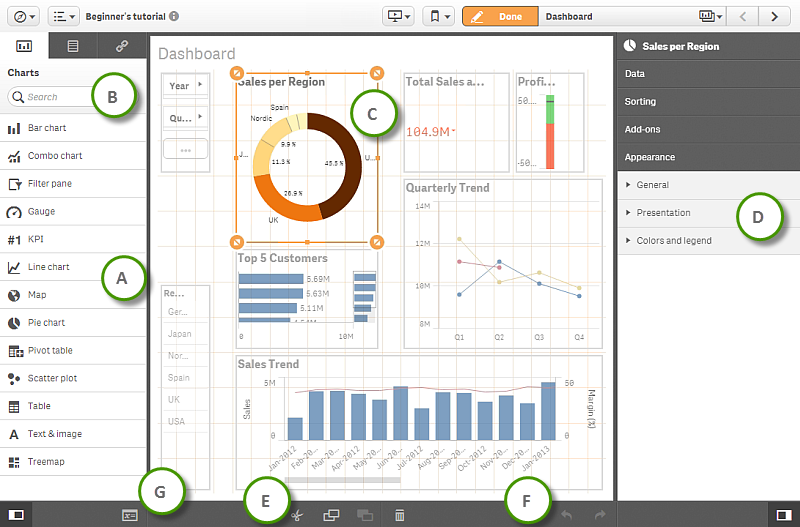
| A |
In the assets panel of an unpublished app you find fields to use when creating dimensions and measures, and charts to use when creating visualizations. You can save dimensions, measures and visualizations as master items for reuse. In the library panel of a published app, you find pre-made and ready-to-use master items (measures, dimensions and visualizations) .You also find charts to use when creating your own visualizations. Information notePublishing is not supported in Qlik Sense Desktop, which means that you have access to the assets panel (not the library panel) when using Qlik Sense Desktop.
|
|
| B |
Search all items in the assets or library panel. |
|
| C | A selected visualization with resizing handles. | |
| D | Properties of the selected visualization or the sheet. The properties for the sheet is shown if you have not selected a visualization. | |
| E | Cut, copy, paste and delete items on the sheet. | |
| F | Undo and redo. | |
| G | Open the variables overview. | Using variables in expressions |
Touch gestures in the sheet view
The table describes the touch gestures that are used in the sheet view.
| Long-touch and release | Open the shortcut menu |
| Long-touch a visualization | Open the options menu |
| Swipe | Scroll lists and visualizations |
| Pinch | Zoom in or out on visualizations |
| Two-finger tap | Select an interval in a list, table or bar chart axis |
| Two-finger swipe | Pan a scatter plot visualization |
| Three-finger tap | Reset the zoom level of a scatter plot visualization |