
Last updated: 9/18/2025
The Data manager is where you add and manage data from your own data sources, or from Qlik DataMarket, so that you can use it in your app. You get an overview of all data tables in the app, whether you added them using Add data, or loaded them with the data load script. Each table is displayed with the table name, the number of data fields, and the name of the data source.
Adding a new data table
You can quickly add a data table toyour app, by clicking Add data in Data manager or in the ¨ menu.
You can add data from the following data source types:
| Connections | Select from data connections that have been defined by you or an administrator, and folders that you previously have selected data from. |
| Connect my data | Select from a new data source, such as ODBC or OLE DB databases, data files, web files or custom connectors. |
| Qlik DataMarket | Select from normalized data from public and commercial databases. |
| Attach file | Upload a data file from your computer and attach it to your app. |
See: Adding data from files and databases
Editing a data table
You can edit all the data tables that you have added with Add data. You can rename fields in the data table, and update the fields from the data source.
Do the following:
-
Click @ on the data table you want to edit.
The data table editor opens, and you can perform the edits and transformations you want to do.
- Click Close to return to the data manager overview.
The table is now marked Pending update, and the changes will be applied to the app data the next time you reload data.
See: Editing a table
Using the data load editor
Deleting a data table
Do the following:
- Click Ö on the data table you want to delete.
The table is now marked Pending delete and will be removed the next time you reload data.
You can undo and redo your delete actions by clicking B and C.
Managing data table associations
You can adjust table associations and define custom associations between tables by profiling the data.
Do the following:
- Click Associations.
Table association recommendations are displayed with all possible table pairs including the selected table, as well as other table pairs with warnings. You can change the associations for table pairs and define custom associations.
See: Managing data table associations
Applying changes and reloading data
Changes that you have made in the Data manager will not be available in the app until you have reloaded data. When you reload data, the app will also reload all data in the app from external data sources.
If the data in Data manager is out of synch with the app data, the Load data button is green, and all new, updated, or deleted tables are highlighted in blue and display an icon that shows the status of the table:
- Tables marked with Pending deleteÖ will be deleted.
- Tables marked with Pending updateô will be updated with fields have been added, renamed, or removed, or the table will be renamed.
- Tables marked with Pending add m will be added.
Do the following:
- Click Load data to reload all data in the app.
The app data is now updated with changes you made in Data manager.
Undo and Redo actions in Data manager
When you are editing in Data manager, you can undo or redo some actions by clicking B and C, or by using the keyboard shortcuts Ctrl + Z and Ctrl + Y.
The log of actions is cleared if you:
- Change view, for example, going from the table overview to Associations.
- Load data.
- Close Data manager.
Concatenated tables
If the field names and the number of fields of two or more loaded tables are exactly the same, Qlik Sense will automatically concatenate the content of the different statements into one table.
A table that is a result of concatenated tables is displayed with a symbol showing how many tables that were concatenated.
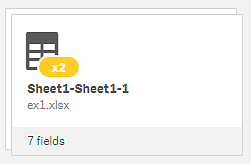
See: Concatenating tables
Splitting a concatenated table
If it wasn't your intention to create a single concatenated table, you can split the concatenated table into its component tables.
Do the following:
- Select the concatenated table.
-
Click →.
You will see a preview of the tables that will be created as a result of the split.
- Click Split.
The table is now split into its component tables. All fields in the component tables are qualified, that is, they are renamed to include the table name and a period character as prefix.
Example:
Table1 and Table2 both contain the fields Field1 and Field2. When you add them in Data manager, they are concatenated to a table called Table1-Table2 with the same fields, Field1 and Field2.
If you split Table1-Table2, the result is two tables:
- Table1 with fields Table1.Field1 and Table1.Field2
- Table2 with fields Table2.Field1 and Table2.Field2
Interaction between Data manager and the data load script
When you add data tables in the Data manager, data load script code is generated. You can view the script code in the Auto-generated section of the data load editor. You can also choose to unlock and edit the generated script code, but if you do, the data tables will no longer be managed in the Data manager. Data tables defined in the load script are not managed in the Data manager. That is, you can see the tables in the data overview, but you cannot delete or edit the tables in Data manager, and association recommendations are not provided for tables loaded with the script.
You can add script sections and develop code that enhances and interacts with the data model created in Data manager, but there are some areas where you need to be careful. The script code you write can interfere with the Data manager data model, and create problems in these cases:
- Renaming or dropping tables added with Data manager in the script.
- Dropping fields from tables added with Data manager.
- Concatenation between tables added with Data manager and tables loaded in the script.
- Using the Qualify statement with fields in tables added with Data manager.
- Loading tables added with Data manager using Resident in the script.