
Last updated: 10/1/2025
You can create an app from the Qlik Sense hub, if you have the appropriate access rights. Apps are published to streams from the QMC, which is a part of Qlik Sense. To publish an app that is created in a Qlik Sense Desktop installation, you must first import it, by using the QMC. The security rules applied to the app, stream, or user, determine who can access the content and what the user is allowed to do. The app is locked when published. Content can be added to a published app through the Qlik Sense hub in a server deployment, but content that was published with the original app cannot be edited.
You can only publish apps that are unpublished:
- To publish an app to more than one stream, you must first create a duplicate of the app.
- To republish an app, create a duplicate of the published app, edit the duplicate and publish it.Use the option Replace existing to replace a published app.
Do the following:
-
Select Apps on the QMC start page or from the Start drop-down menu to display the overview.
Tip noteYou can filter a column by using the filtering option: . -
Select the app or apps that you want to publish.
The number next to Publish indicates the number of apps in your selection that you are allowed to publish.
-
Click Publish in the action bar.
Information noteThe Publish button is not displayed if you do not have access to any streams.A dialog window opens.
-
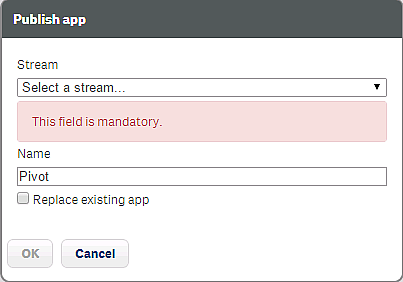
In the Publish app dialog:
- Use the Select a stream... drop down menu to select the stream that you want to publish to.
- In the Name text field you can change the name of the app that you are about to publish. If Multiple values is displayed, you are publishing more than one app and you cannot change their names.
-
Optional: You can replace an already published app. This is only possible if you have selected a single app.
-
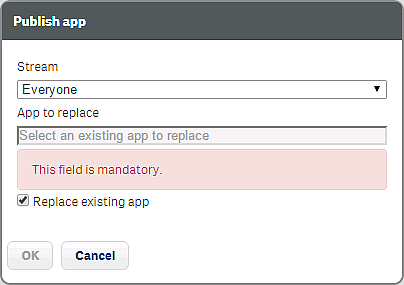
Select Replace existing app.
-
Click the App to replace box.
A dialog opens.
-
Double-click the published app you want to replace.
The app is added to the App to replace field.
-
-
Click OK to publish. If you are replacing an already published app, click Publish and replace in the confirmation dialog that opens.
The dialog closes and Successfully published selected app(s): x is displayed, where x represents the number of apps that you just published. Also, the Stream column in the apps overview is updated to show the stream that the apps were published to and the published date is shown in the Published column.
You have now published an app (or several apps) to a stream.