
Last updated: 10/9/2025
When you are analyzing data on a sheet, smart search is available in the selections bar. Click to open smart search.
Performing a search
As you type your search query, Qlik Sense filters the field values and displays the matching items.
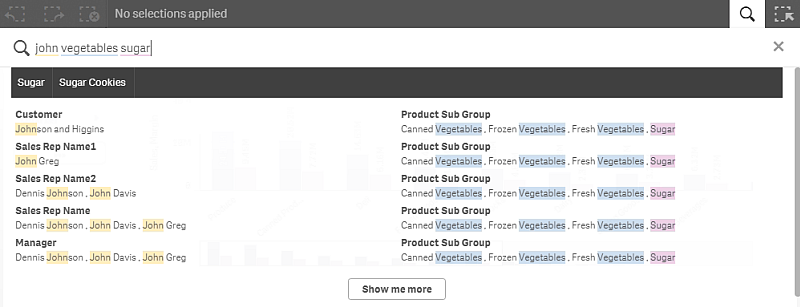
If you use more than one search term and separate them by spaces, they are interpreted as separate search terms. If you want them to be interpreted as only one search term, use quotation marks (" ") to link them together, for example, “mountain bike” or “fresh fruit”.
You can clear the search field by clicking to the right in the search field.
Search within current selection
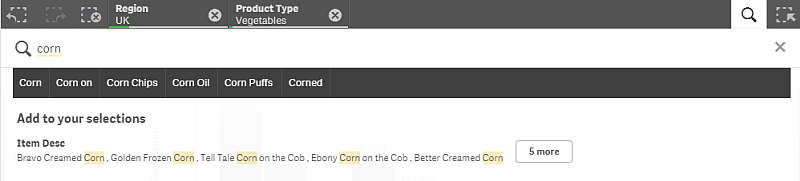
If you have made a selection, you can perform a search within that selection. Smart search does this automatically, all you need to do is add search strings and perform a new search. You can do this over and over to filter your search results.
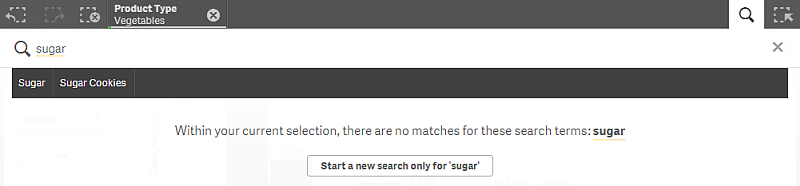
If you search within a selection and your query does not produce a result for your search term, you can start a new search by clicking Start a new search only for‘<your search term>’.
If you search within a selection using multiple terms and your query does not produce a result for all of your search terms, you can view partial matches by clicking Show partial matches.

If you a search within a locked selection and your query does not produce a result, you will get the message “Within your current selection, there are no matches for these search terms: <your search terms>”. Then you can consider to unlock the selection and perform a new search.

List of results
The search results show the combinations of matches found in the Qlik Sense database. The results are based on field associations and are sorted by the number of matched search terms, in descending order. If there are more than one match to your search query, a suggestion list is displayed with matches ordered by relevance. Click a suggestion to insert it into the search field. When you select a result you make an actual selection of the values, just like when you select values in the visualizations. The selections bar shows the selected values.
The search terms are always compared against the beginning of the words in the database. Searching for “read” does not present “bread” as a match, whereas “reader” and “Reading” would both be matches. The search terms are each given a color to support the identification of the matches. When there are more than six search terms, the colors are reused.
Keyboard shortcuts
| Shortcut | Action |
|---|---|
| Ctrl+F | Open/close smart search. |
| Arrow keys | Navigate the suggestion list and search results. |
|
Tab/right arrow |
Insert suggested search string (in the search field). |
| Enter |
Insert suggested search string (in the suggestion list). Select search results. |
| Esc |
Clear the search field. Close smart search (if the search field is empty). |