Skip to main content Skip to complementary content

Setting up SCIM provisioning on Okta

Before you begin

You have configured your Talend Cloud application in Okta. For further information, see Creating your application in Okta.

Procedure

  1. Log in to your administrator Okta account.
  2. Click Provisioning to open its view and click Configure API Integration.

    Example
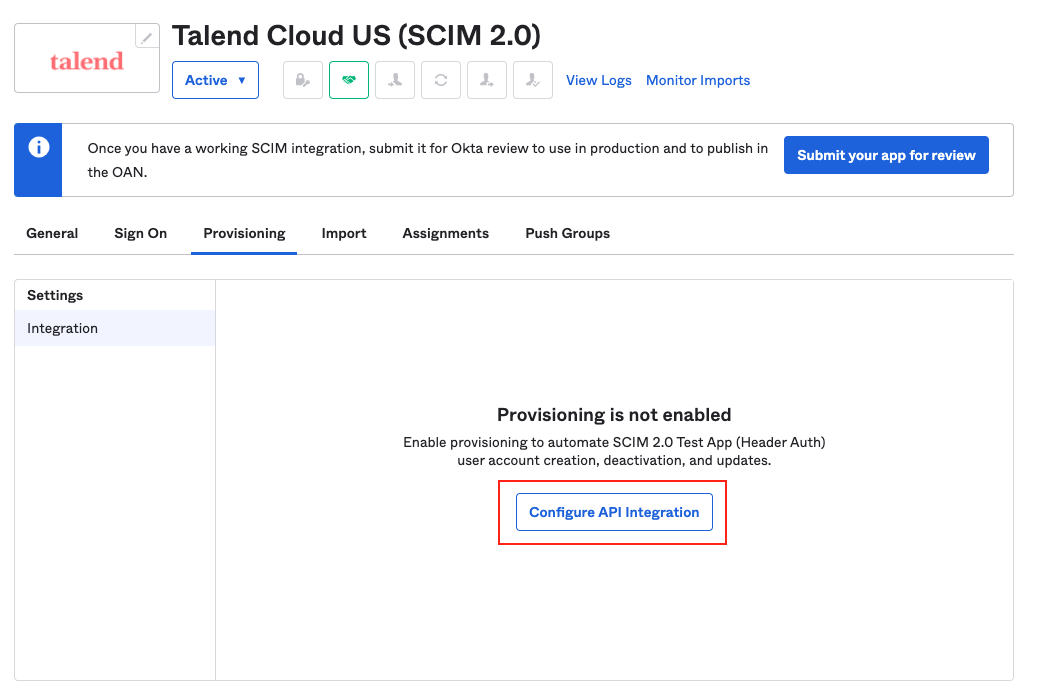
    The Configurate API Integration icon appears at the center of the Provisioning tab.
  3. Ensure to select the Enable API integration checkbox and in the Base URL field, enter the address of the SCIM specific API provided by Talend Cloud:

    Example

    https://api.<env>.cloud.talend.com/scim/v2
    Replace <env> with the name of your Cloud region. For further information, see Accessing Talend Cloud applications.

    For further information about the Talend SCIM API, see https://api.talend.com/apis/scim-v2/2021-03/.
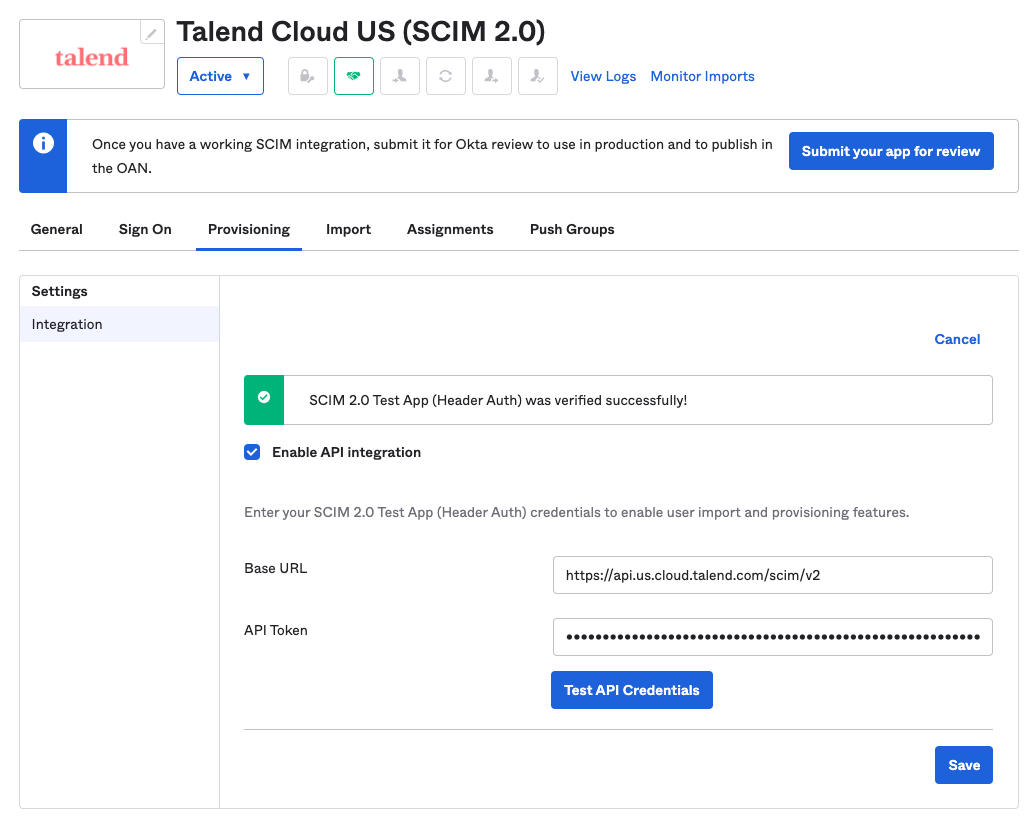
    Integration step of the configuration.
  4. In the API Token field, enter your personal access token to Talend Cloud.
  5. Click Test API Credentials. A message should appear to indicate that your connection to the SCIM API of Talend Cloud is successful.
  6. Click Save to validate your changes.
  7. In the Provisioning tab, select To App in Settings and enable Create Users, Update User Attributes, and Deactivate Users. Then click Save.

    Example
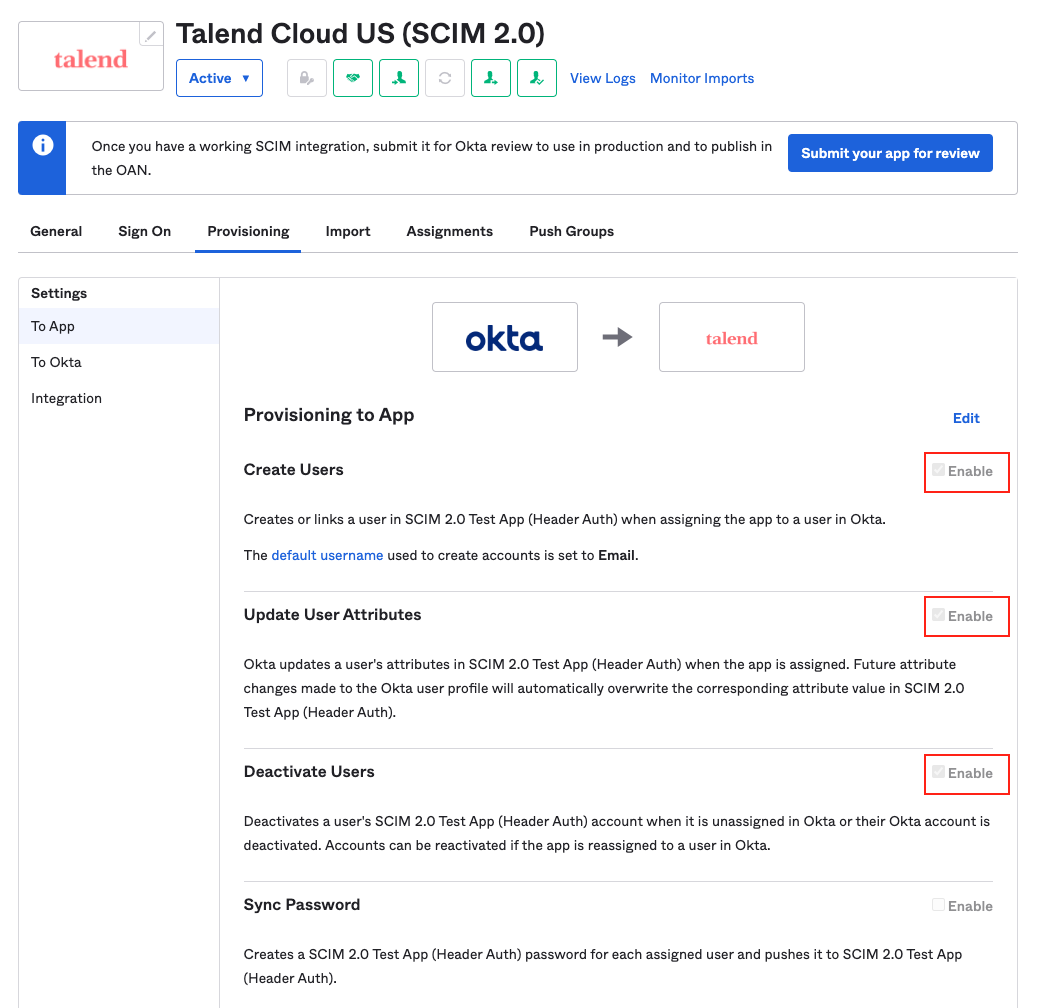
    Highlight of the Enable check box in the To App step of the configuration.
  8. In the Sign On tab, click Edit, select Email prefix for Application username format, and click Save. This email prefix (also referred to as email nickname) is the format required by the userName attribute of Talend Cloud.

    Example
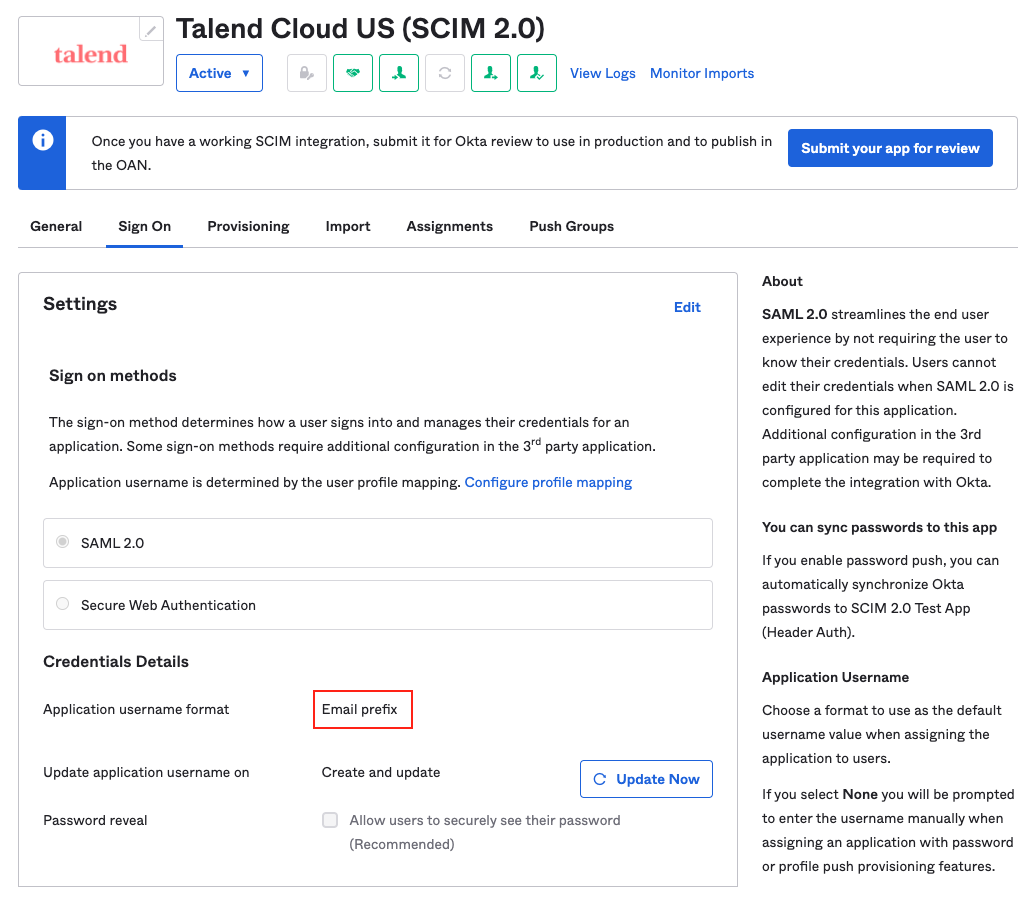
    Highlight of the Email prefix selection in the Sign On tab.

Results

From now on, users and groups to be created in your Okta system are synchronized to Talend Management Console.
  • In Okta:
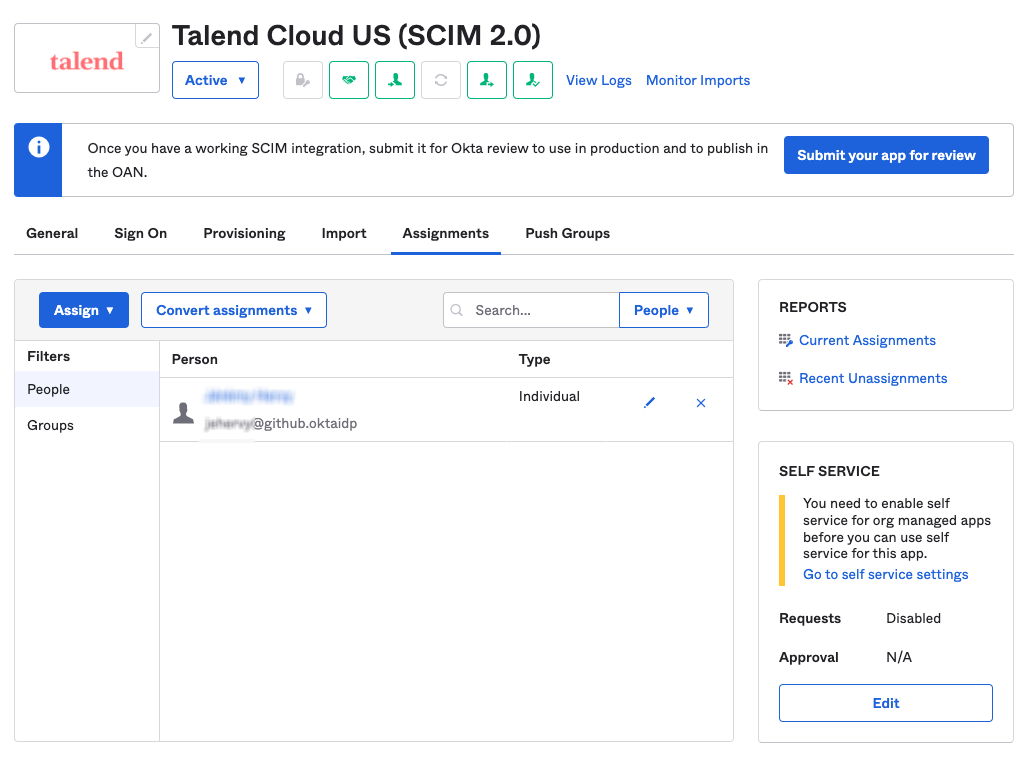
    In the Assignments tab, the list of accounts created in the Okta system appears.
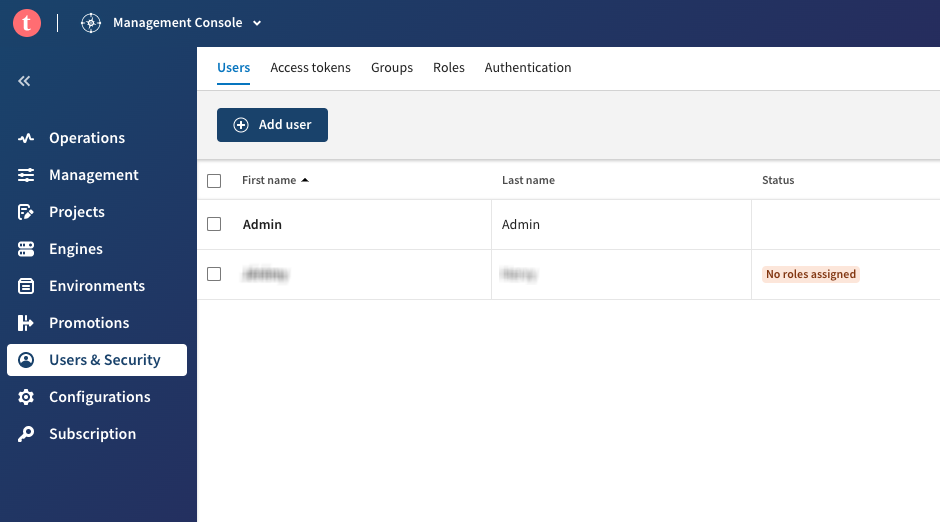
  • In Talend Management Console: In the Talend Management Console, the synchronized list of accounts appears in the Users tab of the Users & Security menu.

What to do next

If you have enabled SSO for Talend Management Console in your third-party system, the Okta system in this example, it is recommended to map roles between your third-party system and Talend Management Console to automate the role assignment for the synchronized users and groups.

Did this page help you?

If you find any issues with this page or its content – a typo, a missing step, or a technical error – please let us know!