
Configuring a custom Job artifact signature
Last updated: 6/1/2026By default, Talend Studio signs Job artifacts using a signing key stored in a keystore issued by Talend, to prevent accidental or malicious modification of Job artifacts.
You can configure a custom signing key to sign Job artifacts.
Before you begin
- You have a keystore containing a signing key, generated using a Java keytool or equivalent.
About this task
Talend Studio supports three signature modes:
- Enable Default Signature: Job artifacts are signed using the
default Talend-issued key.
- For on-premises licenses, Talend JobServer and Talend Administration Center must be configured to verify the default signature. See Configuring Talend Administration Center and Talend JobServer for default Job artifact signature.
- For Cloud licenses, see Verifying artifact signature on Remote Engines.
If the default certificate has not expired, signing proceeds automatically. If it has expired, you must configure a custom signature or deactivate signing.
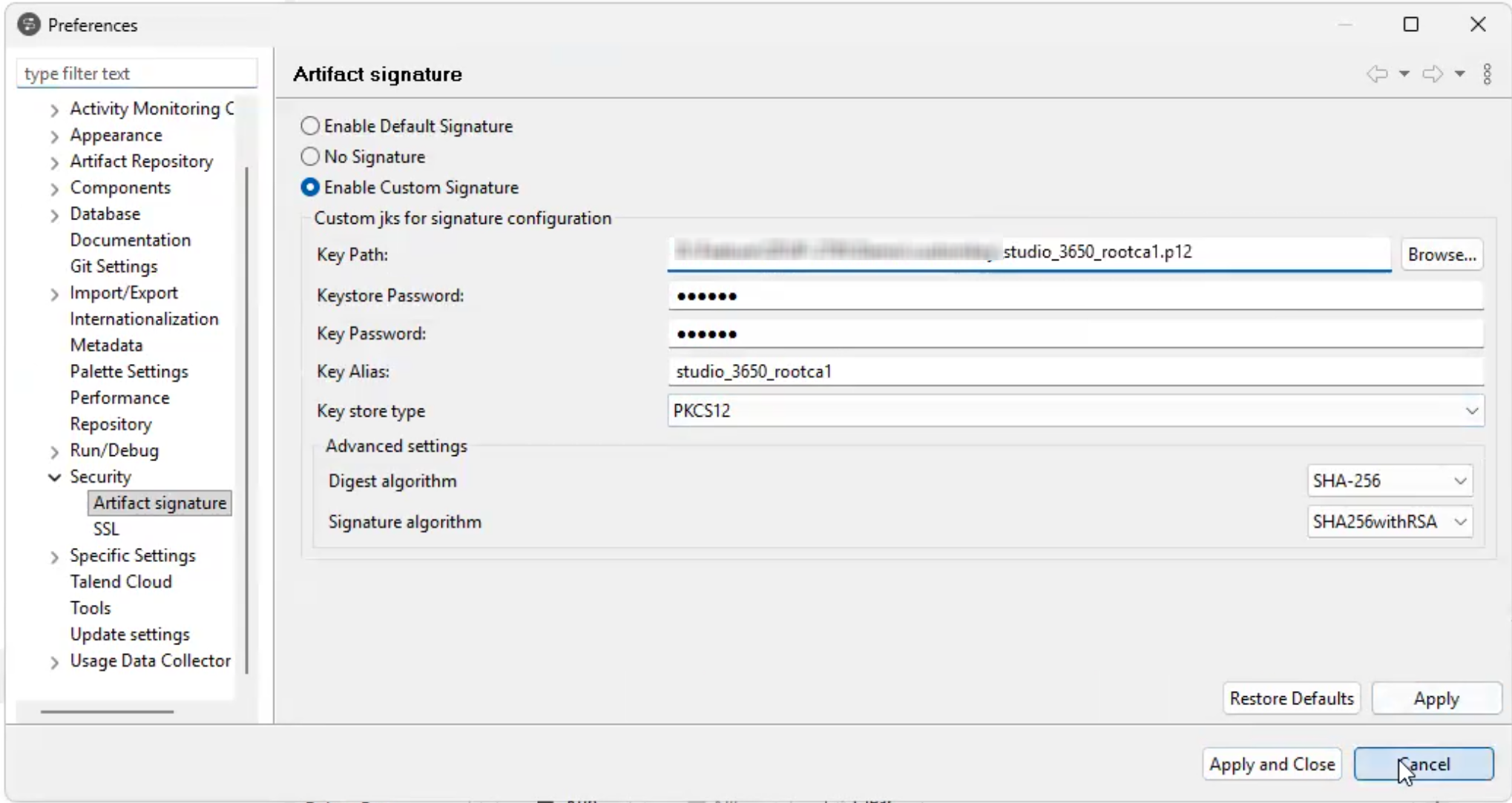
- Enable Custom Signature: Job artifacts are signed using your custom key.
- No Signature: Job artifact signing is deactivated. Signature verification must also be deactivated on Talend JobServer, Talend Administration Center, and Talend Remote Engine.
Procedure
-
In the Signature Mode list, select Enable Custom
Signature.
Example
Results
What to do next
- To configure Talend JobServer to verify signed Job artifacts, see Setting up Talend JobServer to verify custom Job artifact signatures.
- To configure Talend Administration Center to verify signed Job artifacts, see Setting up Talend Administration Center to verify custom Job artifact signatures.
- To configure a Talend Remote Engine, see Running trusted tasks with your custom signature (JKS only).
- In a continuous integration environment, add the following parameters to your artifact build:
- JKS:
- -Dsigner.path: the path to your custom Java keystore
- -Dsigner.keystore.password: the keystore password, either Maven-encrypted or in plain text
- -Dsigner.key.password: the key password, either Maven-encrypted or in plain text
- -Dsigner.key.alias: the alias name associated with your keystore
- PKCS12:
- -Dsigner.path: the path to your custom Java keystore
- -Dsigner.keystore.password: the keystore password, either Maven-encrypted or in plain text
- -Dsigner.key.password: the key password, either Maven-encrypted or in plain text
- -Dsigner.key.alias: the alias name associated with your keystore
- -Dsigner.disabled: activate or deactivate the entire signature mechanism
- -Dsigner.keystore.type: the type of the signature. In this case, it is PKCS12
- -Dsigner.digest.algorithm: the algorithm for the artifact content
- -Dsigner.signature.algorithm: the algorithm for the signature
- JKS: