Skip to main content Skip to complementary content

Configuring the masking operations

Procedure

  1. Double-click tPatternMasking to display its Basic settings view in the Component tab.
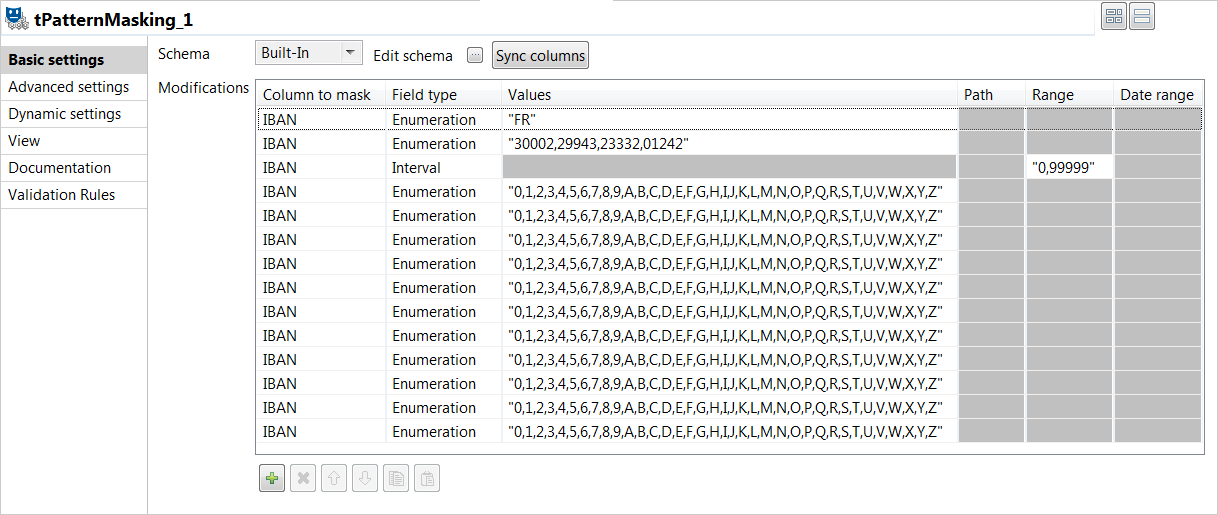
  2. If required, click Sync columns to retrieve the schema defined in the input component.
  3. Click the Edit schema button to open the schema dialog box.

    tPatternMasking adds a read-only column to the output schema.
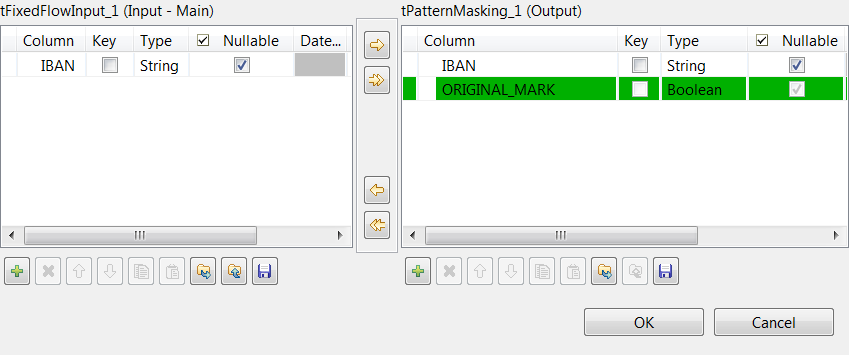
    The ORIGINAL_MARK column labels output records:

    • Original records are labeled with the true label.
    • Substitute records are labeled with the false label.
  4. In the Modifications table, click the [+] button to add a row for configuring the first data masking operation:
    1. From the Column to mask field, select the column which holds the data to be masked.
      In this example, select IBAN.
    2. From the Field type field, select Enumeration as the field type the data belongs to and enter "FR" in the Values field.
      In this example, the purpose is to mask the first two characters with a single user-defined code country: "FR".
  5. In the Modifications table, click the [+] button to add a second row for configuring the second data masking operation:
    1. From the Column to mask field, select the column which holds the data to be masked.
    2. From the Field type field, select Enumeration as the field type the data belongs to and enter "30002,29943,23332,01242" in the Values field.
      In this example, the purpose is to mask the five digits appearing in the bank identifier with one of the named values.
  6. In the Modifications table, click the [+] button to add a third row for configuring the third data masking operation:
    1. From the Column to mask field, select the column which holds the data to be masked.
      In this example, select IBAN.
    2. From the Field type field, select Interval as the field type the data belongs to and enter "1,99999" in the Range field.
      "0,99999" will be interpreted as "00000,99999", which means that the five digits appearing in the branch identifier will be replaced with a value randomly selected from the 00000 - 99999 range.
  7. In the Modifications table, click the [+] button to add eleven additional rows and configure the data masking operation to be performed on each of the eleven characters appearing in the account number:
    1. From the Column to mask field, select the column which holds the data to be masked.
      In this example, select IBAN.
    2. From the Field type field, select Enumeration as the field type the data belongs to and enter "0,1,2,3,4,5,6,7,8,9,A,B,C,D,E,F,G,H,I,J,K,L,M,N,O,P,Q,R,S,T,U,V,W,X,Y,Z" in the Values field.
      In this example, the purpose is to mask each of the eleven characters appearing in the account number with one of characters from the specified range.
  8. Click the Advanced settings tab and select the Output the original row? check box.
    The Job will output both original and substitute records.

Did this page help you?

If you find any issues with this page or its content – a typo, a missing step, or a technical error – please let us know!