
Adding sparklines
A sparkline is a simple visualization, usually styled in the form of a line, that is helpful for analyzing trends for a single metric. You can add sparklines to your PixelPerfect report using the Sparkline object.
A sparkline generally consists of a field (equivalent to a dimension) and a value member (equivalent to a measure).

Sparkline

Requirements
The data you use for a sparkline has to be added as a table data binding. These data bindings are added under Tables in the  Field List menu.
The source data for the sparkline should ideally contain a single dimension and a single measure. To use sparklines to visualize more complex, multi-dimensional data, it is recommended that you apply a level to the band where you add the sparkline. In this case, the level should be an additional dimension along which you want to cycle the generation of multiple filtered sparklines.
Creating sparklines
This is the recommended workflow for adding sparklines in your report.
Wykonaj następujące czynności:
-
Open the
Field List menu available from the right-side panel in the designer. -
Click the plus icon next to Tables.
-
From the available sheets, select the Qlik Sense chart you want to add as a table. Click the
 icon next to it.
The data binding is added.
-
From the toolbox panel on the left side of the designer, drag a Sparkline onto the design surface.
-
Click the gear icon that appears next to the sparkline. In the pop-up menu, for Data Member, select the table data binding you created earlier.
-
Open the
 Properties menu from the right side of the designer, and expand Data.
 -
For Value Member, select the variable metric you want to visualize (for example, sales).
Refreshing source data for data bindings
Z biegiem czasu konfiguracja wykresu źródłowego może ulec zmianie, co wymaga podjęcia działań w szablonie raportu PixelPerfect. Dane źródłowe aplikacji można odświeżać w powiązaniach danych, które definiują wykres przebiegu w czasie. Przydaje się to, kiedy:
-
Wymiary i miary zostały dodane do wykresu źródłowego lub z niego usunięte od czasu utworzenia powiązania danych.
-
Definicje wymiarów i miar zostały zmienione w wykresie źródłowym od czasu utworzenia powiązania danych.
Odświeżanie źródeł powiązań danych umożliwia zachowanie tych samych obiektów w menu Lista pól bez konieczności tworzenia nowych wraz ze zmianą konfiguracji wykresu.
Wykonaj następujące czynności:
-
Otwórz menu
Lista pól w prawym panelu kreatora. -
Kliknij dwukrotnie pozycję Tabele, aby ją rozwinąć.
-
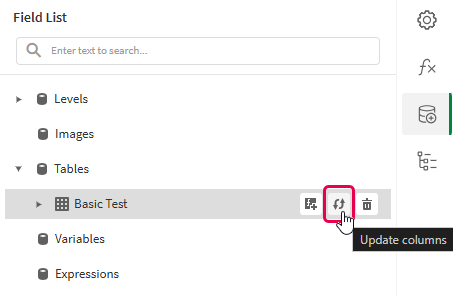
Wskaż kursorem element, który chcesz odświeżyć.
-
Kliknij ikonę odświeżania (Aktualizuj kolumny).
Odświeżanie powiązania danych tabeli w menu Lista pól
-
Kontynuuj opracowywanie szablonu zgodnie ze swoim zastosowaniem. Może to obejmować zmianę konfiguracji istniejącej zawartości lub dodanie nowej zawartości. Po odświeżeniu powiązania danych nowo dodane kolumny wykresu będą teraz dostępne do użycia z menu
Lista pól.
Example - Sparklines with a level
Przykładowe źródła aplikacji można znaleźć tutaj: Przykładowe materiały — raportowanie w aplikacji. Prześlij aplikację i pliki danych do przestrzeni, a następnie ponownie załaduj aplikację. Możesz teraz ukończyć ten przykład.
We will create sparklines with monthly sales by region.
Part 1: Add data bindings
Wykonaj następujące czynności:
-
Create a new PixelPerfect template.
-
Open the
Field List menu available from the right-side panel in the designer.Field List menu in the PixelPerfect designer

-
Click the plus icon next to Levels.
-
Expand Fields, and click the
icon next to Region.The data binding is added.
-
You are brought back to the main
Field List menu. Click the plus icon next to Tables. -
Expand the Sales Table sheet, and click the
icon next to the Regional Sales over Time chart.The data binding is added.
Part 2: Add DetailReport band and connect it with data banding
You need to create a DetailReport band to use a level.
Wykonaj następujące czynności:
-
Right-click the Detail1 band, and then click Insert Band > DetailReport.
-
To bind the DetailReport1 band to the level, select the band and then open the
Properties menu. Under Detail Report Tasks > Data Member, select the Region level.
Part 3: Add a label and sparkline
Wykonaj następujące czynności:
-
Open the
Field List menu, and double-click Levels to expand it. -
For Region, expand the level object and drag the Region field within it onto the DetailReport1 band.
Position the label at the top of the band, centered horizontally.
-
From the toolbox panel on the left side of the designer, drag a Sparkline onto the DetailReport1 band, below the Region label.
-
Resize the sparkline so that it occupies all horizontal space on the band, and its shape is a narrow rectangle.
-
Resize the DetailReport1 band so there is a small space at the bottom of the sparkline.
Region label and empty sparkline added to template

-
Select the sparkline and then open the
Properties menu. -
Expand Appearance > View.
-
Check Highlight Max Point and Highlight Min Point.
-
For Color, expand the drop down menu. Paste the following hex code in the # field: 0d00ff. Click OK.
-
For Max Point Color, expand the drop down menu. Paste the following hex code in the # field: 0dff00. Click OK.
-
For Min Point Color, expand the drop down menu. Paste the following hex code in the # field: ff0000. Click OK.
-
In the top right corner, click Save template.
-
Click Preview report. Download the report and open it.
Report preview with sparklines
