
Last updated: 10/9/2025
You can replace a snapshot of a visualization on a slide. This is useful when you want to use another snapshot of the visualization, for example when new data is loaded into the app, if the visualization is changed or if new selections are made.
Do the following:
-
In storytelling view, select a snapshot and click .
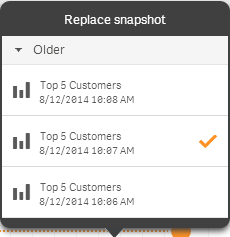
The Replace snapshot dialog is opened and displays all snapshots of a visualization. The snapshot in use is marked with .
-
Select the snapshot you want to use.
The snapshot is updated and adapts to the size of the previous snapshot, using free resize which causes the visualization to use progressive disclosure.
Information noteProgressive disclosure. When you increase the size of a visualization, its information is disclosed progressively. If you reduce the size, the visualization's information is reduced, which allows you to focus on the essential information and avoid cluttering the visualization with too much information in too little space.
The snapshot is replaced on the slide.