
Last updated: 10/2/2025
One way to make insights stand out and help you getting your message through in a clear way is the possibility to hide, or show, certain parts of a snapshot.
Changing snapshot properties
The following list summarizes the editable properties.
- Titles (main title, subtitle and footnote)
- Labels (data point labels, leaf labels)
- Legend
- X-axis with title and labels
- Y-axis with title and labels
- Responsive behavior
Do the following:
- In storytelling view,click the snapshot you want to edit.
-
Click .
The snapshot is unlocked and editing is now enabled.
-
Click .
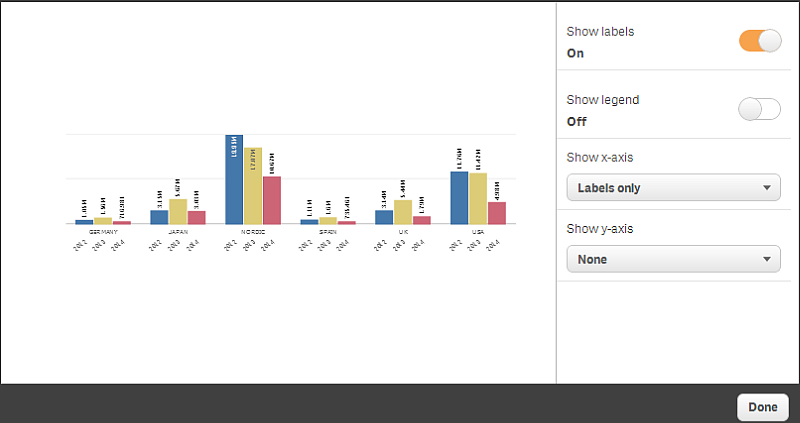
A dialog where you can change the snapshot's appearance is opened.
-
For Show titles, Show labels and Show legend, click either On or Off to show or hide them.
The snapshot changes appearance accordingly.
-
For Show x-axis and Show y-axis, select one of the options Labels and title, Labels only, Title only or None from the drop-down list.
The snapshot changes appearance accordingly.
- Click Done.
The snapshot’s appearance has changed.
Changing the aspect ratio when resizing a snapshot
When you resize a snapshot you can choose to unlock the aspect ratio to enable free resize. Then the resize causes the visualization to use progressive disclosure.
Do the following:
- In storytelling view,click the snapshot you want to resize.
-
Click to unlock the aspect ratio for free resize.
is displayed.
-
Use the handles on the edges to resize the visualization.
The resize causes the visualization to use progressive disclosure.
-
Click to lock the aspect ratio.
is displayed and if f you resize the visualization, the whole image is resized without progressive disclosure.
You now have changed the aspect ratio in a snapshot and resized the visualization.