
Last updated: 10/2/2025
With the lock option, you can protect your selections.
Locking selections
You can lock a selection by clicking in the selection popup. The lock prevents any changes from being made to that selection. You can neither change nor clear a locked selection. If you have locked a selection and then try to select excluded field values, the selection item will flash to indicate that the locked selection prevents the selection from being made.
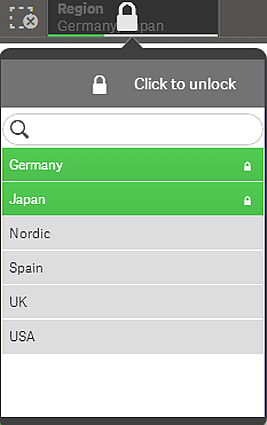
Locked selection
Information noteIt is possible to step back in the selection history to a state before the dimension was locked.
Unlocking selections
You can unlock a selection by clicking in the selection popup. When you have unlocked the selection, you can make changes to it, or clear it.