Stitch’s Shopify integration replicates data using the Shopify REST Admin API (v2025-02). Refer to the Schema section for a list of objects available for replication.
Shopify feature snapshot
A high-level look at Stitch's Shopify (v2) integration, including release status, useful links, and the features supported in Stitch.
Indicates if Replication Methods can be defined by you for tables in the integration.
Configurable Replication Methods are not supported for this integration. Stitch will use pre-defined replication methods for tables you set to replicate.
Unsupported
DATA SELECTION
Table selection
The ability to select individual tables for replication in the Stitch interface. If table selection is unavailable, all tables and all the columns they contain will be set to replicate by default.
This feature is supported for this version of the integration.
Supported
Column selection
The ability to select individual columns for replication in the Stitch interface. If column selection is unavailable, all columns will be set to replicate by default.
This feature is supported for this version of the integration.
Supported
Select all
Indicates if the integration supports selecting all available tables and columns.
Reports detailing the Loading phase of the replication process for a given integration. Includes the number of rows loaded for each table and error info, should an error occur.
This feature is supported for this version of the integration.
Supported
Connecting Shopify
Shopify setup requirements
To set up Shopify in Stitch, you need:
Admin access in Shopify. This is required to allow Stitch to replicate data.
Note: If you’re on a Shopify Plus plan, the permissions required may differ. Store owners can grant users permissions to export orders, draft orders, products, inventory, and customer data. In general, view-level permissions should be sufficient.
On the Stitch Dashboard page, click the Add Integration button.
Click the Shopify icon.
Enter a name for the integration. This is the name that will display on the Stitch Dashboard for the integration; it’ll also be used to create the schema in your destination.
For example, the name “Stitch Shopify” would create a schema called stitch_shopify in the destination. Note: Schema names cannot be changed after you save the integration.
In the Shopify Shop field, enter the name of the shop you want to connect to Stitch. For example: If the shop URL was stitch-data.shopify.com, you’d enter stitch-data into this field.
Step 2: Define the historical replication start date
The Sync Historical Data setting defines the starting date for your Shopify integration.
This means that data equal to or newer than this date will be replicated to your data warehouse.
Change this setting if you want to replicate data beyond Shopify’s default setting of 1 year. For a detailed look at historical replication jobs, check out the Syncing Historical SaaS Data guide.
Step 3: Create a replication schedule
Information note
Replication schedules affect the time Extraction begins, not the time to data loaded. Refer to the Replication Scheduling documentation for more information.
In the Replication Frequency section, you’ll create the integration’s replication schedule. An integration’s replication schedule determines how often Stitch runs a replication job, and the time that job begins.
Shopify integrations support the following replication scheduling methods:
Note: If a replication job is currently in progress, new selections won’t be used until the next job starts.
For Shopify integrations, you can select:
Individual tables and columns
All tables and columns
Click the tabs to view instructions for each selection method.
In the integration’s Tables to Replicate tab, locate a table you want to replicate.
To track a table, click the checkbox next to the table’s name. A blue checkmark means the table is set to replicate.
To track a column, click the checkbox next to the column’s name. A blue checkmark means the column is set to replicate.
Repeat this process for all the tables and columns you want to replicate.
When finished, click the Finalize Your Selections button at the bottom of the screen to save your selections.
Information noteImportant:
Using the Select All feature will overwrite any previous selections. However, selections aren’t final until Finalize Your Selections is clicked. Clicking Cancel will restore your previous selections.
Refer to the Select All guide for more info about this feature.
Click into the integration from the Stitch Dashboard page.
Click the Tables to Replicate tab.
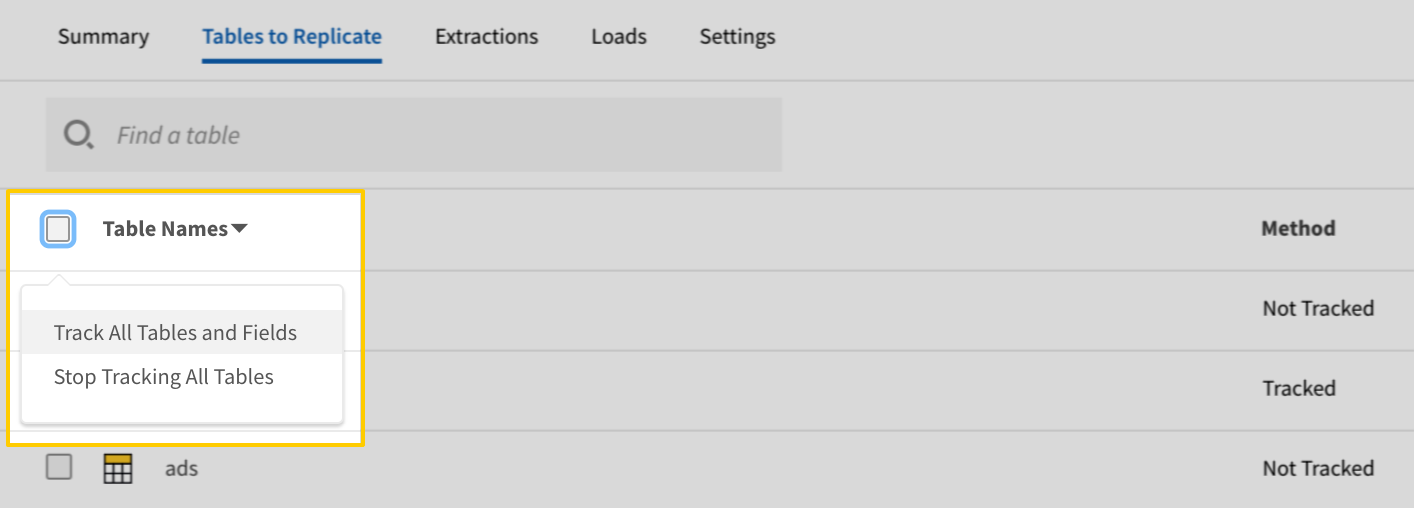
In the list of tables, click the box next to the Table Names column.
In the menu that displays, click Track all Tables and Fields:
The Track all Tables and Fields menu in the Tables to Replicate tab
Click the Finalize Your Selections button at the bottom of the page to save your data selections.
Initial and historical replication jobs
After you finish setting up Shopify, its Sync Status may show as Pending on either the Stitch Dashboard or in the Integration Details page.
For a new integration, a Pending status indicates that Stitch is in the process of scheduling the initial replication job for the integration. This may take some time to complete.
Information note
Initial replication jobs with Anchor Scheduling
If using Anchor Scheduling, an initial replication job may not kick off immediately. This depends on the selected Replication Frequency and Anchor Time. Refer to the Anchor Scheduling documentation for more information.
Free historical data loads
The first seven days of replication, beginning when data is first replicated, are free. Rows replicated from the new integration during this time won’t count towards your quota. Stitch offers this as a way of testing new integrations, measuring usage, and ensuring historical data volumes don’t quickly consume your quota.
Information noteReplication will continue after the seven days are over. If you’re no longer interested in this source, be sure to pause or delete the integration to prevent unwanted usage.
Shopify replication
Replicating order refunds
To extract order refund data, Stitch queries every order in your account. If you have the order_refunds table selected for replication, the process can potentially be very slow depending on how many orders and refunds exist in your Shopify account. As tables are extracted one at a time, this could cause extraction to not proceed for days at a time. To ensure timely replication of your other selected tables, consider creating a separate integration for only the order_refunds table.
Note: Creating a separate integration for your order_refunds table may negatively affect your Shopify API quota.
Shopify table reference
Information note
Schemas and versioning
Schemas and naming conventions can change from version to version, so we recommend verifying your integration’s version before continuing.
The schema and info displayed below is for version 2 of this integration.
Information note
Table and column names in your destination
Depending on your destination, table and column names may not appear as they are outlined below.
For example: Object names are lowercased in Redshift (CusTomERs > customers), while case is maintained in PostgreSQL destinations (CusTomERs > CusTomERs). Refer to the Loading Guide for your destination for more info.
abandoned_checkouts
The abandoned_checkouts table contains info about abandoned checkouts. Shopify considers a checkout to be abandoned when a customer has entered billing and shipping details, but hasn’t completed the purchase.
This is a nested data structure. If your destination doesn't natively support nested data, attributes in this object will be flattened into the table. <a href='/en-US/stitch/replication/loading/understanding-loading-row-usage-for-nested-data-structures' target='new'>Learn more</a>.
address1
STRING
address2
STRING
city
STRING
company
STRING
country
STRING
country_code
STRING
first_name
STRING
last_name
STRING
latitude
NUMBER
longitude
NUMBER
name
STRING
phone
STRING
province
STRING
province_code
STRING
zip
STRING
buyer_accepts_marketing
BOOLEAN
buyer_accepts_sms_marketing
BOOLEAN
cart_token
STRING
closed_at
DATE-TIME
completed_at
DATE-TIME
created_at
DATE-TIME
currency
STRING
customer
OBJECT
This is a nested data structure. If your destination doesn't natively support nested data, attributes in this object will be flattened into the table. <a href='/en-US/stitch/replication/loading/understanding-loading-row-usage-for-nested-data-structures' target='new'>Learn more</a>.
addresses
ARRAY
This is a nested data structure. If your destination doesn't natively support nested data, attributes will be denested into a subtable. <a href='/en-US/stitch/replication/loading/understanding-loading-row-usage-for-nested-data-structures' target='new'>Learn more</a>.
address1
STRING
address2
STRING
city
STRING
company
STRING
country
STRING
country_code
STRING
country_name
STRING
customer_id
INTEGER
default
BOOLEAN
first_name
STRING
id
INTEGER
last_name
STRING
name
STRING
phone
STRING
province
STRING
province_code
STRING
zip
STRING
admin_graphql_api_id
STRING
created_at
DATE-TIME
default_address
OBJECT
This is a nested data structure. If your destination doesn't natively support nested data, attributes in this object will be flattened into the table. <a href='/en-US/stitch/replication/loading/understanding-loading-row-usage-for-nested-data-structures' target='new'>Learn more</a>.
address1
STRING
address2
STRING
city
STRING
company
STRING
country
STRING
country_code
STRING
country_name
STRING
customer_id
INTEGER
default
BOOLEAN
first_name
STRING
id
INTEGER
last_name
STRING
name
STRING
phone
STRING
province
STRING
province_code
STRING
zip
STRING
email
STRING
email_marketing_consent
OBJECT
This is a nested data structure. If your destination doesn't natively support nested data, attributes in this object will be flattened into the table. <a href='/en-US/stitch/replication/loading/understanding-loading-row-usage-for-nested-data-structures' target='new'>Learn more</a>.
consent_updated_at
DATE-TIME
opt_in_level
STRING
state
STRING
first_name
STRING
id
INTEGER
last_name
STRING
last_order_id
INTEGER
last_order_name
STRING
multipass_identifier
STRING
note
STRING
orders_count
INTEGER
phone
STRING
sms_marketing_consent
OBJECT
This is a nested data structure. If your destination doesn't natively support nested data, attributes in this object will be flattened into the table. <a href='/en-US/stitch/replication/loading/understanding-loading-row-usage-for-nested-data-structures' target='new'>Learn more</a>.
consent_collected_from
STRING
consent_updated_at
DATE-TIME
opt_in_level
STRING
state
STRING
state
STRING
tags
STRING
tax_exempt
BOOLEAN
tax_exemptions
ARRAY
This is a nested data structure. If your destination doesn't natively support nested data, attributes will be denested into a subtable. <a href='/en-US/stitch/replication/loading/understanding-loading-row-usage-for-nested-data-structures' target='new'>Learn more</a>.
total_spent
STRING
updated_at
DATE-TIME
verified_email
BOOLEAN
customer_locale
STRING
device_id
INTEGER
discount_codes
ARRAY
This is a nested data structure. If your destination doesn't natively support nested data, attributes will be denested into a subtable. <a href='/en-US/stitch/replication/loading/understanding-loading-row-usage-for-nested-data-structures' target='new'>Learn more</a>.
amount
NUMBER
code
STRING
type
STRING
email
STRING
gateway
STRING
id
INTEGER
landing_site
STRING
line_items
ARRAY
This is a nested data structure. If your destination doesn't natively support nested data, attributes will be denested into a subtable. <a href='/en-US/stitch/replication/loading/understanding-loading-row-usage-for-nested-data-structures' target='new'>Learn more</a>.
admin_graphql_api_id
STRING
applied_discount
INTEGER
applied_discounts
ARRAY
This is a nested data structure. If your destination doesn't natively support nested data, attributes will be denested into a subtable. <a href='/en-US/stitch/replication/loading/understanding-loading-row-usage-for-nested-data-structures' target='new'>Learn more</a>.
compare_at_price
STRING
destination_location
OBJECT
This is a nested data structure. If your destination doesn't natively support nested data, attributes in this object will be flattened into the table. <a href='/en-US/stitch/replication/loading/understanding-loading-row-usage-for-nested-data-structures' target='new'>Learn more</a>.
active
BOOLEAN
address1
STRING
address2
STRING
admin_graphql_api_id
STRING
city
STRING
country
STRING
country_code
STRING
country_name
STRING
created_at
DATE-TIME
id
INTEGER
legacy
BOOLEAN
localized_country_name
STRING
localized_province_name
STRING
name
STRING
phone
STRING
province
STRING
province_code
STRING
updated_at
DATE-TIME
zip
STRING
destination_location_id
INTEGER
discount_allocations
ARRAY
This is a nested data structure. If your destination doesn't natively support nested data, attributes will be denested into a subtable. <a href='/en-US/stitch/replication/loading/understanding-loading-row-usage-for-nested-data-structures' target='new'>Learn more</a>.
amount
NUMBER
discount_application_index
INTEGER
fulfillable_quantity
INTEGER
fulfillment_service
STRING
fulfillment_status
STRING
gift_card
BOOLEAN
grams
INTEGER
id
INTEGER, STRING
key
STRING
line_price
STRING
name
STRING
origin_location
OBJECT
This is a nested data structure. If your destination doesn't natively support nested data, attributes in this object will be flattened into the table. <a href='/en-US/stitch/replication/loading/understanding-loading-row-usage-for-nested-data-structures' target='new'>Learn more</a>.
active
BOOLEAN
address1
STRING
address2
STRING
admin_graphql_api_id
STRING
city
STRING
country
STRING
country_code
STRING
country_name
STRING
created_at
DATE-TIME
id
INTEGER
legacy
BOOLEAN
localized_country_name
STRING
localized_province_name
STRING
name
STRING
phone
STRING
province
STRING
province_code
STRING
updated_at
DATE-TIME
zip
STRING
origin_location_id
INTEGER
pre_tax_price
NUMBER
price
NUMBER
product_exists
BOOLEAN
product_id
INTEGER
properties
ARRAY
This is a nested data structure. If your destination doesn't natively support nested data, attributes will be denested into a subtable. <a href='/en-US/stitch/replication/loading/understanding-loading-row-usage-for-nested-data-structures' target='new'>Learn more</a>.
name
STRING
value
STRING
OBJECT
This is a nested data structure. If your destination doesn't natively support nested data, attributes in this object will be flattened into the table. <a href='/en-US/stitch/replication/loading/understanding-loading-row-usage-for-nested-data-structures' target='new'>Learn more</a>.
quantity
INTEGER
requires_shipping
BOOLEAN
sku
STRING
tax_code
STRING
tax_lines
ARRAY
This is a nested data structure. If your destination doesn't natively support nested data, attributes will be denested into a subtable. <a href='/en-US/stitch/replication/loading/understanding-loading-row-usage-for-nested-data-structures' target='new'>Learn more</a>.
channel_liable
BOOLEAN
compare_at
STRING
position
INTEGER
price
NUMBER
rate
NUMBER
source
STRING
title
STRING
zone
STRING
taxable
BOOLEAN
title
STRING
total_discount
NUMBER
variant_id
INTEGER
variant_inventory_management
STRING
variant_title
STRING
vendor
STRING
location_id
INTEGER
name
STRING
note
STRING
note_attributes
ARRAY
This is a nested data structure. If your destination doesn't natively support nested data, attributes will be denested into a subtable. <a href='/en-US/stitch/replication/loading/understanding-loading-row-usage-for-nested-data-structures' target='new'>Learn more</a>.
name
STRING
value
STRING
phone
STRING
presentment_currency
STRING
referring_site
STRING
shipping_address
OBJECT
This is a nested data structure. If your destination doesn't natively support nested data, attributes in this object will be flattened into the table. <a href='/en-US/stitch/replication/loading/understanding-loading-row-usage-for-nested-data-structures' target='new'>Learn more</a>.
address1
STRING
address2
STRING
city
STRING
company
STRING
country
STRING
country_code
STRING
first_name
STRING
last_name
STRING
latitude
NUMBER
longitude
NUMBER
name
STRING
phone
STRING
province
STRING
province_code
STRING
zip
STRING
shipping_lines
ARRAY
This is a nested data structure. If your destination doesn't natively support nested data, attributes will be denested into a subtable. <a href='/en-US/stitch/replication/loading/understanding-loading-row-usage-for-nested-data-structures' target='new'>Learn more</a>.
api_client_id
INTEGER
applied_discounts
ARRAY
This is a nested data structure. If your destination doesn't natively support nested data, attributes will be denested into a subtable. <a href='/en-US/stitch/replication/loading/understanding-loading-row-usage-for-nested-data-structures' target='new'>Learn more</a>.
carrier_identifier
STRING
carrier_service_id
INTEGER
code
STRING
custom_tax_lines
ARRAY
This is a nested data structure. If your destination doesn't natively support nested data, attributes will be denested into a subtable. <a href='/en-US/stitch/replication/loading/understanding-loading-row-usage-for-nested-data-structures' target='new'>Learn more</a>.
delivery_category
STRING
id
STRING
markup
STRING
phone
STRING
price
NUMBER
requested_fulfillment_service_id
STRING
source
STRING
tax_lines
ARRAY
This is a nested data structure. If your destination doesn't natively support nested data, attributes will be denested into a subtable. <a href='/en-US/stitch/replication/loading/understanding-loading-row-usage-for-nested-data-structures' target='new'>Learn more</a>.
channel_liable
BOOLEAN
compare_at
STRING
position
INTEGER
price
NUMBER
rate
NUMBER
source
STRING
title
STRING
zone
STRING
title
STRING
validation_context
STRING
sms_marketing_phone
STRING
source
STRING
source_identifier
STRING
source_name
STRING
source_url
STRING
subtotal_price
NUMBER
tax_lines
ARRAY
This is a nested data structure. If your destination doesn't natively support nested data, attributes will be denested into a subtable. <a href='/en-US/stitch/replication/loading/understanding-loading-row-usage-for-nested-data-structures' target='new'>Learn more</a>.
channel_liable
BOOLEAN
compare_at
STRING
position
INTEGER
price
NUMBER
rate
NUMBER
source
STRING
title
STRING
zone
STRING
taxes_included
BOOLEAN
token
STRING
total_discounts
NUMBER
total_duties
NUMBER
total_line_items_price
NUMBER
total_price
NUMBER
total_tax
NUMBER
total_weight
INTEGER
updated_at
DATE-TIME
user_id
INTEGER
collects
The collects table contains info about collects, which are used to manage relationships between products and custom collections. For every product in a custom collection, there’s a collect that tracks the ID of both the product and the custom collection.
The custom_collections table contains info about custom collections. A custom collection is a grouping of products that a merchant creates to make their store easier to browse.
This is a nested data structure. If your destination doesn't natively support nested data, attributes in this object will be flattened into the table. <a href='/en-US/stitch/replication/loading/understanding-loading-row-usage-for-nested-data-structures' target='new'>Learn more</a>.
alt
STRING
created_at
STRING
height
INTEGER
src
STRING
width
INTEGER
published_at
STRING
published_scope
STRING
sort_order
STRING
template_suffix
STRING
title
STRING
updated_at
STRING
customers
The customers table contains info about the shop’s customers. This includes their contact details, order history, and email marketing preferences.
Customer metafield data
To replicate customer metafield data, you must set this table and the metafields table to replicate.
This is a nested data structure. If your destination doesn't natively support nested data, attributes will be denested into a subtable. <a href='/en-US/stitch/replication/loading/understanding-loading-row-usage-for-nested-data-structures' target='new'>Learn more</a>.
address1
STRING
address2
STRING
city
STRING
company
STRING
country
STRING
country_code
STRING
country_name
STRING
customer_id
INTEGER
default
BOOLEAN
first_name
STRING
id
INTEGER
last_name
STRING
name
STRING
phone
STRING
province
STRING
province_code
STRING
zip
STRING
admin_graphql_api_id
STRING
created_at
DATE-TIME
default_address
OBJECT
This is a nested data structure. If your destination doesn't natively support nested data, attributes in this object will be flattened into the table. <a href='/en-US/stitch/replication/loading/understanding-loading-row-usage-for-nested-data-structures' target='new'>Learn more</a>.
address1
STRING
address2
STRING
city
STRING
company
STRING
country
STRING
country_code
STRING
country_name
STRING
customer_id
INTEGER
default
BOOLEAN
first_name
STRING
id
INTEGER
last_name
STRING
name
STRING
phone
STRING
province
STRING
province_code
STRING
zip
STRING
email
STRING
email_marketing_consent
OBJECT
This is a nested data structure. If your destination doesn't natively support nested data, attributes in this object will be flattened into the table. <a href='/en-US/stitch/replication/loading/understanding-loading-row-usage-for-nested-data-structures' target='new'>Learn more</a>.
consent_updated_at
DATE-TIME
opt_in_level
STRING
state
STRING
first_name
STRING
id
INTEGER
last_name
STRING
last_order_id
INTEGER
last_order_name
STRING
multipass_identifier
STRING
note
STRING
orders_count
INTEGER
phone
STRING
sms_marketing_consent
OBJECT
This is a nested data structure. If your destination doesn't natively support nested data, attributes in this object will be flattened into the table. <a href='/en-US/stitch/replication/loading/understanding-loading-row-usage-for-nested-data-structures' target='new'>Learn more</a>.
consent_collected_from
STRING
consent_updated_at
DATE-TIME
opt_in_level
STRING
state
STRING
state
STRING
tags
STRING
tax_exempt
BOOLEAN
tax_exemptions
ARRAY
This is a nested data structure. If your destination doesn't natively support nested data, attributes will be denested into a subtable. <a href='/en-US/stitch/replication/loading/understanding-loading-row-usage-for-nested-data-structures' target='new'>Learn more</a>.
total_spent
STRING
updated_at
DATE-TIME
verified_email
BOOLEAN
events
The events table contains info about events in the shop.
This is a nested data structure. If your destination doesn't natively support nested data, attributes will be denested into a subtable. <a href='/en-US/stitch/replication/loading/understanding-loading-row-usage-for-nested-data-structures' target='new'>Learn more</a>.
STRING
author
STRING
body
STRING
created_at
DATE-TIME
description
STRING
id
INTEGER
message
STRING
path
STRING
subject_id
INTEGER
subject_type
STRING
verb
STRING
inventory_items
The inventory_items table contains info about items in a shop.
This is a nested data structure. If your destination doesn't natively support nested data, attributes in this object will be flattened into the table. <a href='/en-US/stitch/replication/loading/understanding-loading-row-usage-for-nested-data-structures' target='new'>Learn more</a>.
amount
STRING
countryCodeOfOrigin
STRING
provinceCodeOfOrigin
STRING
harmonizedSystemCode
STRING
tracked
BOOLEAN
countryHarmonizedSystemCodes
ARRAY
This is a nested data structure. If your destination doesn't natively support nested data, attributes will be denested into a subtable. <a href='/en-US/stitch/replication/loading/understanding-loading-row-usage-for-nested-data-structures' target='new'>Learn more</a>.
countryCode
STRING
harmonizedSystemCode
STRING
inventory_levels
The inventory_levels table contains info about quantities of an inventory item for a location.
The metafields table contains info about resource metafields. These are arbitrary fields used to store additional information about resources.
Metafield replication and resource types
By default, this table will include only shop-level metafield data. To replicate the metafields for a given resource type, this table and the table for the resource must be set to replicate.
For example: To replicate metafield data for Orders, the orders table must also be set to replicate.
This is a nested data structure. If your destination doesn't natively support nested data, attributes in this object will be flattened into the table. <a href='/en-US/stitch/replication/loading/understanding-loading-row-usage-for-nested-data-structures' target='new'>Learn more</a>.
id
STRING
ownerType
STRING
value_type
STRING
key
STRING
createdAt
STRING
id
STRING
namespace
STRING
description
STRING
value
INTEGER, OBJECT, STRING
This is a nested data structure. If your destination doesn't natively support nested data, attributes in this object will be flattened into the table. <a href='/en-US/stitch/replication/loading/understanding-loading-row-usage-for-nested-data-structures' target='new'>Learn more</a>.
updatedAt
STRING
type
STRING
order_refunds
The order_refunds table contains info about refunds associated with orders.
This is a nested data structure. If your destination doesn't natively support nested data, attributes will be denested into a subtable. <a href='/en-US/stitch/replication/loading/understanding-loading-row-usage-for-nested-data-structures' target='new'>Learn more</a>.
amount
NUMBER
amount_set
OBJECT
This is a nested data structure. If your destination doesn't natively support nested data, attributes in this object will be flattened into the table. <a href='/en-US/stitch/replication/loading/understanding-loading-row-usage-for-nested-data-structures' target='new'>Learn more</a>.
id
INTEGER
kind
STRING
order_id
INTEGER
reason
STRING
refund_id
INTEGER
tax_amount
NUMBER
tax_amount_set
OBJECT
This is a nested data structure. If your destination doesn't natively support nested data, attributes in this object will be flattened into the table. <a href='/en-US/stitch/replication/loading/understanding-loading-row-usage-for-nested-data-structures' target='new'>Learn more</a>.
order_id
INTEGER
processed_at
STRING
refund_line_items
ARRAY
This is a nested data structure. If your destination doesn't natively support nested data, attributes will be denested into a subtable. <a href='/en-US/stitch/replication/loading/understanding-loading-row-usage-for-nested-data-structures' target='new'>Learn more</a>.
id
INTEGER
line_item
OBJECT
This is a nested data structure. If your destination doesn't natively support nested data, attributes in this object will be flattened into the table. <a href='/en-US/stitch/replication/loading/understanding-loading-row-usage-for-nested-data-structures' target='new'>Learn more</a>.
admin_graphql_api_id
STRING
discount_allocations
ARRAY
This is a nested data structure. If your destination doesn't natively support nested data, attributes will be denested into a subtable. <a href='/en-US/stitch/replication/loading/understanding-loading-row-usage-for-nested-data-structures' target='new'>Learn more</a>.
amount
STRING
amount_set
OBJECT
This is a nested data structure. If your destination doesn't natively support nested data, attributes in this object will be flattened into the table. <a href='/en-US/stitch/replication/loading/understanding-loading-row-usage-for-nested-data-structures' target='new'>Learn more</a>.
presentment_money
OBJECT
This is a nested data structure. If your destination doesn't natively support nested data, attributes in this object will be flattened into the table. <a href='/en-US/stitch/replication/loading/understanding-loading-row-usage-for-nested-data-structures' target='new'>Learn more</a>.
amount
STRING
currency_code
STRING
shop_money
OBJECT
This is a nested data structure. If your destination doesn't natively support nested data, attributes in this object will be flattened into the table. <a href='/en-US/stitch/replication/loading/understanding-loading-row-usage-for-nested-data-structures' target='new'>Learn more</a>.
amount
STRING
currency_code
STRING
discount_application_index
INTEGER
fulfillable_quantity
INTEGER
fulfillment_service
STRING
fulfillment_status
STRING
gift_card
BOOLEAN
grams
INTEGER
id
INTEGER
name
STRING
pre_tax_price
STRING
pre_tax_price_set
OBJECT
This is a nested data structure. If your destination doesn't natively support nested data, attributes in this object will be flattened into the table. <a href='/en-US/stitch/replication/loading/understanding-loading-row-usage-for-nested-data-structures' target='new'>Learn more</a>.
presentment_money
OBJECT
This is a nested data structure. If your destination doesn't natively support nested data, attributes in this object will be flattened into the table. <a href='/en-US/stitch/replication/loading/understanding-loading-row-usage-for-nested-data-structures' target='new'>Learn more</a>.
amount
STRING
currency_code
STRING
shop_money
OBJECT
This is a nested data structure. If your destination doesn't natively support nested data, attributes in this object will be flattened into the table. <a href='/en-US/stitch/replication/loading/understanding-loading-row-usage-for-nested-data-structures' target='new'>Learn more</a>.
amount
STRING
currency_code
STRING
price
STRING
price_set
OBJECT
This is a nested data structure. If your destination doesn't natively support nested data, attributes in this object will be flattened into the table. <a href='/en-US/stitch/replication/loading/understanding-loading-row-usage-for-nested-data-structures' target='new'>Learn more</a>.
presentment_money
OBJECT
This is a nested data structure. If your destination doesn't natively support nested data, attributes in this object will be flattened into the table. <a href='/en-US/stitch/replication/loading/understanding-loading-row-usage-for-nested-data-structures' target='new'>Learn more</a>.
amount
STRING
currency_code
STRING
shop_money
OBJECT
This is a nested data structure. If your destination doesn't natively support nested data, attributes in this object will be flattened into the table. <a href='/en-US/stitch/replication/loading/understanding-loading-row-usage-for-nested-data-structures' target='new'>Learn more</a>.
amount
STRING
currency_code
STRING
product_exists
BOOLEAN
product_id
INTEGER
properties
ARRAY
This is a nested data structure. If your destination doesn't natively support nested data, attributes will be denested into a subtable. <a href='/en-US/stitch/replication/loading/understanding-loading-row-usage-for-nested-data-structures' target='new'>Learn more</a>.
name
STRING
value
STRING
quantity
INTEGER
requires_shipping
BOOLEAN
sku
STRING
tax_lines
ARRAY
This is a nested data structure. If your destination doesn't natively support nested data, attributes will be denested into a subtable. <a href='/en-US/stitch/replication/loading/understanding-loading-row-usage-for-nested-data-structures' target='new'>Learn more</a>.
price
STRING
price_set
OBJECT
This is a nested data structure. If your destination doesn't natively support nested data, attributes in this object will be flattened into the table. <a href='/en-US/stitch/replication/loading/understanding-loading-row-usage-for-nested-data-structures' target='new'>Learn more</a>.
presentment_money
OBJECT
This is a nested data structure. If your destination doesn't natively support nested data, attributes in this object will be flattened into the table. <a href='/en-US/stitch/replication/loading/understanding-loading-row-usage-for-nested-data-structures' target='new'>Learn more</a>.
amount
STRING
currency_code
STRING
shop_money
OBJECT
This is a nested data structure. If your destination doesn't natively support nested data, attributes in this object will be flattened into the table. <a href='/en-US/stitch/replication/loading/understanding-loading-row-usage-for-nested-data-structures' target='new'>Learn more</a>.
amount
STRING
currency_code
STRING
rate
NUMBER
title
STRING
taxable
BOOLEAN
title
STRING
total_discount
STRING
total_discount_set
OBJECT
This is a nested data structure. If your destination doesn't natively support nested data, attributes in this object will be flattened into the table. <a href='/en-US/stitch/replication/loading/understanding-loading-row-usage-for-nested-data-structures' target='new'>Learn more</a>.
presentment_money
OBJECT
This is a nested data structure. If your destination doesn't natively support nested data, attributes in this object will be flattened into the table. <a href='/en-US/stitch/replication/loading/understanding-loading-row-usage-for-nested-data-structures' target='new'>Learn more</a>.
amount
STRING
currency_code
STRING
shop_money
OBJECT
This is a nested data structure. If your destination doesn't natively support nested data, attributes in this object will be flattened into the table. <a href='/en-US/stitch/replication/loading/understanding-loading-row-usage-for-nested-data-structures' target='new'>Learn more</a>.
amount
STRING
currency_code
STRING
variant_id
INTEGER
variant_inventory_management
STRING
variant_title
STRING
vendor
STRING
line_item_id
INTEGER
location_id
INTEGER
quantity
INTEGER
restock_type
STRING
subtotal
NUMBER
subtotal_set
OBJECT
This is a nested data structure. If your destination doesn't natively support nested data, attributes in this object will be flattened into the table. <a href='/en-US/stitch/replication/loading/understanding-loading-row-usage-for-nested-data-structures' target='new'>Learn more</a>.
presentment_money
OBJECT
This is a nested data structure. If your destination doesn't natively support nested data, attributes in this object will be flattened into the table. <a href='/en-US/stitch/replication/loading/understanding-loading-row-usage-for-nested-data-structures' target='new'>Learn more</a>.
amount
STRING
currency_code
STRING
shop_money
OBJECT
This is a nested data structure. If your destination doesn't natively support nested data, attributes in this object will be flattened into the table. <a href='/en-US/stitch/replication/loading/understanding-loading-row-usage-for-nested-data-structures' target='new'>Learn more</a>.
amount
STRING
currency_code
STRING
total_tax
NUMBER
total_tax_set
OBJECT
This is a nested data structure. If your destination doesn't natively support nested data, attributes in this object will be flattened into the table. <a href='/en-US/stitch/replication/loading/understanding-loading-row-usage-for-nested-data-structures' target='new'>Learn more</a>.
presentment_money
OBJECT
This is a nested data structure. If your destination doesn't natively support nested data, attributes in this object will be flattened into the table. <a href='/en-US/stitch/replication/loading/understanding-loading-row-usage-for-nested-data-structures' target='new'>Learn more</a>.
amount
STRING
currency_code
STRING
shop_money
OBJECT
This is a nested data structure. If your destination doesn't natively support nested data, attributes in this object will be flattened into the table. <a href='/en-US/stitch/replication/loading/understanding-loading-row-usage-for-nested-data-structures' target='new'>Learn more</a>.
amount
STRING
currency_code
STRING
restock
BOOLEAN
transactions
ARRAY
This is a nested data structure. If your destination doesn't natively support nested data, attributes will be denested into a subtable. <a href='/en-US/stitch/replication/loading/understanding-loading-row-usage-for-nested-data-structures' target='new'>Learn more</a>.
admin_graphql_api_id
STRING
amount
NUMBER
authorization
STRING
created_at
STRING
currency
STRING
device_id
INTEGER
error_code
STRING
gateway
STRING
id
INTEGER
kind
STRING
location_id
INTEGER
message
STRING
order_id
INTEGER
parent_id
INTEGER
payment_details
OBJECT
This is a nested data structure. If your destination doesn't natively support nested data, attributes in this object will be flattened into the table. <a href='/en-US/stitch/replication/loading/understanding-loading-row-usage-for-nested-data-structures' target='new'>Learn more</a>.
acquirer_reference_number
STRING
avs_result_code
STRING
credit_card_bin
STRING
credit_card_company
STRING
credit_card_number
STRING
cvv_result_code
STRING
payments_refund_attributes
STRING
processed_at
STRING
status
STRING
payments_refund_attributes
OBJECT
This is a nested data structure. If your destination doesn't natively support nested data, attributes in this object will be flattened into the table. <a href='/en-US/stitch/replication/loading/understanding-loading-row-usage-for-nested-data-structures' target='new'>Learn more</a>.
acquirer_reference_number
STRING
status
STRING
processed_at
STRING
source_name
STRING
status
STRING
test
BOOLEAN
user_id
INTEGER
user_id
INTEGER
orders
The orders table contains info about a shop’s completed orders.
Order metafield data
To replicate order metafield data, you must set this table and the metafields table to replicate.
This is a nested data structure. If your destination doesn't natively support nested data, attributes in this object will be flattened into the table. <a href='/en-US/stitch/replication/loading/understanding-loading-row-usage-for-nested-data-structures' target='new'>Learn more</a>.
address1
STRING
address2
STRING
city
STRING
company
STRING
country
STRING
country_code
STRING
first_name
STRING
last_name
STRING
latitude
NUMBER
longitude
NUMBER
name
STRING
phone
STRING
province
STRING
province_code
STRING
zip
STRING
browser_ip
STRING
buyer_accepts_marketing
BOOLEAN
cancel_reason
STRING
cancelled_at
DATE-TIME
cart_token
STRING
checkout_id
INTEGER
checkout_token
STRING
client_details
OBJECT
This is a nested data structure. If your destination doesn't natively support nested data, attributes in this object will be flattened into the table. <a href='/en-US/stitch/replication/loading/understanding-loading-row-usage-for-nested-data-structures' target='new'>Learn more</a>.
accept_language
STRING
browser_height
INTEGER
browser_ip
STRING
browser_width
INTEGER
session_hash
STRING
user_agent
STRING
closed_at
DATE-TIME
confirmed
BOOLEAN
contact_email
STRING
created_at
DATE-TIME
currency
STRING
current_subtotal_price
NUMBER
current_subtotal_price_set
OBJECT
This is a nested data structure. If your destination doesn't natively support nested data, attributes in this object will be flattened into the table. <a href='/en-US/stitch/replication/loading/understanding-loading-row-usage-for-nested-data-structures' target='new'>Learn more</a>.
current_total_additional_fees_set
OBJECT
This is a nested data structure. If your destination doesn't natively support nested data, attributes in this object will be flattened into the table. <a href='/en-US/stitch/replication/loading/understanding-loading-row-usage-for-nested-data-structures' target='new'>Learn more</a>.
presentment_money
OBJECT
This is a nested data structure. If your destination doesn't natively support nested data, attributes in this object will be flattened into the table. <a href='/en-US/stitch/replication/loading/understanding-loading-row-usage-for-nested-data-structures' target='new'>Learn more</a>.
amount
NUMBER
currency
STRING
shop_money
OBJECT
This is a nested data structure. If your destination doesn't natively support nested data, attributes in this object will be flattened into the table. <a href='/en-US/stitch/replication/loading/understanding-loading-row-usage-for-nested-data-structures' target='new'>Learn more</a>.
amount
NUMBER
currency
STRING
current_total_discounts
NUMBER
current_total_discounts_set
OBJECT
This is a nested data structure. If your destination doesn't natively support nested data, attributes in this object will be flattened into the table. <a href='/en-US/stitch/replication/loading/understanding-loading-row-usage-for-nested-data-structures' target='new'>Learn more</a>.
current_total_duties_set
OBJECT
This is a nested data structure. If your destination doesn't natively support nested data, attributes in this object will be flattened into the table. <a href='/en-US/stitch/replication/loading/understanding-loading-row-usage-for-nested-data-structures' target='new'>Learn more</a>.
current_total_price
NUMBER
current_total_price_set
OBJECT
This is a nested data structure. If your destination doesn't natively support nested data, attributes in this object will be flattened into the table. <a href='/en-US/stitch/replication/loading/understanding-loading-row-usage-for-nested-data-structures' target='new'>Learn more</a>.
current_total_tax
NUMBER
current_total_tax_set
OBJECT
This is a nested data structure. If your destination doesn't natively support nested data, attributes in this object will be flattened into the table. <a href='/en-US/stitch/replication/loading/understanding-loading-row-usage-for-nested-data-structures' target='new'>Learn more</a>.
customer
OBJECT
This is a nested data structure. If your destination doesn't natively support nested data, attributes in this object will be flattened into the table. <a href='/en-US/stitch/replication/loading/understanding-loading-row-usage-for-nested-data-structures' target='new'>Learn more</a>.
accepts_marketing
BOOLEAN
accepts_marketing_updated_at
DATE-TIME
STRING
addresses
ARRAY
This is a nested data structure. If your destination doesn't natively support nested data, attributes will be denested into a subtable. <a href='/en-US/stitch/replication/loading/understanding-loading-row-usage-for-nested-data-structures' target='new'>Learn more</a>.
address1
STRING
address2
STRING
city
STRING
company
STRING
country
STRING
country_code
STRING
country_name
STRING
customer_id
INTEGER
default
BOOLEAN
first_name
STRING
id
INTEGER
last_name
STRING
name
STRING
phone
STRING
province
STRING
province_code
STRING
zip
STRING
admin_graphql_api_id
STRING
created_at
DATE-TIME
currency
STRING
default_address
OBJECT
This is a nested data structure. If your destination doesn't natively support nested data, attributes in this object will be flattened into the table. <a href='/en-US/stitch/replication/loading/understanding-loading-row-usage-for-nested-data-structures' target='new'>Learn more</a>.
address1
STRING
address2
STRING
city
STRING
company
STRING
country
STRING
country_code
STRING
country_name
STRING
customer_id
INTEGER
default
BOOLEAN
first_name
STRING
id
INTEGER
last_name
STRING
name
STRING
phone
STRING
province
STRING
province_code
STRING
zip
STRING
email
STRING
email_marketing_consent
OBJECT
This is a nested data structure. If your destination doesn't natively support nested data, attributes in this object will be flattened into the table. <a href='/en-US/stitch/replication/loading/understanding-loading-row-usage-for-nested-data-structures' target='new'>Learn more</a>.
consent_updated_at
DATE-TIME
opt_in_level
STRING
state
STRING
first_name
STRING
id
INTEGER
last_name
STRING
marketing_opt_in_level
STRING
multipass_identifier
STRING
note
STRING
phone
STRING
sms_marketing_consent
OBJECT
This is a nested data structure. If your destination doesn't natively support nested data, attributes in this object will be flattened into the table. <a href='/en-US/stitch/replication/loading/understanding-loading-row-usage-for-nested-data-structures' target='new'>Learn more</a>.
consent_collected_from
STRING
consent_updated_at
DATE-TIME
opt_in_level
STRING
state
STRING
state
STRING
tags
STRING
tax_exempt
BOOLEAN
tax_exemptions
ARRAY
This is a nested data structure. If your destination doesn't natively support nested data, attributes will be denested into a subtable. <a href='/en-US/stitch/replication/loading/understanding-loading-row-usage-for-nested-data-structures' target='new'>Learn more</a>.
updated_at
DATE-TIME
verified_email
BOOLEAN
customer_locale
STRING
device_id
INTEGER
discount_applications
ARRAY
This is a nested data structure. If your destination doesn't natively support nested data, attributes will be denested into a subtable. <a href='/en-US/stitch/replication/loading/understanding-loading-row-usage-for-nested-data-structures' target='new'>Learn more</a>.
allocation_method
STRING
code
STRING
description
STRING
target_selection
STRING
target_type
STRING
title
STRING
type
STRING
value
NUMBER
value_type
STRING
discount_codes
ARRAY
This is a nested data structure. If your destination doesn't natively support nested data, attributes will be denested into a subtable. <a href='/en-US/stitch/replication/loading/understanding-loading-row-usage-for-nested-data-structures' target='new'>Learn more</a>.
amount
NUMBER
code
STRING
type
STRING
email
STRING
estimated_taxes
BOOLEAN
financial_status
STRING
fulfillment_status
STRING
fulfillments
ARRAY
This is a nested data structure. If your destination doesn't natively support nested data, attributes will be denested into a subtable. <a href='/en-US/stitch/replication/loading/understanding-loading-row-usage-for-nested-data-structures' target='new'>Learn more</a>.
admin_graphql_api_id
STRING
created_at
DATE-TIME
id
INTEGER
line_items
ARRAY
This is a nested data structure. If your destination doesn't natively support nested data, attributes will be denested into a subtable. <a href='/en-US/stitch/replication/loading/understanding-loading-row-usage-for-nested-data-structures' target='new'>Learn more</a>.
admin_graphql_api_id
STRING
applied_discount
INTEGER
applied_discounts
ARRAY
This is a nested data structure. If your destination doesn't natively support nested data, attributes will be denested into a subtable. <a href='/en-US/stitch/replication/loading/understanding-loading-row-usage-for-nested-data-structures' target='new'>Learn more</a>.
compare_at_price
STRING
destination_location
OBJECT
This is a nested data structure. If your destination doesn't natively support nested data, attributes in this object will be flattened into the table. <a href='/en-US/stitch/replication/loading/understanding-loading-row-usage-for-nested-data-structures' target='new'>Learn more</a>.
active
BOOLEAN
address1
STRING
address2
STRING
admin_graphql_api_id
STRING
city
STRING
country
STRING
country_code
STRING
country_name
STRING
created_at
DATE-TIME
id
INTEGER
legacy
BOOLEAN
localized_country_name
STRING
localized_province_name
STRING
name
STRING
phone
STRING
province
STRING
province_code
STRING
updated_at
DATE-TIME
zip
STRING
destination_location_id
INTEGER
discount_allocations
ARRAY
This is a nested data structure. If your destination doesn't natively support nested data, attributes will be denested into a subtable. <a href='/en-US/stitch/replication/loading/understanding-loading-row-usage-for-nested-data-structures' target='new'>Learn more</a>.
amount
NUMBER
discount_application_index
INTEGER
fulfillable_quantity
INTEGER
fulfillment_service
STRING
fulfillment_status
STRING
gift_card
BOOLEAN
grams
INTEGER
id
INTEGER, STRING
key
STRING
line_price
STRING
name
STRING
origin_location
OBJECT
This is a nested data structure. If your destination doesn't natively support nested data, attributes in this object will be flattened into the table. <a href='/en-US/stitch/replication/loading/understanding-loading-row-usage-for-nested-data-structures' target='new'>Learn more</a>.
active
BOOLEAN
address1
STRING
address2
STRING
admin_graphql_api_id
STRING
city
STRING
country
STRING
country_code
STRING
country_name
STRING
created_at
DATE-TIME
id
INTEGER
legacy
BOOLEAN
localized_country_name
STRING
localized_province_name
STRING
name
STRING
phone
STRING
province
STRING
province_code
STRING
updated_at
DATE-TIME
zip
STRING
origin_location_id
INTEGER
pre_tax_price
NUMBER
price
NUMBER
product_exists
BOOLEAN
product_id
INTEGER
properties
ARRAY
This is a nested data structure. If your destination doesn't natively support nested data, attributes will be denested into a subtable. <a href='/en-US/stitch/replication/loading/understanding-loading-row-usage-for-nested-data-structures' target='new'>Learn more</a>.
name
STRING
value
STRING
OBJECT
This is a nested data structure. If your destination doesn't natively support nested data, attributes in this object will be flattened into the table. <a href='/en-US/stitch/replication/loading/understanding-loading-row-usage-for-nested-data-structures' target='new'>Learn more</a>.
quantity
INTEGER
requires_shipping
BOOLEAN
sku
STRING
tax_code
STRING
tax_lines
ARRAY
This is a nested data structure. If your destination doesn't natively support nested data, attributes will be denested into a subtable. <a href='/en-US/stitch/replication/loading/understanding-loading-row-usage-for-nested-data-structures' target='new'>Learn more</a>.
channel_liable
BOOLEAN
compare_at
STRING
position
INTEGER
price
NUMBER
rate
NUMBER
source
STRING
title
STRING
zone
STRING
taxable
BOOLEAN
title
STRING
total_discount
NUMBER
variant_id
INTEGER
variant_inventory_management
STRING
variant_title
STRING
vendor
STRING
location_id
INTEGER
name
STRING
receipt
OBJECT
This is a nested data structure. If your destination doesn't natively support nested data, attributes in this object will be flattened into the table. <a href='/en-US/stitch/replication/loading/understanding-loading-row-usage-for-nested-data-structures' target='new'>Learn more</a>.
authorization
STRING
testcase
BOOLEAN
service
STRING
shipment_status
STRING
status
STRING
tracking_company
STRING
tracking_number
STRING
tracking_numbers
ARRAY
This is a nested data structure. If your destination doesn't natively support nested data, attributes will be denested into a subtable. <a href='/en-US/stitch/replication/loading/understanding-loading-row-usage-for-nested-data-structures' target='new'>Learn more</a>.
tracking_url
STRING
tracking_urls
ARRAY
This is a nested data structure. If your destination doesn't natively support nested data, attributes will be denested into a subtable. <a href='/en-US/stitch/replication/loading/understanding-loading-row-usage-for-nested-data-structures' target='new'>Learn more</a>.
updated_at
DATE-TIME
id
INTEGER
landing_site
STRING
landing_site_ref
STRING
line_items
ARRAY
This is a nested data structure. If your destination doesn't natively support nested data, attributes will be denested into a subtable. <a href='/en-US/stitch/replication/loading/understanding-loading-row-usage-for-nested-data-structures' target='new'>Learn more</a>.
admin_graphql_api_id
STRING
applied_discount
INTEGER
applied_discounts
ARRAY
This is a nested data structure. If your destination doesn't natively support nested data, attributes will be denested into a subtable. <a href='/en-US/stitch/replication/loading/understanding-loading-row-usage-for-nested-data-structures' target='new'>Learn more</a>.
compare_at_price
STRING
destination_location
OBJECT
This is a nested data structure. If your destination doesn't natively support nested data, attributes in this object will be flattened into the table. <a href='/en-US/stitch/replication/loading/understanding-loading-row-usage-for-nested-data-structures' target='new'>Learn more</a>.
active
BOOLEAN
address1
STRING
address2
STRING
admin_graphql_api_id
STRING
city
STRING
country
STRING
country_code
STRING
country_name
STRING
created_at
DATE-TIME
id
INTEGER
legacy
BOOLEAN
localized_country_name
STRING
localized_province_name
STRING
name
STRING
phone
STRING
province
STRING
province_code
STRING
updated_at
DATE-TIME
zip
STRING
destination_location_id
INTEGER
discount_allocations
ARRAY
This is a nested data structure. If your destination doesn't natively support nested data, attributes will be denested into a subtable. <a href='/en-US/stitch/replication/loading/understanding-loading-row-usage-for-nested-data-structures' target='new'>Learn more</a>.
amount
NUMBER
discount_application_index
INTEGER
fulfillable_quantity
INTEGER
fulfillment_service
STRING
fulfillment_status
STRING
gift_card
BOOLEAN
grams
INTEGER
id
INTEGER, STRING
key
STRING
line_price
STRING
name
STRING
origin_location
OBJECT
This is a nested data structure. If your destination doesn't natively support nested data, attributes in this object will be flattened into the table. <a href='/en-US/stitch/replication/loading/understanding-loading-row-usage-for-nested-data-structures' target='new'>Learn more</a>.
active
BOOLEAN
address1
STRING
address2
STRING
admin_graphql_api_id
STRING
city
STRING
country
STRING
country_code
STRING
country_name
STRING
created_at
DATE-TIME
id
INTEGER
legacy
BOOLEAN
localized_country_name
STRING
localized_province_name
STRING
name
STRING
phone
STRING
province
STRING
province_code
STRING
updated_at
DATE-TIME
zip
STRING
origin_location_id
INTEGER
pre_tax_price
NUMBER
price
NUMBER
product_exists
BOOLEAN
product_id
INTEGER
properties
ARRAY
This is a nested data structure. If your destination doesn't natively support nested data, attributes will be denested into a subtable. <a href='/en-US/stitch/replication/loading/understanding-loading-row-usage-for-nested-data-structures' target='new'>Learn more</a>.
name
STRING
value
STRING
OBJECT
This is a nested data structure. If your destination doesn't natively support nested data, attributes in this object will be flattened into the table. <a href='/en-US/stitch/replication/loading/understanding-loading-row-usage-for-nested-data-structures' target='new'>Learn more</a>.
quantity
INTEGER
requires_shipping
BOOLEAN
sku
STRING
tax_code
STRING
tax_lines
ARRAY
This is a nested data structure. If your destination doesn't natively support nested data, attributes will be denested into a subtable. <a href='/en-US/stitch/replication/loading/understanding-loading-row-usage-for-nested-data-structures' target='new'>Learn more</a>.
channel_liable
BOOLEAN
compare_at
STRING
position
INTEGER
price
NUMBER
rate
NUMBER
source
STRING
title
STRING
zone
STRING
taxable
BOOLEAN
title
STRING
total_discount
NUMBER
variant_id
INTEGER
variant_inventory_management
STRING
variant_title
STRING
vendor
STRING
location_id
INTEGER
merchant_of_record_app_id
INTEGER
name
STRING
note
STRING
note_attributes
ARRAY
This is a nested data structure. If your destination doesn't natively support nested data, attributes will be denested into a subtable. <a href='/en-US/stitch/replication/loading/understanding-loading-row-usage-for-nested-data-structures' target='new'>Learn more</a>.
name
STRING
value
STRING
number
INTEGER
order_adjustments
ARRAY
This is a nested data structure. If your destination doesn't natively support nested data, attributes will be denested into a subtable. <a href='/en-US/stitch/replication/loading/understanding-loading-row-usage-for-nested-data-structures' target='new'>Learn more</a>.
amount
NUMBER
amount_set
OBJECT
This is a nested data structure. If your destination doesn't natively support nested data, attributes in this object will be flattened into the table. <a href='/en-US/stitch/replication/loading/understanding-loading-row-usage-for-nested-data-structures' target='new'>Learn more</a>.
id
INTEGER
kind
STRING
order_id
INTEGER
reason
STRING
refund_id
INTEGER
tax_amount
NUMBER
tax_amount_set
OBJECT
This is a nested data structure. If your destination doesn't natively support nested data, attributes in this object will be flattened into the table. <a href='/en-US/stitch/replication/loading/understanding-loading-row-usage-for-nested-data-structures' target='new'>Learn more</a>.
order_number
INTEGER
order_status_url
STRING
original_total_additional_fees_set
OBJECT
This is a nested data structure. If your destination doesn't natively support nested data, attributes in this object will be flattened into the table. <a href='/en-US/stitch/replication/loading/understanding-loading-row-usage-for-nested-data-structures' target='new'>Learn more</a>.
presentment_money
OBJECT
This is a nested data structure. If your destination doesn't natively support nested data, attributes in this object will be flattened into the table. <a href='/en-US/stitch/replication/loading/understanding-loading-row-usage-for-nested-data-structures' target='new'>Learn more</a>.
amount
NUMBER
currency
STRING
shop_money
OBJECT
This is a nested data structure. If your destination doesn't natively support nested data, attributes in this object will be flattened into the table. <a href='/en-US/stitch/replication/loading/understanding-loading-row-usage-for-nested-data-structures' target='new'>Learn more</a>.
amount
NUMBER
currency
STRING
original_total_duties_set
OBJECT
This is a nested data structure. If your destination doesn't natively support nested data, attributes in this object will be flattened into the table. <a href='/en-US/stitch/replication/loading/understanding-loading-row-usage-for-nested-data-structures' target='new'>Learn more</a>.
payment_gateway_names
ARRAY
This is a nested data structure. If your destination doesn't natively support nested data, attributes will be denested into a subtable. <a href='/en-US/stitch/replication/loading/understanding-loading-row-usage-for-nested-data-structures' target='new'>Learn more</a>.
payment_terms
OBJECT
This is a nested data structure. If your destination doesn't natively support nested data, attributes in this object will be flattened into the table. <a href='/en-US/stitch/replication/loading/understanding-loading-row-usage-for-nested-data-structures' target='new'>Learn more</a>.
amount
INTEGER, STRING
currency
STRING
due_in_days
INTEGER
payment_schedules
ARRAY
This is a nested data structure. If your destination doesn't natively support nested data, attributes will be denested into a subtable. <a href='/en-US/stitch/replication/loading/understanding-loading-row-usage-for-nested-data-structures' target='new'>Learn more</a>.
amount
INTEGER, STRING
completed_at
STRING
currency
STRING
due_at
DATE-TIME
expected_payment_method
STRING
issued_at
DATE-TIME
payment_terms_name
STRING
payment_terms_type
STRING
phone
STRING
poNumber
STRING
presentment_currency
STRING
processed_at
DATE-TIME
reference
STRING
referring_site
STRING
refunds
ARRAY
This is a nested data structure. If your destination doesn't natively support nested data, attributes will be denested into a subtable. <a href='/en-US/stitch/replication/loading/understanding-loading-row-usage-for-nested-data-structures' target='new'>Learn more</a>.
admin_graphql_api_id
STRING
created_at
DATE-TIME
id
INTEGER
note
STRING
order_adjustments
ARRAY
This is a nested data structure. If your destination doesn't natively support nested data, attributes will be denested into a subtable. <a href='/en-US/stitch/replication/loading/understanding-loading-row-usage-for-nested-data-structures' target='new'>Learn more</a>.
amount
NUMBER
amount_set
OBJECT
This is a nested data structure. If your destination doesn't natively support nested data, attributes in this object will be flattened into the table. <a href='/en-US/stitch/replication/loading/understanding-loading-row-usage-for-nested-data-structures' target='new'>Learn more</a>.
id
INTEGER
kind
STRING
order_id
INTEGER
reason
STRING
refund_id
INTEGER
tax_amount
NUMBER
tax_amount_set
OBJECT
This is a nested data structure. If your destination doesn't natively support nested data, attributes in this object will be flattened into the table. <a href='/en-US/stitch/replication/loading/understanding-loading-row-usage-for-nested-data-structures' target='new'>Learn more</a>.
processed_at
DATE-TIME
refund_line_items
ARRAY
This is a nested data structure. If your destination doesn't natively support nested data, attributes will be denested into a subtable. <a href='/en-US/stitch/replication/loading/understanding-loading-row-usage-for-nested-data-structures' target='new'>Learn more</a>.
id
INTEGER
line_item
OBJECT
This is a nested data structure. If your destination doesn't natively support nested data, attributes in this object will be flattened into the table. <a href='/en-US/stitch/replication/loading/understanding-loading-row-usage-for-nested-data-structures' target='new'>Learn more</a>.
admin_graphql_api_id
STRING
applied_discount
INTEGER
applied_discounts
ARRAY
This is a nested data structure. If your destination doesn't natively support nested data, attributes will be denested into a subtable. <a href='/en-US/stitch/replication/loading/understanding-loading-row-usage-for-nested-data-structures' target='new'>Learn more</a>.
compare_at_price
STRING
destination_location
OBJECT
This is a nested data structure. If your destination doesn't natively support nested data, attributes in this object will be flattened into the table. <a href='/en-US/stitch/replication/loading/understanding-loading-row-usage-for-nested-data-structures' target='new'>Learn more</a>.
active
BOOLEAN
address1
STRING
address2
STRING
admin_graphql_api_id
STRING
city
STRING
country
STRING
country_code
STRING
country_name
STRING
created_at
DATE-TIME
id
INTEGER
legacy
BOOLEAN
localized_country_name
STRING
localized_province_name
STRING
name
STRING
phone
STRING
province
STRING
province_code
STRING
updated_at
DATE-TIME
zip
STRING
destination_location_id
INTEGER
discount_allocations
ARRAY
This is a nested data structure. If your destination doesn't natively support nested data, attributes will be denested into a subtable. <a href='/en-US/stitch/replication/loading/understanding-loading-row-usage-for-nested-data-structures' target='new'>Learn more</a>.
amount
NUMBER
discount_application_index
INTEGER
fulfillable_quantity
INTEGER
fulfillment_service
STRING
fulfillment_status
STRING
gift_card
BOOLEAN
grams
INTEGER
id
INTEGER, STRING
key
STRING
line_price
STRING
name
STRING
origin_location
OBJECT
This is a nested data structure. If your destination doesn't natively support nested data, attributes in this object will be flattened into the table. <a href='/en-US/stitch/replication/loading/understanding-loading-row-usage-for-nested-data-structures' target='new'>Learn more</a>.
active
BOOLEAN
address1
STRING
address2
STRING
admin_graphql_api_id
STRING
city
STRING
country
STRING
country_code
STRING
country_name
STRING
created_at
DATE-TIME
id
INTEGER
legacy
BOOLEAN
localized_country_name
STRING
localized_province_name
STRING
name
STRING
phone
STRING
province
STRING
province_code
STRING
updated_at
DATE-TIME
zip
STRING
origin_location_id
INTEGER
pre_tax_price
NUMBER
price
NUMBER
product_exists
BOOLEAN
product_id
INTEGER
properties
ARRAY
This is a nested data structure. If your destination doesn't natively support nested data, attributes will be denested into a subtable. <a href='/en-US/stitch/replication/loading/understanding-loading-row-usage-for-nested-data-structures' target='new'>Learn more</a>.
name
STRING
value
STRING
OBJECT
This is a nested data structure. If your destination doesn't natively support nested data, attributes in this object will be flattened into the table. <a href='/en-US/stitch/replication/loading/understanding-loading-row-usage-for-nested-data-structures' target='new'>Learn more</a>.
quantity
INTEGER
requires_shipping
BOOLEAN
sku
STRING
tax_code
STRING
tax_lines
ARRAY
This is a nested data structure. If your destination doesn't natively support nested data, attributes will be denested into a subtable. <a href='/en-US/stitch/replication/loading/understanding-loading-row-usage-for-nested-data-structures' target='new'>Learn more</a>.
channel_liable
BOOLEAN
compare_at
STRING
position
INTEGER
price
NUMBER
rate
NUMBER
source
STRING
title
STRING
zone
STRING
taxable
BOOLEAN
title
STRING
total_discount
NUMBER
variant_id
INTEGER
variant_inventory_management
STRING
variant_title
STRING
vendor
STRING
line_item_id
INTEGER
location_id
INTEGER
quantity
INTEGER
restock_type
STRING
subtotal
NUMBER
total_tax
NUMBER
restock
BOOLEAN
user_id
INTEGER
shipping_address
OBJECT
This is a nested data structure. If your destination doesn't natively support nested data, attributes in this object will be flattened into the table. <a href='/en-US/stitch/replication/loading/understanding-loading-row-usage-for-nested-data-structures' target='new'>Learn more</a>.
address1
STRING
address2
STRING
city
STRING
company
STRING
country
STRING
country_code
STRING
first_name
STRING
last_name
STRING
latitude
NUMBER
longitude
NUMBER
name
STRING
phone
STRING
province
STRING
province_code
STRING
zip
STRING
shipping_lines
ARRAY
This is a nested data structure. If your destination doesn't natively support nested data, attributes will be denested into a subtable. <a href='/en-US/stitch/replication/loading/understanding-loading-row-usage-for-nested-data-structures' target='new'>Learn more</a>.
carrier_identifier
STRING
code
STRING
delivery_category
STRING
discount_allocations
ARRAY
This is a nested data structure. If your destination doesn't natively support nested data, attributes will be denested into a subtable. <a href='/en-US/stitch/replication/loading/understanding-loading-row-usage-for-nested-data-structures' target='new'>Learn more</a>.
amount
NUMBER
discount_application_index
INTEGER
discounted_price
NUMBER
id
INTEGER
phone
STRING
price
NUMBER
requested_fulfillment_service_id
STRING
source
STRING
tax_lines
ARRAY
This is a nested data structure. If your destination doesn't natively support nested data, attributes will be denested into a subtable. <a href='/en-US/stitch/replication/loading/understanding-loading-row-usage-for-nested-data-structures' target='new'>Learn more</a>.
channel_liable
BOOLEAN
compare_at
STRING
position
INTEGER
price
NUMBER
rate
NUMBER
source
STRING
title
STRING
zone
STRING
title
STRING
source_identifier
STRING
source_name
STRING
source_url
STRING
subtotal_price
NUMBER
tags
STRING
taxExempt
BOOLEAN
tax_lines
ARRAY
This is a nested data structure. If your destination doesn't natively support nested data, attributes will be denested into a subtable. <a href='/en-US/stitch/replication/loading/understanding-loading-row-usage-for-nested-data-structures' target='new'>Learn more</a>.
channel_liable
BOOLEAN
compare_at
STRING
position
INTEGER
price
NUMBER
rate
NUMBER
source
STRING
title
STRING
zone
STRING
taxes_included
BOOLEAN
test
BOOLEAN
token
STRING
total_discounts
NUMBER
total_line_items_price
NUMBER
total_outstanding
NUMBER
total_price
NUMBER
total_tax
NUMBER
total_tip_received
STRING
total_weight
INTEGER
updated_at
DATE-TIME
user_id
INTEGER
product_variants
The product_variants table contains info about variants that can be added to a product to represent one version of a product with several options.
This is a nested data structure. If your destination doesn't natively support nested data, attributes in this object will be flattened into the table. <a href='/en-US/stitch/replication/loading/understanding-loading-row-usage-for-nested-data-structures' target='new'>Learn more</a>.
altText
STRING
height
INTEGER
id
STRING
url
STRING
width
INTEGER
inventoryPolicy
STRING
inventoryQuantity
INTEGER
position
INTEGER
price
STRING
requiresComponents
BOOLEAN
sellableOnlineQuantity
INTEGER
sku
STRING
taxCode
STRING
taxable
BOOLEAN
title
STRING
updatedAt
STRING
product
OBJECT
This is a nested data structure. If your destination doesn't natively support nested data, attributes in this object will be flattened into the table. <a href='/en-US/stitch/replication/loading/understanding-loading-row-usage-for-nested-data-structures' target='new'>Learn more</a>.
id
STRING
products
The products table contains info about a shop’s products.
Product metafield data
To replicate product metafield data, you must set this table and the metafields table to replicate.
This is a nested data structure. If your destination doesn't natively support nested data, attributes will be denested into a subtable. <a href='/en-US/stitch/replication/loading/understanding-loading-row-usage-for-nested-data-structures' target='new'>Learn more</a>.
name
STRING
values
ARRAY
This is a nested data structure. If your destination doesn't natively support nested data, attributes will be denested into a subtable. <a href='/en-US/stitch/replication/loading/understanding-loading-row-usage-for-nested-data-structures' target='new'>Learn more</a>.
id
STRING
position
INTEGER
handle
STRING
templateSuffix
STRING
title
STRING
id
STRING
giftCardTemplateSuffix
STRING
hasOnlyDefaultVariant
STRING
hasOutOfStockVariants
BOOLEAN
hasVariantsThatRequiresComponents
BOOLEAN
isGiftCard
BOOLEAN
description
STRING
descriptionHtml
STRING
category
OBJECT
This is a nested data structure. If your destination doesn't natively support nested data, attributes in this object will be flattened into the table. <a href='/en-US/stitch/replication/loading/understanding-loading-row-usage-for-nested-data-structures' target='new'>Learn more</a>.
id
STRING
featuredMedia
OBJECT
This is a nested data structure. If your destination doesn't natively support nested data, attributes in this object will be flattened into the table. <a href='/en-US/stitch/replication/loading/understanding-loading-row-usage-for-nested-data-structures' target='new'>Learn more</a>.
id
STRING
mediaContentType
STRING
status
STRING
requiresSellingPlan
BOOLEAN
totalInventory
INTEGER
tracksInventory
BOOLEAN
media
ARRAY
This is a nested data structure. If your destination doesn't natively support nested data, attributes will be denested into a subtable. <a href='/en-US/stitch/replication/loading/understanding-loading-row-usage-for-nested-data-structures' target='new'>Learn more</a>.
id
STRING
alt
STRING
status
STRING
mediaContentType
STRING
embedUrl
STRING
mimeType
STRING
filename
STRING
image
OBJECT
This is a nested data structure. If your destination doesn't natively support nested data, attributes in this object will be flattened into the table. <a href='/en-US/stitch/replication/loading/understanding-loading-row-usage-for-nested-data-structures' target='new'>Learn more</a>.
id
STRING
url
STRING
width
STRING
height
STRING
sources
ARRAY
This is a nested data structure. If your destination doesn't natively support nested data, attributes will be denested into a subtable. <a href='/en-US/stitch/replication/loading/understanding-loading-row-usage-for-nested-data-structures' target='new'>Learn more</a>.
url
STRING
format
STRING
mimeType
STRING
fileSize
STRING
mediaWarnings
ARRAY
This is a nested data structure. If your destination doesn't natively support nested data, attributes will be denested into a subtable. <a href='/en-US/stitch/replication/loading/understanding-loading-row-usage-for-nested-data-structures' target='new'>Learn more</a>.
code
STRING
message
STRING
mediaErrors
ARRAY
This is a nested data structure. If your destination doesn't natively support nested data, attributes will be denested into a subtable. <a href='/en-US/stitch/replication/loading/understanding-loading-row-usage-for-nested-data-structures' target='new'>Learn more</a>.
code
STRING
details
STRING
message
STRING
transactions
The transactions table contains info about transactions.
This is a nested data structure. If your destination doesn't natively support nested data, attributes in this object will be flattened into the table. <a href='/en-US/stitch/replication/loading/understanding-loading-row-usage-for-nested-data-structures' target='new'>Learn more</a>.
cvv_result_code
STRING
credit_card_bin
STRING
credit_card_company
STRING
credit_card_expiration_month
INTEGER
credit_card_expiration_year
INTEGER
credit_card_name
STRING
credit_card_number
STRING
credit_card_wallet
STRING
avs_result_code
STRING
gateway
STRING
admin_graphql_api_id
STRING
receipt
OBJECT
This is a nested data structure. If your destination doesn't natively support nested data, attributes in this object will be flattened into the table. <a href='/en-US/stitch/replication/loading/understanding-loading-row-usage-for-nested-data-structures' target='new'>Learn more</a>.
fee_amount
STRING
gross_amount
STRING
tax_amount
STRING
location_id
INTEGER
processed_at
STRING
payments_refund_attributes
OBJECT
This is a nested data structure. If your destination doesn't natively support nested data, attributes in this object will be flattened into the table. <a href='/en-US/stitch/replication/loading/understanding-loading-row-usage-for-nested-data-structures' target='new'>Learn more</a>.
status
STRING
acquirer_reference_number
STRING
payment_id
STRING
total_unsettled_set
OBJECT
This is a nested data structure. If your destination doesn't natively support nested data, attributes in this object will be flattened into the table. <a href='/en-US/stitch/replication/loading/understanding-loading-row-usage-for-nested-data-structures' target='new'>Learn more</a>.
presentment_money
OBJECT
This is a nested data structure. If your destination doesn't natively support nested data, attributes in this object will be flattened into the table. <a href='/en-US/stitch/replication/loading/understanding-loading-row-usage-for-nested-data-structures' target='new'>Learn more</a>.
amount
STRING
currency
STRING
shop_money
OBJECT
This is a nested data structure. If your destination doesn't natively support nested data, attributes in this object will be flattened into the table. <a href='/en-US/stitch/replication/loading/understanding-loading-row-usage-for-nested-data-structures' target='new'>Learn more</a>.
amount
STRING
currency
STRING
Did this page help you?
If you find any issues with this page or its content – a typo, a missing step, or a technical error – please let us know!