Adding sparklines
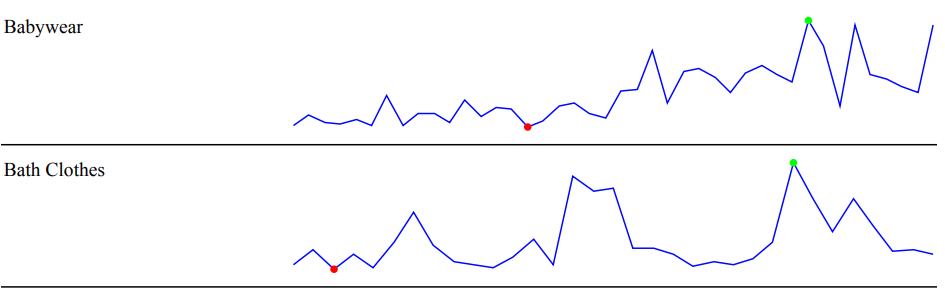
A sparkline is a simple visualization, usually styled in the form of a line, that is helpful for analyzing trends for a single metric. You can add sparklines to your PixelPerfect report using the Sparkline object.
A sparkline generally consists of a field (equivalent to a dimension) and a value member (equivalent to a measure).

Sparkline
Requirements
The data you use for a sparkline has to be added as a table data binding. These data bindings are added under Tables in the  Field List menu.
The source data for the sparkline should ideally contain a single dimension and a single measure. To use sparklines to visualize more complex, multi-dimensional data, it is recommended that you apply a level to the band where you add the sparkline. In this case, the level should be an additional dimension along which you want to cycle the generation of multiple filtered sparklines.
Creating sparklines
This is the recommended workflow for adding sparklines in your report.
다음과 같이 하십시오.
-
Open the
Field List menu available from the right-side panel in the designer. -
Click the plus icon next to Tables.
-
From the available sheets, select the Qlik Sense chart you want to add as a table. Click the
 icon next to it.
The data binding is added.
-
From the toolbox panel on the left side of the designer, drag a Sparkline onto the design surface.
-
Click the gear icon that appears next to the sparkline. In the pop-up menu, for Data Member, select the table data binding you created earlier.
-
Open the
 Properties menu from the right side of the designer, and expand Data.
 -
For Value Member, select the variable metric you want to visualize (for example, sales).
Refreshing source data for data bindings
시간이 지남에 따라 소스 차트 구성이 변경될 수 있으며, 이에 따라 PixelPerfect 보고서 템플릿에서 작업이 필요할 수 있습니다. 스파크선을 정의하는 데이터 바인딩에서 소스 앱 데이터를 새로 고칠 수 있습니다. 다음과 같은 경우 유용합니다.
-
데이터 바인딩을 만든 이후 소스 차트에 차원과 측정값이 추가되거나 제거되었습니다.
-
데이터 바인딩을 만든 이후 소스 차트에서 차원과 측정값의 정의가 변경되었습니다.
데이터 바인딩 소스를 새로 고치면 차트 구성이 변경될 때 새 개체를 만들지 않고도 필드 목록 메뉴에 동일한 개체를 유지할 수 있습니다.
다음과 같이 하십시오.
-
디자이너의 오른쪽 패널에서
필드 목록 메뉴를 엽니다. -
테이블을 두 번 클릭하여 확장합니다.
-
새로 고치려는 항목 위에 커서를 올려놓으십시오.
-
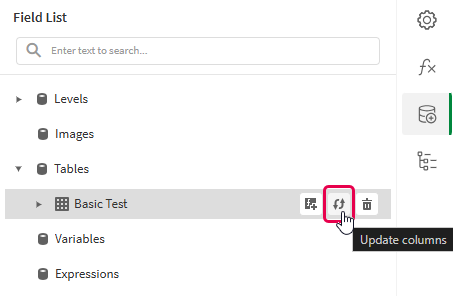
새로 고침(열 업데이트) 아이콘을 클릭합니다.
필드 목록 메뉴에서 테이블 데이터 바인딩 새로 고침
-
사용 사례에 맞게 계속하여 템플릿을 개발합니다. 여기에는 기존 콘텐츠를 재구성하거나 새 콘텐츠를 추가하는 작업이 포함될 수 있습니다. 이제 데이터 바인딩을 새로 고친 후 새로 추가된 차트 열을
필드 목록 메뉴에서 사용할 수 있습니다.
Example - Sparklines with a level
여기 자료 예 - 앱 내 보고의 앱 소스 예시를 참조하십시오. 앱과 데이터 파일을 공간에 업로드한 다음 앱을 다시 로드하십시오. 예제를 완료할 준비가 되었습니다.
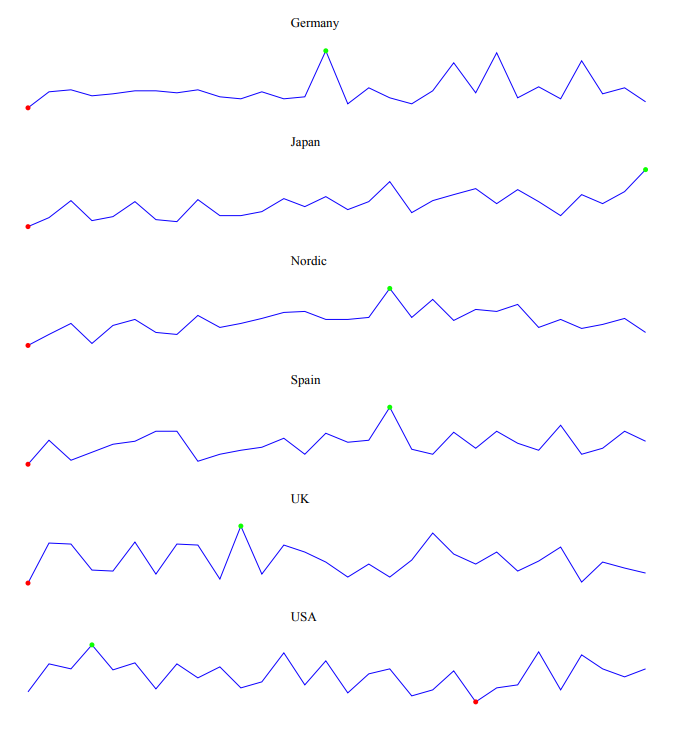
We will create sparklines with monthly sales by region.
Part 1: Add data bindings
다음과 같이 하십시오.
-
Create a new PixelPerfect template.
-
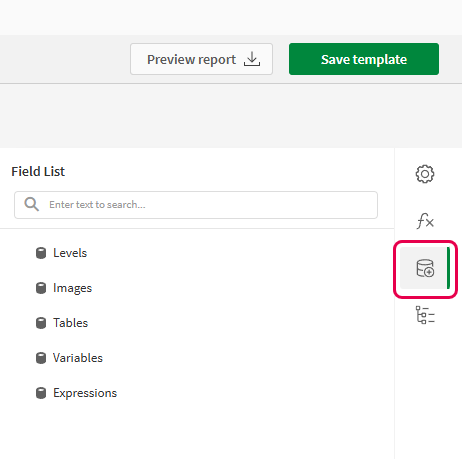
Open the
Field List menu available from the right-side panel in the designer.Field List menu in the PixelPerfect designer
-
Click the plus icon next to Levels.
-
Expand Fields, and click the
icon next to Region.The data binding is added.
-
You are brought back to the main
Field List menu. Click the plus icon next to Tables. -
Expand the Sales Table sheet, and click the
icon next to the Regional Sales over Time chart.The data binding is added.
Part 2: Add DetailReport band and connect it with data banding
You need to create a DetailReport band to use a level.
다음과 같이 하십시오.
-
Right-click the Detail1 band, and then click Insert Band > DetailReport.
-
To bind the DetailReport1 band to the level, select the band and then open the
Properties menu. Under Detail Report Tasks > Data Member, select the Region level.
Part 3: Add a label and sparkline
다음과 같이 하십시오.
-
Open the
Field List menu, and double-click Levels to expand it. -
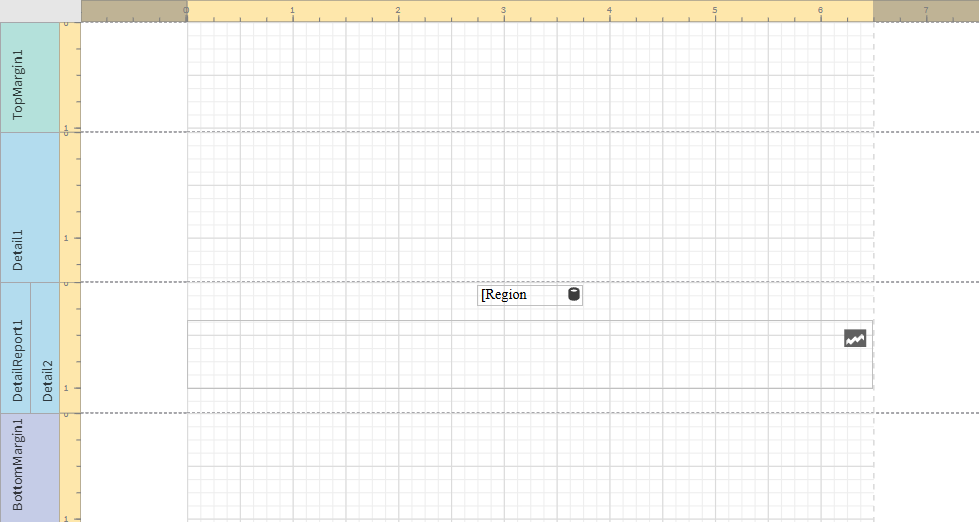
For Region, expand the level object and drag the Region field within it onto the DetailReport1 band.
Position the label at the top of the band, centered horizontally.
-
From the toolbox panel on the left side of the designer, drag a Sparkline onto the DetailReport1 band, below the Region label.
-
Resize the sparkline so that it occupies all horizontal space on the band, and its shape is a narrow rectangle.
-
Resize the DetailReport1 band so there is a small space at the bottom of the sparkline.
Region label and empty sparkline added to template
-
Select the sparkline and then open the
Properties menu. -
Expand Appearance > View.
-
Check Highlight Max Point and Highlight Min Point.
-
For Color, expand the drop down menu. Paste the following hex code in the # field: 0d00ff. Click OK.
-
For Max Point Color, expand the drop down menu. Paste the following hex code in the # field: 0dff00. Click OK.
-
For Min Point Color, expand the drop down menu. Paste the following hex code in the # field: ff0000. Click OK.
-
In the top right corner, click Save template.
-
Click Preview report. Download the report and open it.
Report preview with sparklines