
You add your insights to a story by using the snapshots you have taken. You can access all the available snapshots from the snapshot library in storytelling view.
See: Snapshot library
Viewing snapshots from the snapshot library
When you are working on a story you can view all your snapshots from the snapshot library.
Do the following:
-
In storytelling view, click Å in the story tools panel.
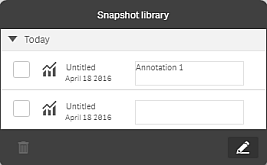
The snapshot library is opened with your snapshots sorted by date with the most recent snapshot on top.
- Click Å to close the snapshot library.
Editing annotations in the snapshots library
When taking a snapshot you can choose to add an annotation. From the snapshot library, you can change the annotations or add annotations to snapshots without annotations.
Do the following:
-
In storytelling view, click Å in the story tools panel.
The snapshot library is opened with a list of all your snapshots.
Tip noteYou can also access a snapshots library for each visualization. In sheet view, long-touch/right-click the visualization you want to view snapshots for and select Open snapshot library in the shortcut menu. -
Click @.
-
Click the annotation text area, to the right of the snapshot name.
 Information noteYou cannot edit annotations for snapshots that belong to a published version of an app.
 -
Edit the annotation.
-
Click @ or outside the text area.
The annotation is saved.
- Click outside the library to close it.
Deleting snapshots from the snapshots library
You can delete a snapshot from the snapshot library, which contains all snapshots you have taken in the app. You cannot delete snapshots that belong to a published version of an app.
Do the following:
-
In storytelling view, click Å in the story tools panel.
The snapshot library is opened with a list of all your snapshots.
Tip noteYou can also access a snapshots library for each visualization. In sheet view, long-touch/right-click the visualization you want to view snapshots for and select Open snapshot library in the shortcut menu. -
Click @.
Editing is enabled.
-
Select the snapshots you want to delete.
Information noteYou cannot delete snapshots that belong to a published version of an app. -
Click Ö.
The selected snapshots are deleted.
-
Click @ to stop editing.
-
Click outside the library.
The library is closed.
You have now deleted snapshots from the library.