
Many Qlik DataMarket data sets contain dimensions and measures that are structured hierarchically. DataMarket data sets that are structured hierarchically contain two-level and three-level hierarchies. How selections are made in those hierarchies depends on the data at each level.
Selecting parent and child branches
In some hierarchies, selections can be made at any and all levels. For example, the data set Selected development indicators contains the dimension Geographical area with three levels.
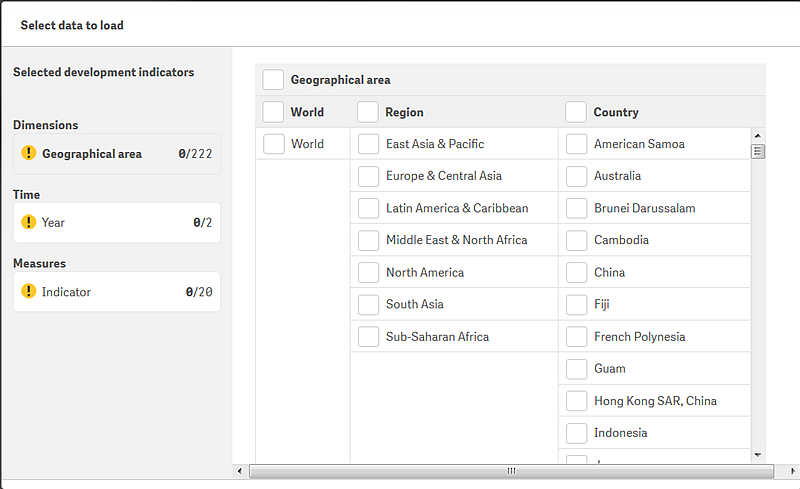
A selection from either World, Region, or Country is valid by itself. Any selection that includes the highest level loads all the data for the regions and countries even if specific regions and countries are also selected. But if a region is selected by itself, then only that region of the world is loaded.
If you select both World and North America, world data is displayed separately from North America data.
If you select Canada from Country, then you get separate data for the world, the North America region, and Canada.
If you select Canada from Country but do not select North America, then the aggregate data for North America is not loaded. Only the data for Canada is loaded for the North America region.
Selecting parent branches that contain no data
In some data sets, the parent branch in a hierarchy contains no data and so cannot be selected by itself. (The fields for branches without data are displayed in bold type.) For example, in the data set US social characteristics (by state), a selection that includes only a parent in the Subject measure is not a complete selection. In the following screen, Subject in the left column is marked yellow even though one selection (Ancestry) has been made. A selection must be made in the child column.
Until the selection is complete, the next step buttons are not activated. They are not activated until you select a field in the right column of the Subject measure. Those are the fields that contain data, and selecting one or more of them completes the selection for the Subject measure.
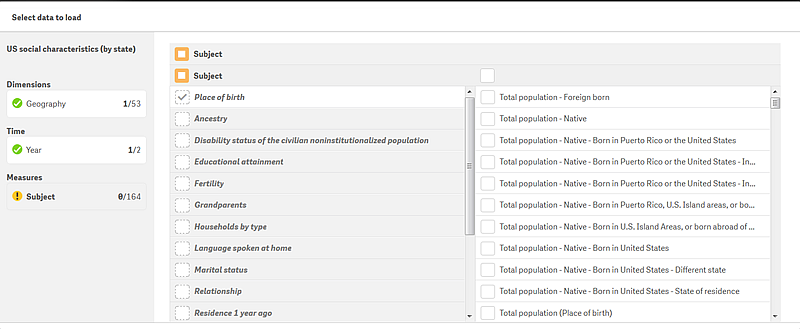
In the case of parent branches that do not include data, you do not have to select from the parent branch. In the data set in the above screen, you could unselect Ancestry and simply select one of the Total population fields in the child branch. The advantage of selecting a field in the parent branch is that it highlights in the child branch the data that is relevant to the parent selection.
If you select a field from a parent branch that does not include data and then select an unrelated field from the child branch, the child-branch field is used for the data selection. When the table loads in the Data manager, no data from the unrelated parent branch is displayed. For example, if a Total population field is selected from the US social characteristics (by state) data set and an unrelated field such as Marital status is selected in the parent branch, the Total population data is loaded, and no data for Marital status is included.