
This scenario describes how to setup a typical internal production deployment, which provides the ability to scale up both reloads and user load.
Node layout
Each node within the site only contains the services and data that it needs to perform its role.
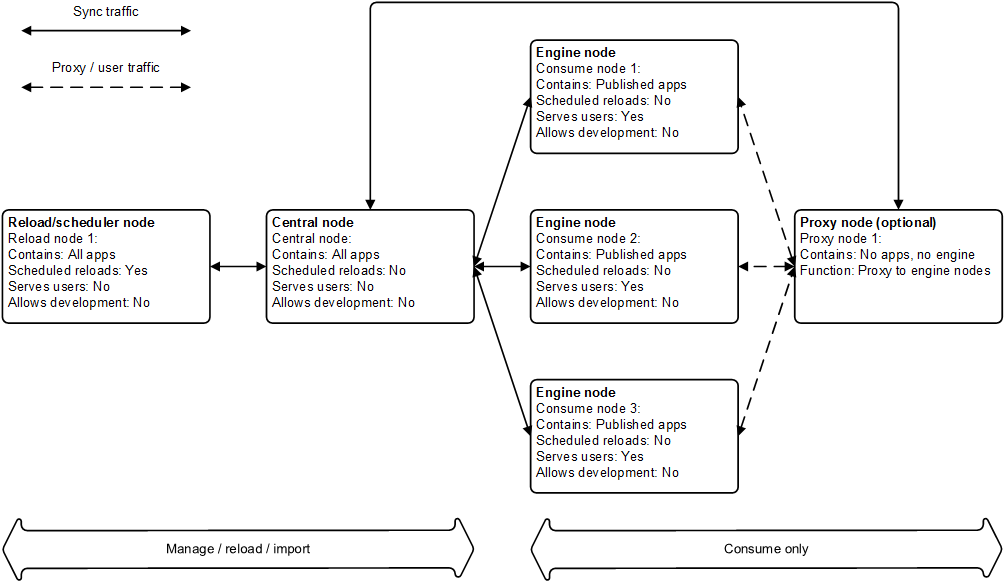
Services on each node
The table below lists the Qlik Sense services that are deployed on each node in the site.
| Node name | Qlik Sense Repository Service (mandatory) | Qlik Sense Engine Service | Qlik Sense Scheduler Service | Qlik Sense Proxy Service |
|---|---|---|---|---|
| Central node | x | x | x | x |
| Reload/scheduler node(s) | x | x | x | |
| Consume node(s) | x | x | ||
| Proxy node | x | x |
Configuration steps
Basic installation
Proceed as follows to perform the basic installation:
- Starting with the central node, install the Qlik Sense software and services as described in the table above.
- Add each rim node via the Qlik Management Console (QMC) on the central node.
- When all rim nodes have been added, check that they are displayed as being online in the QMC on the central node.
See: Installing and upgrading Qlik Sense
See: Configuring the node
See: Authorizing the certificate on the node
Load balancing
Proceed as follows to configure the load balancing:
- Select Proxies in the Qlik Management Console (QMC) on the central node.
- Edit the settings for the proxy node.
- Check that the hub is accessible on the proxy node. In addition, check that the hub lists the apps.
Under Load balancing nodes, specify that the consume nodes should be used.
Qlik Sense Scheduler Service
Proceed as follows to configure the Qlik Sense Scheduler Service (QSS):
- Configure the QSS on the central node to run as master only (that is, do not run reloads on the central node). The reload node should be set as slave, which means it will handle all reloads.
License Monitor and Operations Monitor
In multi-node environments, the License monitor and Operations monitor apps can be reloaded on any node.
Proceed as follows:
-
Share the Qlik Sense folder on the central node.
The default location is %ProgramData%\Qlik\Sense.
- Update the data connections ServerLogFolder and ArchivedLogFolder by replacing %ProgramData%\Qlik\Sense with the path to the shared folder.
- Reload the apps on the rim nodes.
Because of the way multi-node environments are synchronized and the way logs are archived, the results of reloads may not be completely current. Reloads include all logs from the ArchivedLogFolder folder on the central node and the active .txt log files stored in the Sense\Log folder on the central node.