
Qlik Sense can be used on computers and touch devices. There are a number of gestures for touch devices and keyboard shortcuts you can use to help you interact more easily with Qlik Sense and aid you in exploring your apps.
Touch gestures
This table describes the various gestures that can be used on touch devices.
| Tap |

|
Corresponds to a left-click with a computer mouse. |
| Double-tap |

|
Corresponds to a double-click with a mouse. |
| Swipe |
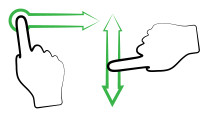
|
Used for scrolling lists and making selections in visualizations. |
| Two-finger swipe |
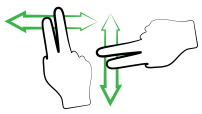
|
Used for scrolling and panning. |
| Two-finger tap |

|
Used for selecting a range of values in a list. |
| Pinch |
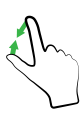
|
Used for zooming. |
| Long-touch |

|
Used for opening shortcut menus and selecting an object so it can be moved. |
| Three-finger tap |

|
Resets the zoom level of a scatter plot visualization |
| Long-touch and drag |
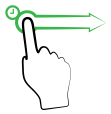
|
Moves a slide to a new location in storytelling view, moves an item on a slide in storytelling view |
Keyboard shortcuts
Information noteKeyboard shortcuts are expressed assuming that you are working in Windows. For Mac OS use Cmd instead of Ctrl.
| Shortcut | Action |
|---|---|
| Ctrl+P | Prints the current view or active sheet/story. |
| Ctrl+C | Copies the selected item to the clipboard. |
| Ctrl+X | Cuts the selected item and copies it to the clipboard. |
| Ctrl+V | Pastes the most-recently copied item from the clipboard. |
| Ctrl+Z | Undo action. Repeat to undo earlier actions. |
| Ctrl+Y (Cmd+shift+Z for Mac OS) | Redo actions. |
| Ctrl+H | Opens online help in the context of the current function, while in the data load editor or the expression editor. |
| Ctrl+F | Opens the search tool. |
| Ctrl+E | In sheet view, opens and closes the editing of the selected sheet. |
| Ctrl+S | Saves changes to the app when running Qlik Sense Desktop. In Qlik Sense, changes are saved automatically.. |
| Ctrl+O | Opens the local computer file directory when editing in sheet view. |
| Ctrl+A | Selects all code in the data load editor. |
| Ctrl+00 | Inserts a test script in the data load editor. |
| Tab |
Indents code in the data load editor. Moves to the next field in the QMC. |
| Shift+Tab |
Outdents code in the data load editor. Moves to the previous field in the QMC. |
| Left arrow | Navigates to the previous slide in storytelling view. |
| Right arrow | Navigates to the next slide in storytelling view. |
| Up arrow | Scrolls up in a table. |
| Down arrow | Scrolls down in a table. |
| Ctrl+left arrow | Navigates to the previous sheet in sheet view. |
| Ctrl+right arrow | Navigates to the next sheet in sheet view. |
| Ctrl+up arrow | Navigates to the first sheet of the app in sheet view. |
| Ctrl+down arrow | Navigates to the last sheet of the app in sheet view. |
| Esc |
Exits play mode in storytelling view. Deselects a visualization when editing in sheet view. Deselects an object. Undoes selections in a visualization. Closes a dialog or window. |
| Delete | Deletes selected item. |
| Backspace |
Deletes selected item. Goes back in navigation in the QMC. |
| Enter/Return | Performs the action for the active option or button (for example, in dialogs). |