
One way to make insights stand out and help you getting your message through in a clear way is the possibility to hide, or show, certain parts of a snapshot. You can change how a snapshot appears by turning the following parts on or off:
- Titles (main title, subtitle and footnote)
- Labels (data point labels, leaf labels)
- Legend
- X-axis with title and labels
- Y-axis with title and labels
Information noteDepending on which type of visualization the snapshot shows and what parts that were visible when the snapshot was taken, the parts possible to hide or show will differ. For example, if a pie chart didn't show the legend at the time a snapshot was taken, then the Show legend setting will not be available.
Do the following:
- In storytelling view,click the snapshot you want to edit.
-
Click .
A dialog where you can change the snapshot's appearance is opened.
-
For Show titles, Show labels and Show legend, click either On or Off to show or hide them.
The snapshot changes appearance accordingly
-
For Show x-axis and Show y-axis, select one of the options Labels and title, Labels only, Title only or None from the drop-down list.
The snapshot changes appearance accordingly
- Click Done.
The snapshot’s appearance has changed.
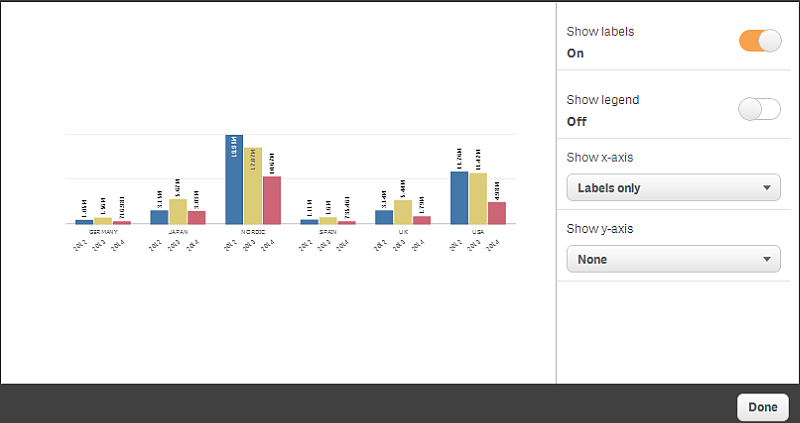
A snapshot dialog with only the x-axis and the data labels visible.