
Adding sparklines
A sparkline is a simple visualization, usually styled in the form of a line, that is helpful for analyzing trends for a single metric. You can add sparklines to your PixelPerfect report using the Sparkline object.
A sparkline generally consists of a field (equivalent to a dimension) and a value member (equivalent to a measure).

Sparkline

Requirements
The data you use for a sparkline has to be added as a table data binding. These data bindings are added under Tables in the  Field List menu.
The source data for the sparkline should ideally contain a single dimension and a single measure. To use sparklines to visualize more complex, multi-dimensional data, it is recommended that you apply a level to the band where you add the sparkline. In this case, the level should be an additional dimension along which you want to cycle the generation of multiple filtered sparklines.
Creating sparklines
This is the recommended workflow for adding sparklines in your report.
Выполните следующие действия.
-
Open the
Field List menu available from the right-side panel in the designer. -
Click the plus icon next to Tables.
-
From the available sheets, select the Qlik Sense chart you want to add as a table. Click the
 icon next to it.
The data binding is added.
-
From the toolbox panel on the left side of the designer, drag a Sparkline onto the design surface.
-
Click the gear icon that appears next to the sparkline. In the pop-up menu, for Data Member, select the table data binding you created earlier.
-
Open the
 Properties menu from the right side of the designer, and expand Data.
 -
For Value Member, select the variable metric you want to visualize (for example, sales).
Refreshing source data for data bindings
Со временем конфигурация исходной диаграммы может измениться, что потребует действий в шаблоне отчета PixelPerfect. Вы можете обновить данные из исходного приложения в привязке данных, которая используется в определении мини-графика (диаграммы «Спарклайн»). Это может быть полезно в следующих ситуациях:
-
Измерения и меры были добавлены или удалены из исходной диаграммы после того, как была создана привязка данных.
-
Определения измерений и мер были добавлены или удалены из исходной диаграммы после того, как была создана привязка данных.
Обновление источников в привязке данных позволяет сохранять одни и те же объекты в меню Список полей, не создавая новые в случае изменения конфигурации диаграммы.
Выполните следующие действия.
-
Откройте меню
Field List (Список полей), доступное на правой панели конструктора. -
Дважды щелкните Таблицы, что развернуть дерево таблиц.
-
Наведите курсор на элемент, который требуется обновить.
-
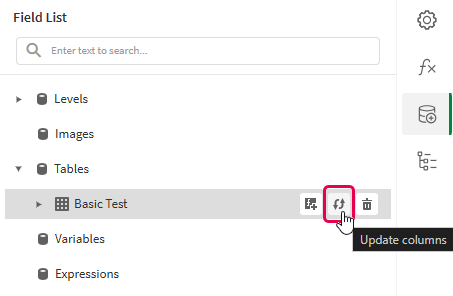
Нажмите на значок обновления (Обновить столбцы).
Обновление привязки данных таблицы в меню Список полей
-
Продолжайте разработку шаблона в соответствии со своим сценарием использования. В этом случае можно добавить новый контент или изменить конфигурацию существующего. После обновления привязки данных только что добавленные столбцы станут доступными для использования в меню
Список полей.
Example - Sparklines with a level
Примеры источников приложений приводятся здесь: Материалы примеров ― отчеты в приложении. Загрузите файлы приложения и данных в пространство, а затем перезагрузите приложение. Вы готовы к работе с примером.
We will create sparklines with monthly sales by region.
Part 1: Add data bindings
Выполните следующие действия.
-
Create a new PixelPerfect template.
-
Open the
Field List menu available from the right-side panel in the designer.Field List menu in the PixelPerfect designer

-
Click the plus icon next to Levels.
-
Expand Fields, and click the
icon next to Region.The data binding is added.
-
You are brought back to the main
Field List menu. Click the plus icon next to Tables. -
Expand the Sales Table sheet, and click the
icon next to the Regional Sales over Time chart.The data binding is added.
Part 2: Add DetailReport band and connect it with data banding
You need to create a DetailReport band to use a level.
Выполните следующие действия.
-
Right-click the Detail1 band, and then click Insert Band > DetailReport.
-
To bind the DetailReport1 band to the level, select the band and then open the
Properties menu. Under Detail Report Tasks > Data Member, select the Region level.
Part 3: Add a label and sparkline
Выполните следующие действия.
-
Open the
Field List menu, and double-click Levels to expand it. -
For Region, expand the level object and drag the Region field within it onto the DetailReport1 band.
Position the label at the top of the band, centered horizontally.
-
From the toolbox panel on the left side of the designer, drag a Sparkline onto the DetailReport1 band, below the Region label.
-
Resize the sparkline so that it occupies all horizontal space on the band, and its shape is a narrow rectangle.
-
Resize the DetailReport1 band so there is a small space at the bottom of the sparkline.
Region label and empty sparkline added to template

-
Select the sparkline and then open the
Properties menu. -
Expand Appearance > View.
-
Check Highlight Max Point and Highlight Min Point.
-
For Color, expand the drop down menu. Paste the following hex code in the # field: 0d00ff. Click OK.
-
For Max Point Color, expand the drop down menu. Paste the following hex code in the # field: 0dff00. Click OK.
-
For Min Point Color, expand the drop down menu. Paste the following hex code in the # field: ff0000. Click OK.
-
In the top right corner, click Save template.
-
Click Preview report. Download the report and open it.
Report preview with sparklines
