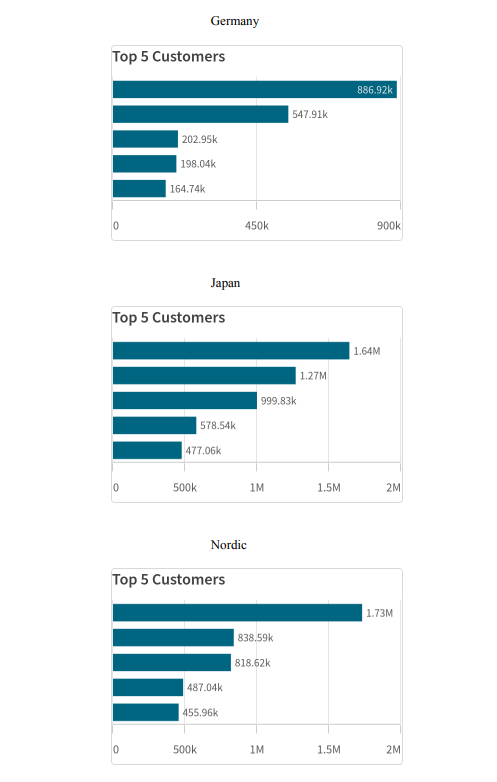
Using a level to loop over app data
You can loop and repeat the creation of report elements using data from the Qlik Sense app.
For an overview of levels, see Working with levels.

High-level workflow
This is the recommended workflow for using levels in your PixelPerfect report. It covers some of the most common and simple ways to work with levels in the designer.
Part 1: Add data bindings
First, you need to add the data binding that will be used to cycle the generation of unique report elements. For example, if you want a separate section in the report for each region, you need to add a Region field as a data binding. Data bindings are added in the  Field List menu.
This workflow assumes you already have content, in the applicable areas in the template, for which you want to create a level.
請執行下列動作:
-
Open the
Field List menu available from the right-side panel in the designer. -
Click the plus icon next to Levels.
-
Expand the sections to find the item you want to use. You can select a field from Fields, or an entire chart from any of the sheet sections.
-
Click the
 icon next to an item to add it as a data binding.
Part 2: Connect the data binding to the band
Next, you need to connect the level data binding to a band.
You cannot bind a level to the default Detail1 band, so you will need to create a new DetailReport band for content where you plan on using a level.
請執行下列動作:
-
Create a new DetailReport band. See Creating a new band.
-
Select the new band, if not already selected.
-
Open the
 Properties menu from the right side of the designer.
 -
Under Detail Report Tasks > Data Member, select the item to use as the level.
Refreshing source data for data bindings
您可以重新整理已新增為層級資料繫結的圖表所使用的來源應用程式資料。這在下列情況下十分實用:
-
自從建立資料繫結以來,維度和量值已新增至來源圖表或從來源圖表中移除。
-
自從建立資料繫結以來,已在來源圖表中變更維度和量值的定義。
重新整理資料繫結來源可讓您在 欄位清單功能表中保留相同的物件,而無需在圖表設定變更時建立新的物件。
請執行下列動作:
-
開啟設計工具右側面板中提供的
欄位清單功能表。 -
按兩下層級以便展開。
-
將游標暫留在要重新整理的項目上。
-
按一下重新整理 (更新欄位) 圖示。
重新整理欄位清單功能表中的層級資料繫結
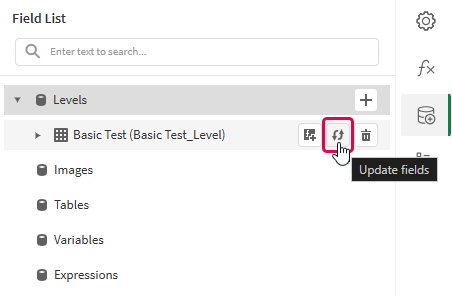
-
根據您的使用情況繼續進行範本開發。這可能涉及重新設定現有內容或新增內容。重新整理資料繫結後,新增的圖表欄現在可以從
欄位清單功能表中使用。
Example - Looping chart images over a dimension
請參閱此處的範例應用程式來源:範例材料 - 應用程式內報告。將應用程式和資料檔案上傳到空間,然後重新載入應用程式。您已準備好完成該範例。
Part 1: Add data bindings
請執行下列動作:
-
Create a new PixelPerfect template.
-
Open the
Field List in the designer.Field List menu in the PixelPerfect designer
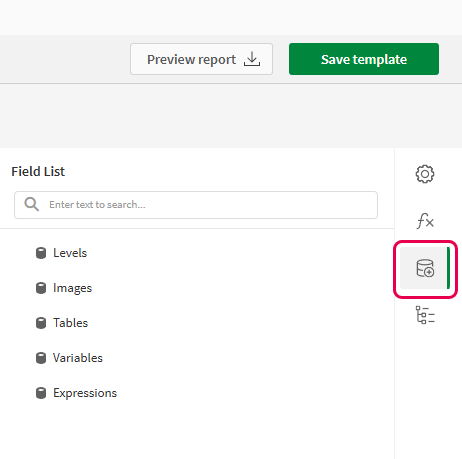
-
Click the plus icon next to Levels.
-
Expand Fields, and click the
icon next to the Region chart.The data binding is added.
-
You are brought back to the main
Field List menu. Click the plus icon next to Images. -
Expand the Dashboard sheet, and click the
icon next to the Top 5 Customers chart.The data binding is added.
Field List menu showing newly created level and image data bindings
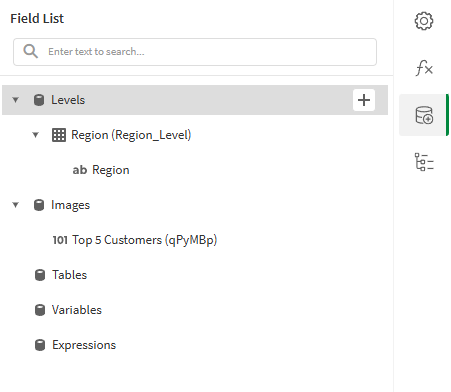
Part 2: Add band and content
請執行下列動作:
-
On the design surface, right-click the Detail1 band and select Insert Band > DetailReport.
-
Open the
Field List menu, and double-click Levels to expand it. -
For Region, expand the level object and drag the Region field within it onto the DetailReport1 band.
Position the label at the top of the band.
-
In the
Field List menu, expand Images and drag Top 5 Customers onto the DetailReport1 band. Place it below the Region label.
You can customize and style the content as desired.
Part 3: Bind the level to the band
請執行下列動作:
-
Click the DetailReport1 band.
-
Open the
Properties menu from the right side of the designer. -
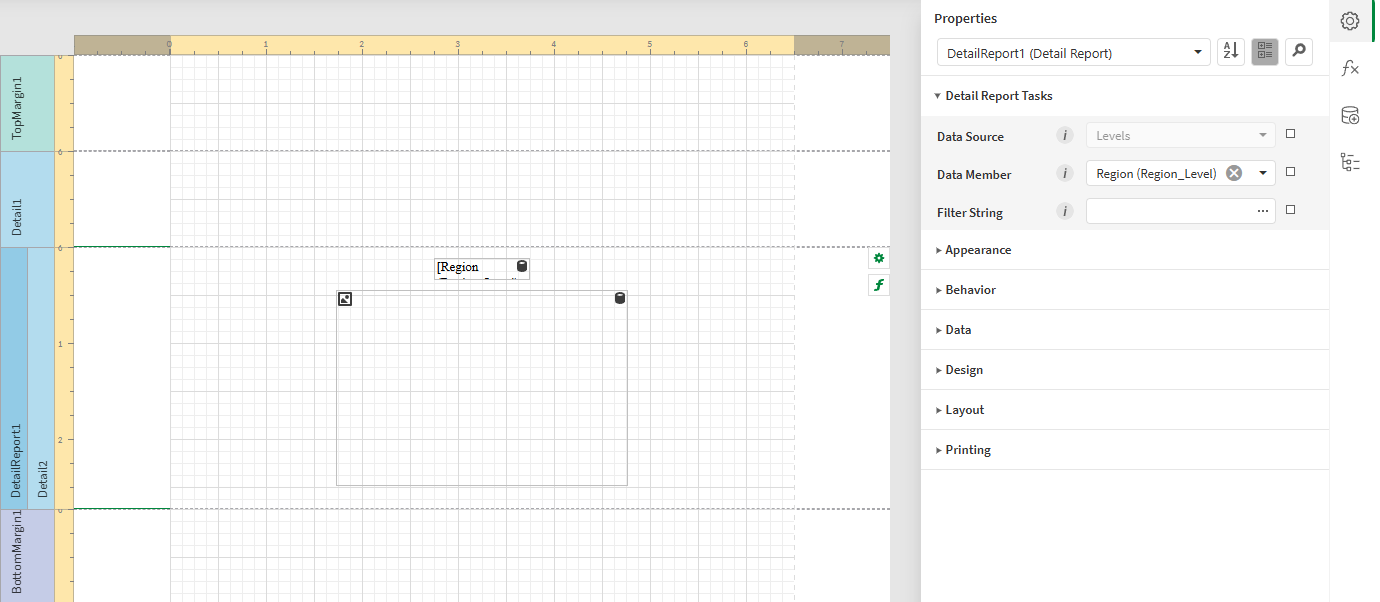
Under Detail Report Tasks > Data Member, select the Region field.
Report template with content and DetailReport1 band bound to level
-
In the top right corner, click Save template.
-
Click Preview report. Download the report and open it.
Report preview